
Export statistics
Statistics can be exported based on your selected templates.
This section explains how to register templates and export statistics.
The following management roles are required to perform these actions:
- Configure statistics settings: Co-admin
- Export statistics: Grade manager (Edit/View)
Statistics settings
You can register and manage templates used for exporting statistics.
Required
Management role of Co-admin
01. Open the settings page
From the side menu, select "System settings" > "Settings."
Scroll to the Statistics settings section and click Go to Templates.

02. Download sample template
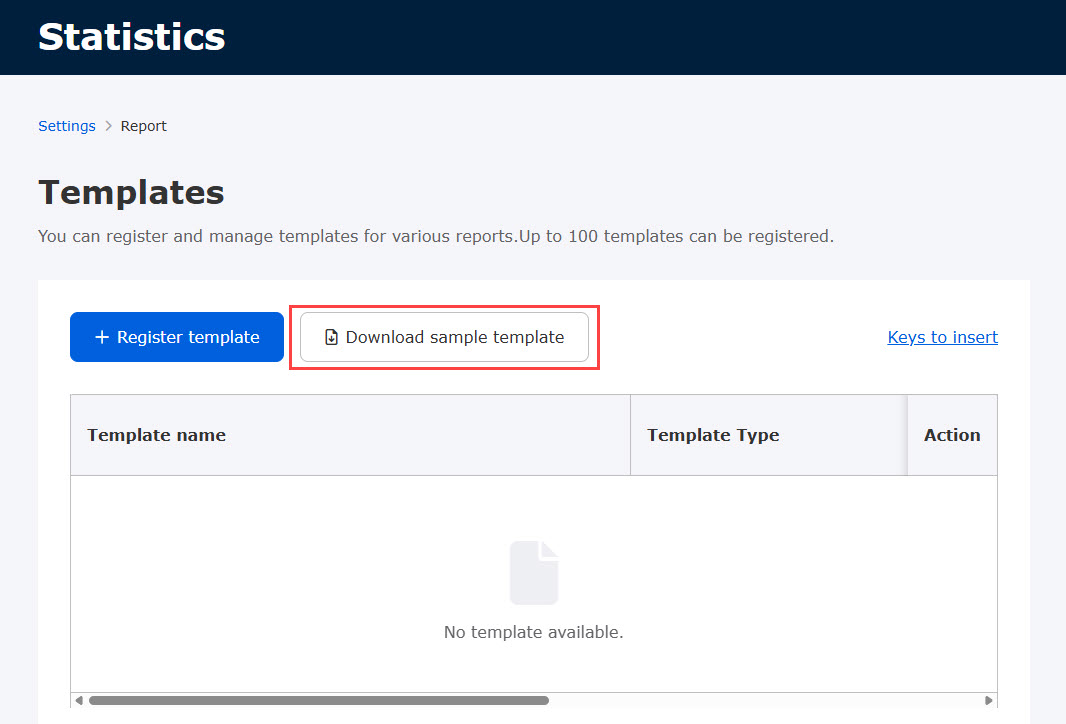
The following page will appear.
First, download a sample template.
You can edit the template to be registered.
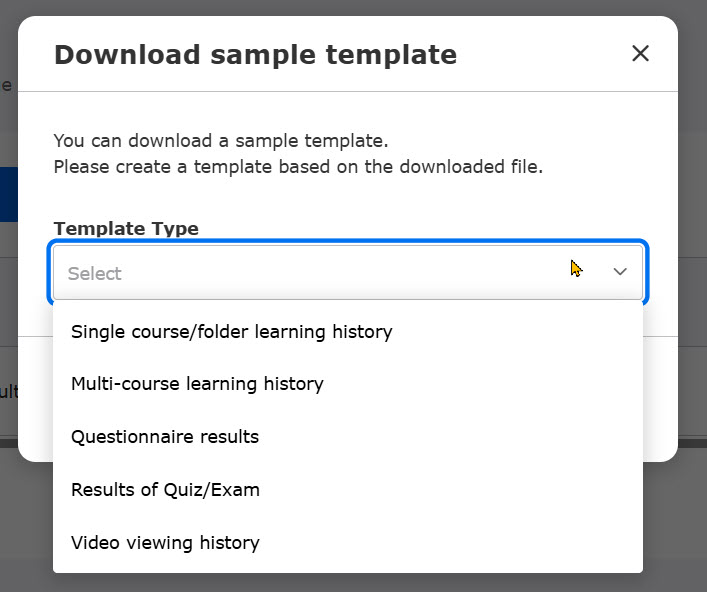
The following window will appear.
Select a template type to download.
- Learning history for a single course or folder: Generates statistics for a single course or folder. Accessible from the specific group or content view within the Progress record page.
- Learning history for multiple courses: Generates statistics for multiple courses. Accessible from the courses after selecting a group on the Progress record page.
- Questionnaire results: Compiles questionnaire data. Generated from the By content tab under Manage grades.
- Results of Quiz/Exam: Compiles quiz and exam performance metrics. Generated from the By content tab under Manage grades.
- Video view history: Compiles video viewing logs. Generated from the By content tab under Manage grades.
03. Keys to insert
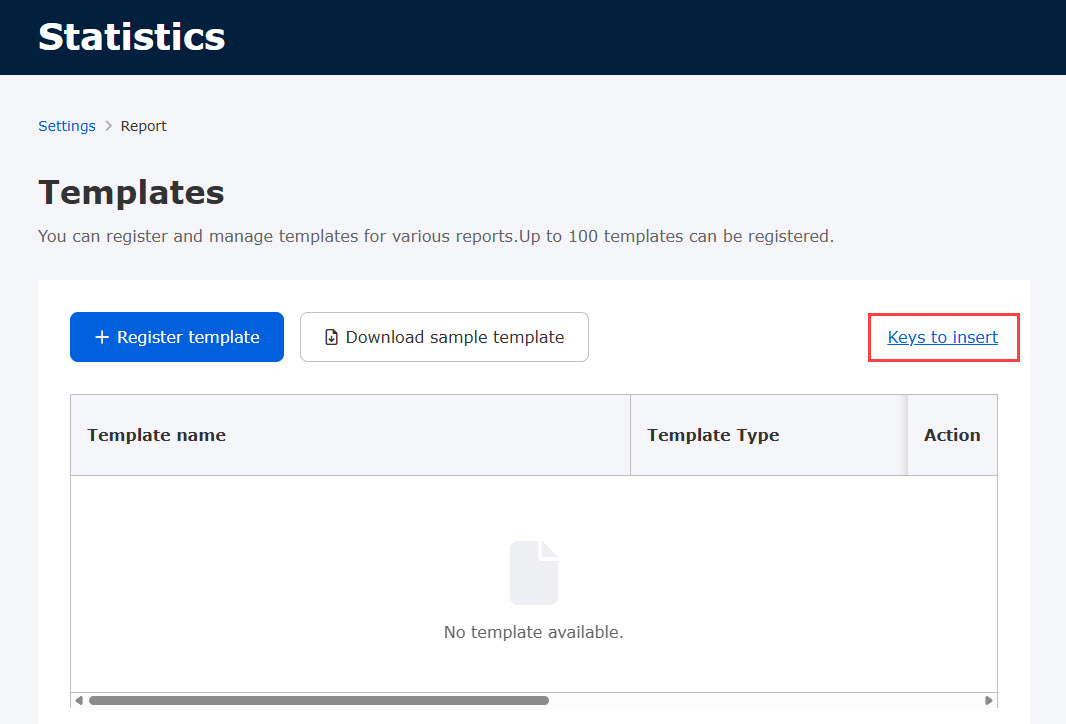
You can verify which keys can be used in your templates.
Click on "Keys to insert."
The following window will appear.
Select a template type from the dropdown menu.
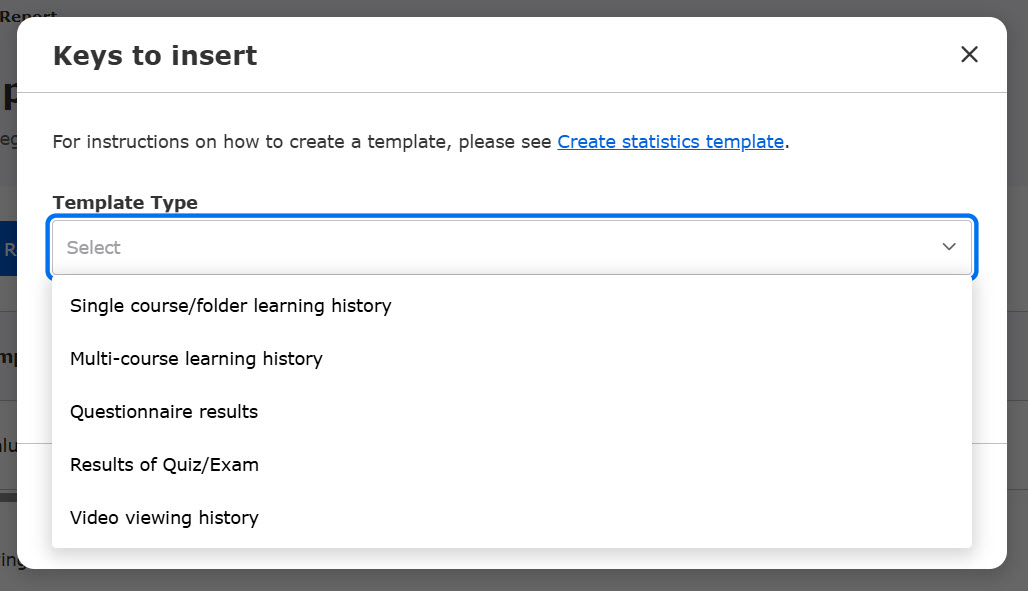
A list of available keys for that specific template type will be displayed.

04. Customize template
You can edit your downloaded sample template.
Use the keys found in Step 03.
For more details on how to edit templates, refer to Create statistics template.
05. Register template
Once you have finished editing your template, upload and register it.
Click on "+ Register template."
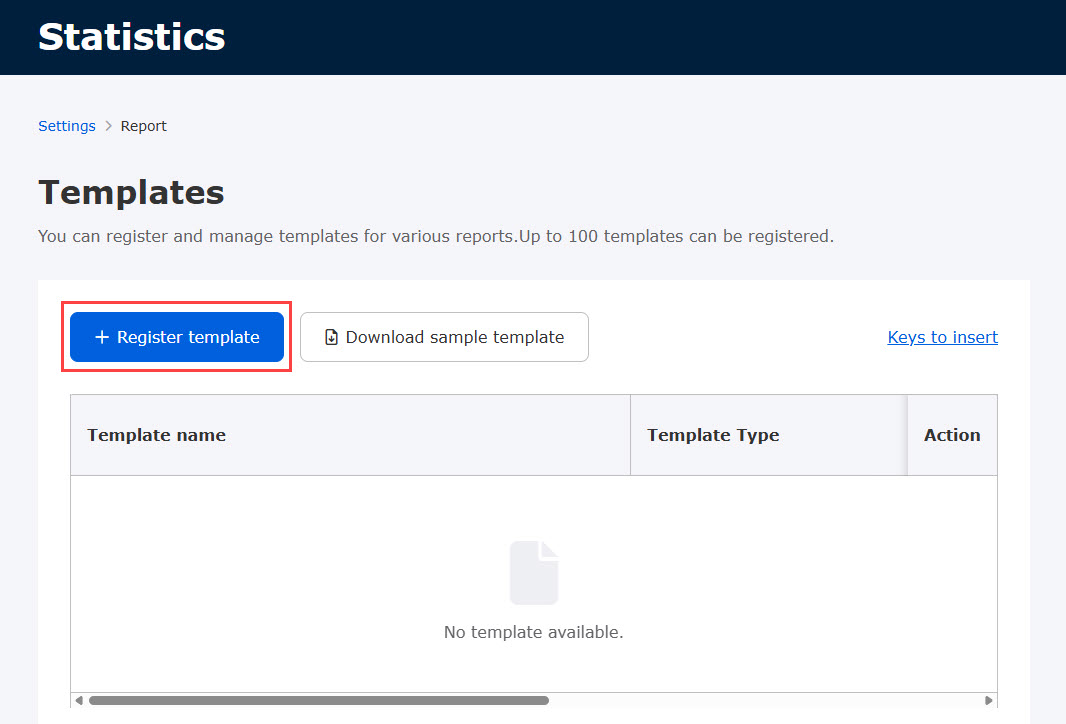
The following window will appear.
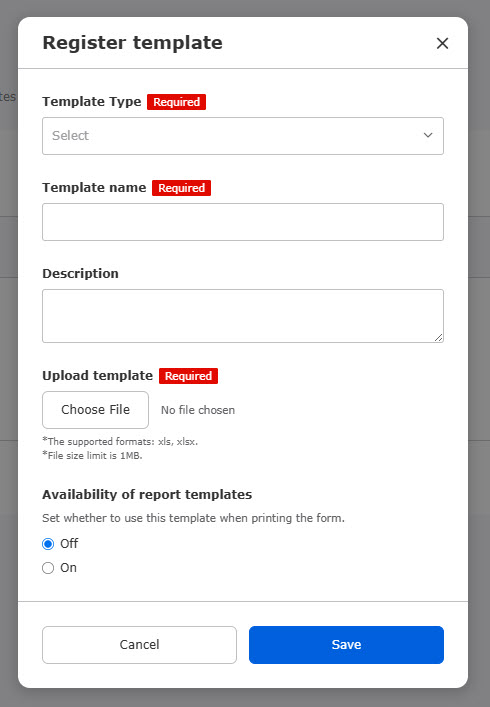
Select the Template Type and fill out the form.
Click "Choose File" to upload your custom template.
Also, set whether to use the template in the Availablity of report templates.
Click Save to finalize.
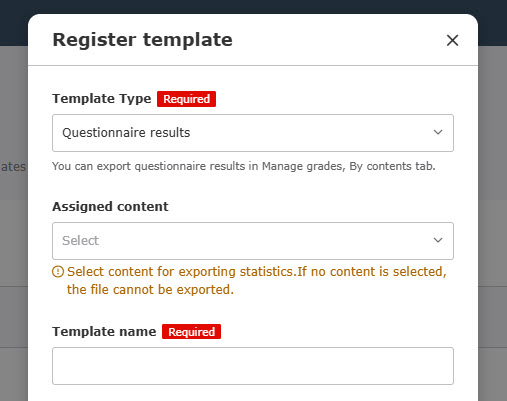
If you select Questionnare results, Results of quiz/exam, or video viewing history, an Assigned content dropdown will appear. Select the content to export statistics (multiple selections allowed).
*Only content you have permission to view/edit will be displayed.
You cannot select questionnaire files in html format.
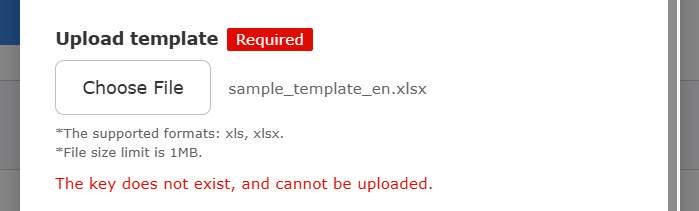
If the template contains keys that do not belong to the selected template type, the upload will fail.
06. Template list
Registered templates will appear in this list.
*You can register up to 100 templates in total.

07. Action
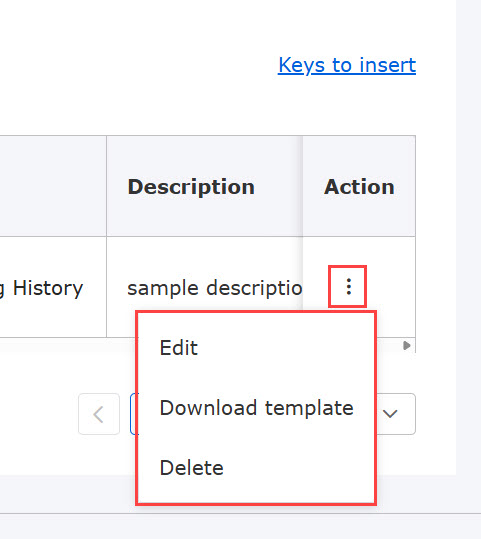
Click the "︙" icon in the Action column.
▼ Edit
You can modify template details.
To find how to edit the template, refer to the registration section.
*The template type cannot be changed.
▼Download template
You can download the registered template file.
▼ Delete
You can remove registered templates.
Export statistics
The data included in an export depends on the template type used.
The following explain each type.
Required
Management role of Grade manager (Edit/View)
Export from Progress record
From the Group tab of the Progress record page, you can generate statistics for learning history for a single course or folder and learning history for multiple courses.
*For more details on how to use Progress records, refer to Progress record.
01. Go to Progress record
In the side menu, select "Manage grades" > "Progress record"
02. Export statistics
Select your export method based on the report type.
▼Learning history for multiple courses
On the Group tab, click "Details" next to the target group.
Click "Export statistics" in the upper-right corner of the course or folder.
*Statistics cannot be generated from the "All users" details.

Click "Export statistics" to view the page below.
Select the courses you want to include.
*The total volume (Number of selected courses × number of users) cannot exceed 5,000.

Click Next to proceed.
Select a template from the dropdown menu.

Click “Conditions to export” to expand settings.
You can filter the items such as completion rate or user status.
Click "Export" to generate the file.

▼Learning history for a single course or folder
On the Group tab, click "Details" next to the target group.
Select the specific course or folder from the list.
On the right side of the page, select "Action" > "Export statistics."

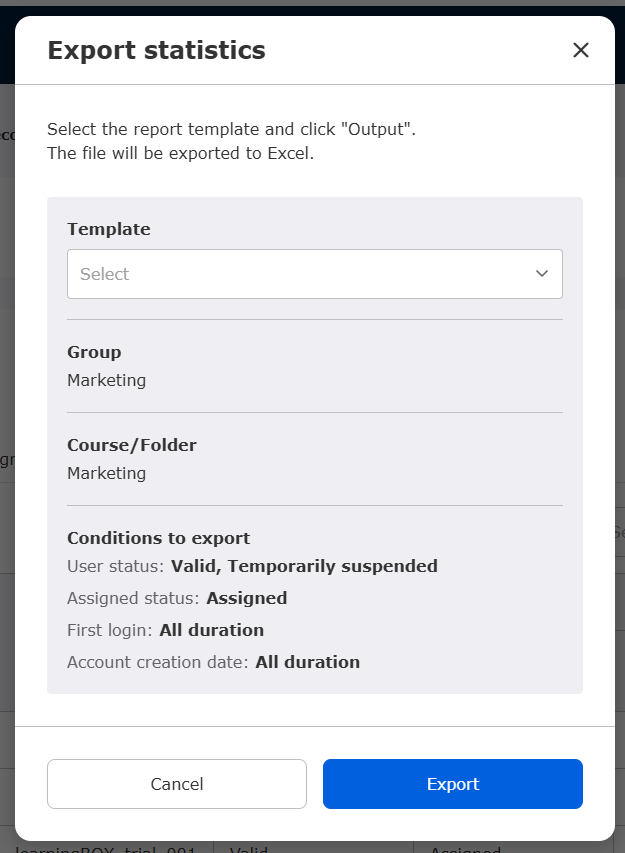
The following window will appear.
Review the Group, Course/Folder, and conditions to export, select your template from the Template dropdown, and click Export.
The statistics will be exported based on the selected courses or folders which you select.
*The export will automatically apply active criteria set in your Filter settings.
Export by content
From the Scores tab of the By content page, you can export statistics for Questionnaire results, results of quiz/exam, or video viewing history.
*For more details about how to use "By content," refer to By contents.
01. Select "By content"
From the side menu, go to "Manage grades" > "Per content"
02. Select content
Click on the specific content to export statistics.
Select the "Scores" tab.
03. Export statistics
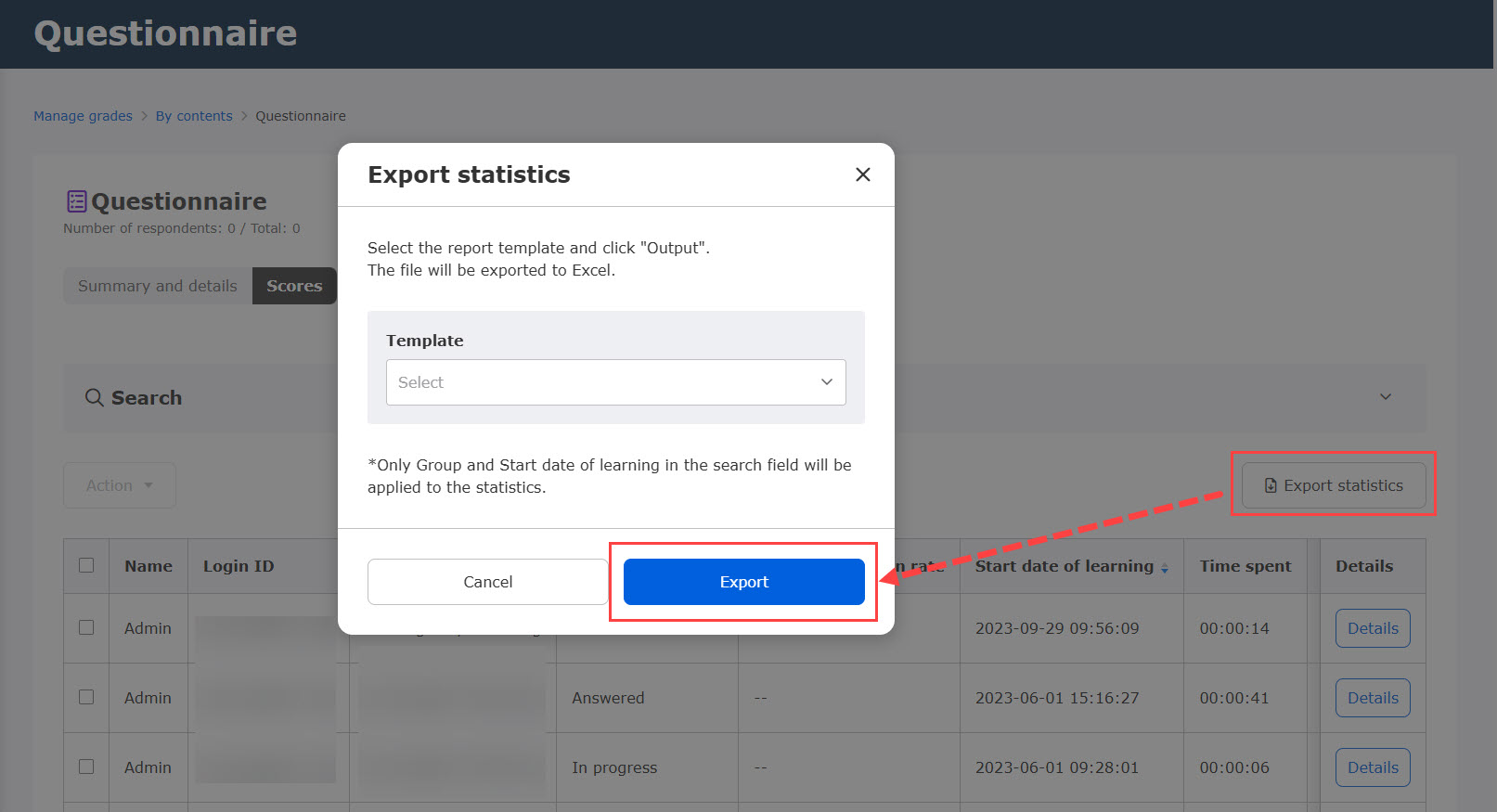
Click on "Export statistics" on the right side of the page.
Select a template from the list, and click "Export."
Course information for each content will be exported.
*For anonymous surveys, personally identifiable fields will be masked with asterisks (********).
Statistics cannot be exported for the following:
- Questionnaires that do not match the content type targeted by the template.
- Questionnaires created in html format