
Take online training course
The following is an explanation of the process for learners to attend the training.
What is the Training feature?
Multiple courses can be combined to build a single training program.
This allows learners to select and reserve training courses from the list, and take it within the specified period.
Required
Customization option
Training Reservations
01. Open the training list screen
On the side menu, select "Find Training".
02. Training Selection
Select the desired one on the Training List screen.
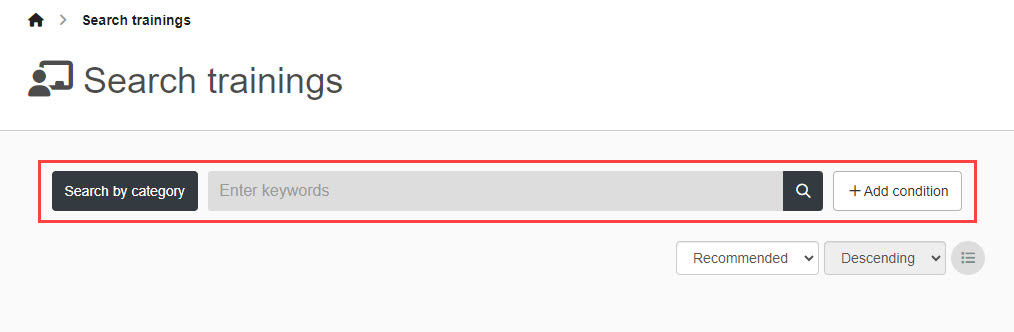
The search field at the top of the screen can be used to narrow down the display.
Click on "+Add condition."Basic settingsThe items selected in "Search Settings" in "Search Settings" can be used as search criteria.
You can also click on "Search by Category" to search by the category you have set for the training.
03. Open the training details screen.
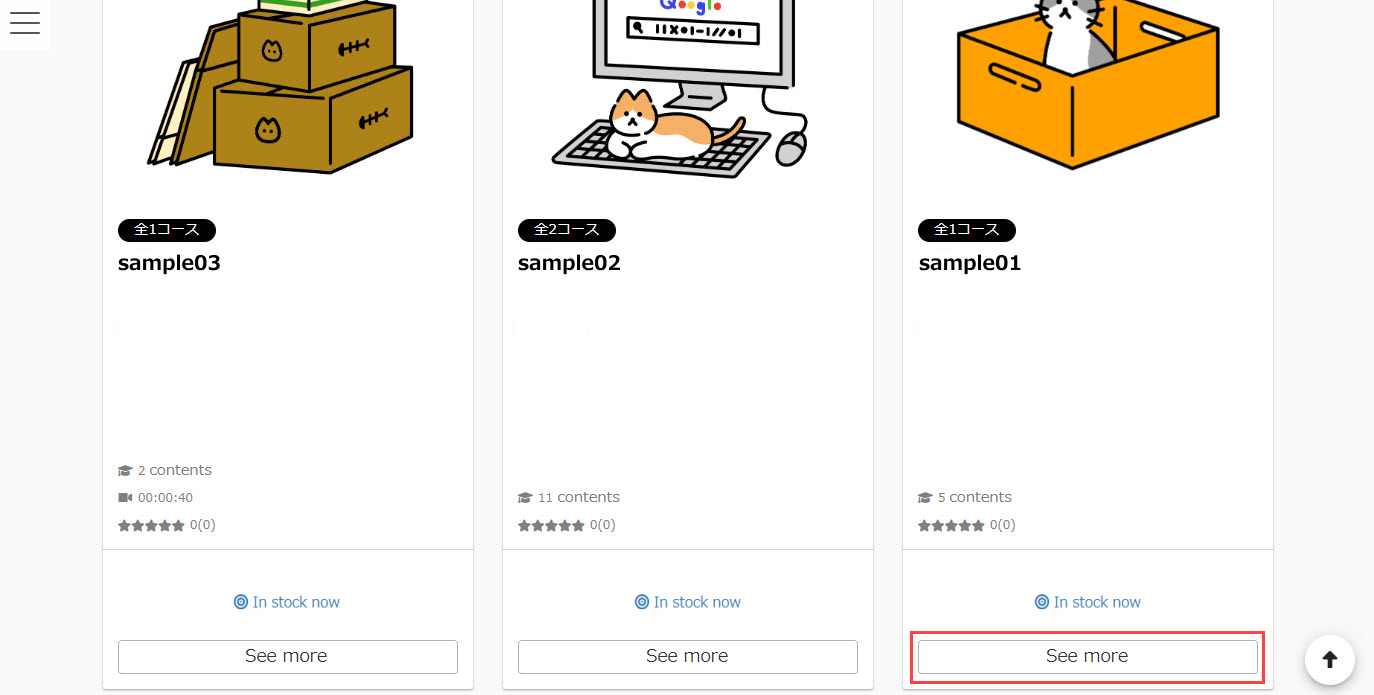
On the Training List screen, click "View Details" for the desired training.
04. Reservation
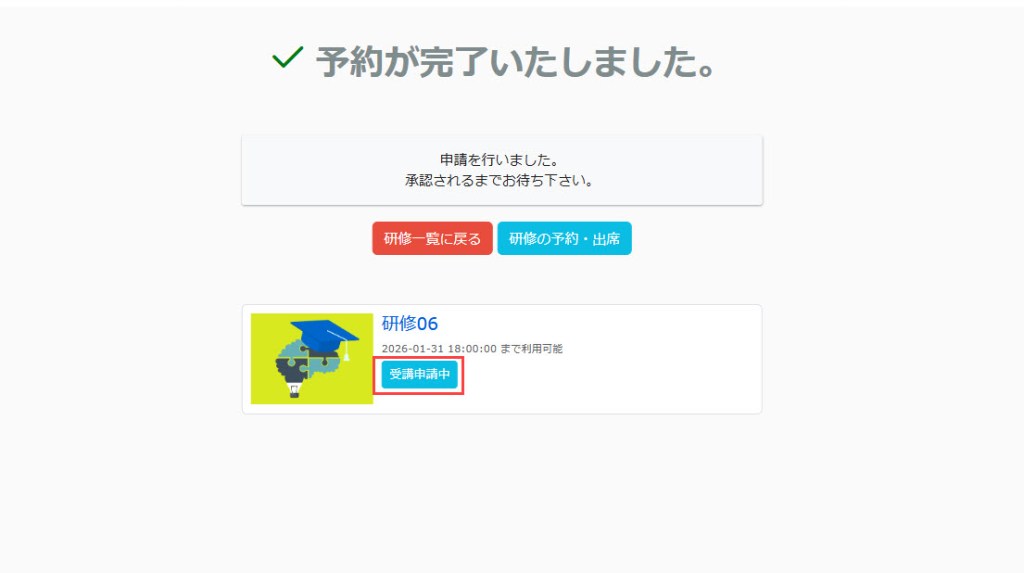
Click on the "Reservation" button to make a reservation.

When you make a reservation, "Course application in progress" will be displayed.
Once your reservation is approved, you can take the training by clicking the "Learn" button on the training details screen.
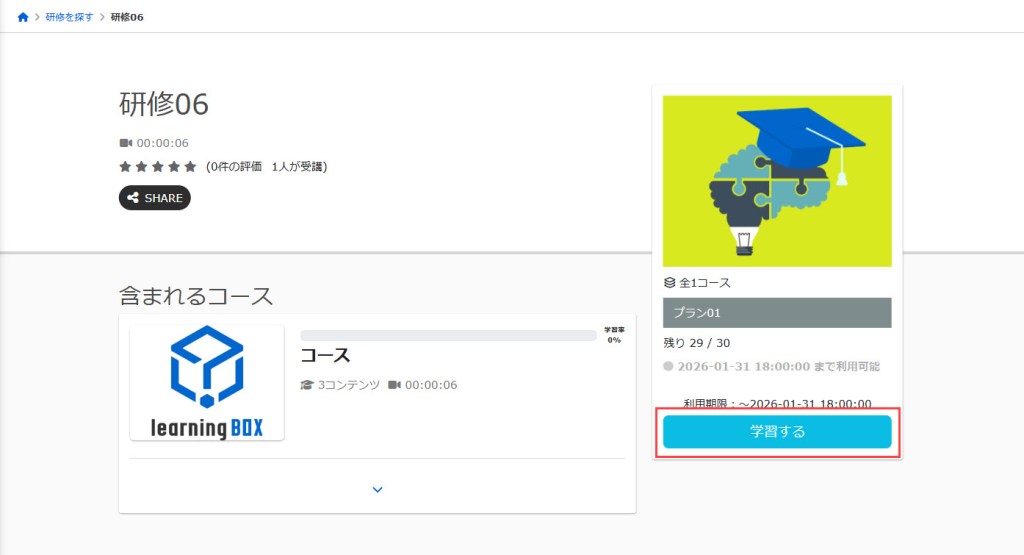
If you have set automatic approval for an appointment, you can start learning immediately.

Training cannot be reserved in the following cases
- Training with dates and times that overlap with existing reservations
- Training that has been held for a period of time (learners only)
- Match the conditions of the badge-based reservation restrictions set for the training
Make a reservation from the schedule
DashboardYou can also book a training session from the schedule in the "Training" section.
*Only training programs with both start and end dates will be displayed.
01. Display in Schedule
The schedule will be on learner's dashboard.
02. Display of training details screen
Click on the panel, and a pop-up will appear.
Click on "Go to Training Details Page" to view the training details.
Confirm/Cancel Reservation
It is possible to confirm or cancel a reserved training session.
*For more details, refer to Reservations & attendance (for learners)Please refer to the "Reservations" section of the "Reservation Status" page.
Confirm ticket
If a ticket has been set for the booked training, you can check the ticket details.
*For more details, refer to Reservations & attendance (for learners)Please refer to the "Attendance" section of this report.