Flashcards <Operation in the Manage contents (old)>
You can create your original flashcards on learningBOX.
This content can be also added to learningBOX by uploading an Excel or a text file.
Create flashcards
Flashcards can be added from the Creation form, Text, Excel, Tsv or Zip.
The following explain how to create flashcards in the creation form.
*To create in a text or Excel file, refer to How to create flashcards.
Required
【CARD-4.0】 or later, Content manager (Edit)
01. Create a course
First, create a course in the Manage contents.
*For details on course creation, refer to Course/Folder.
02. Open creation form
Click the course you have created, and click the "+" icon > Content > Flashcards > Create
03. Title and option settings
You can set options.
Click on the Show next to the Options.
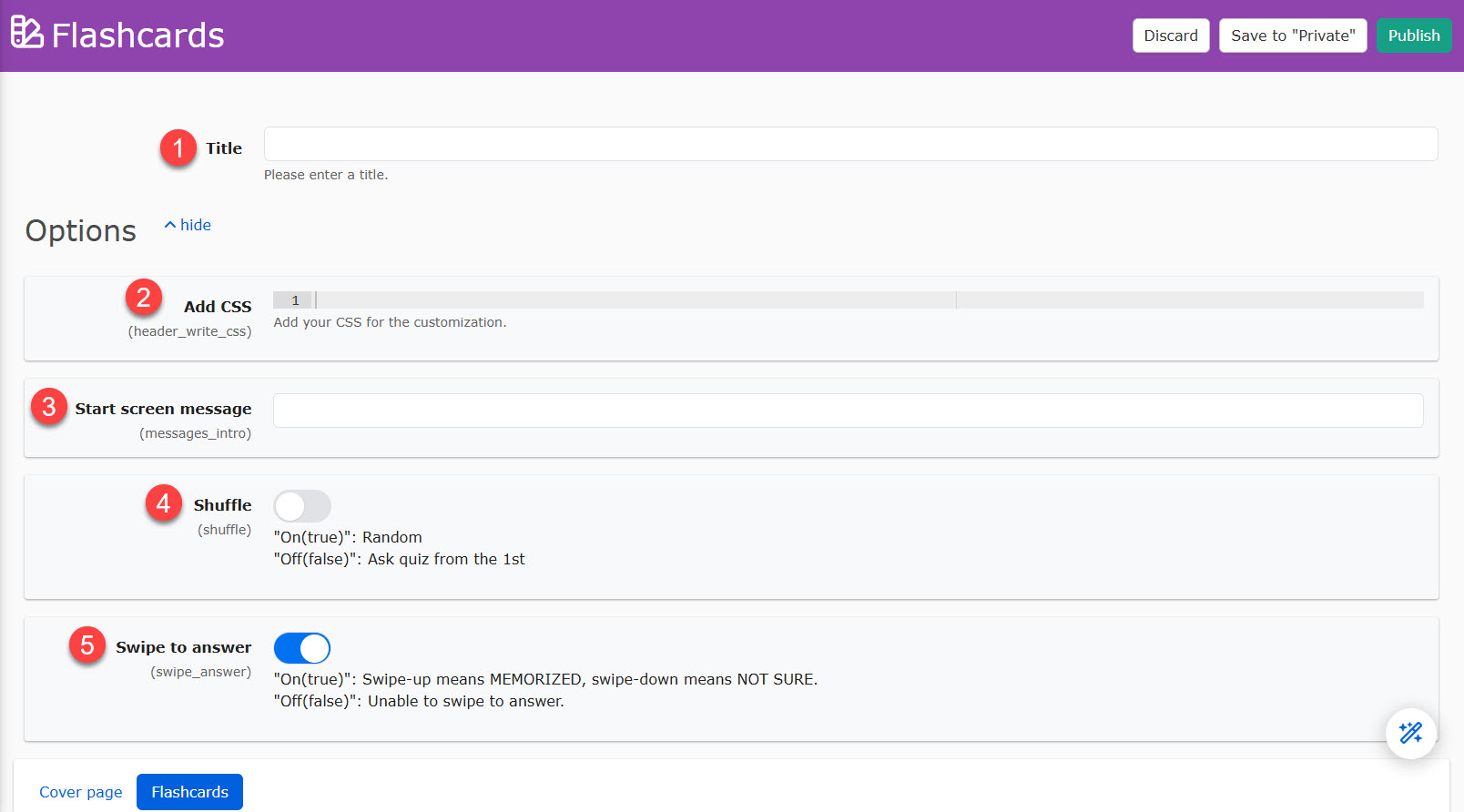
The following explain each item:
1. Title: Enter the title of the flashcards.
2. Add CSS: Add CSS to customize the flashcards. (Optional)
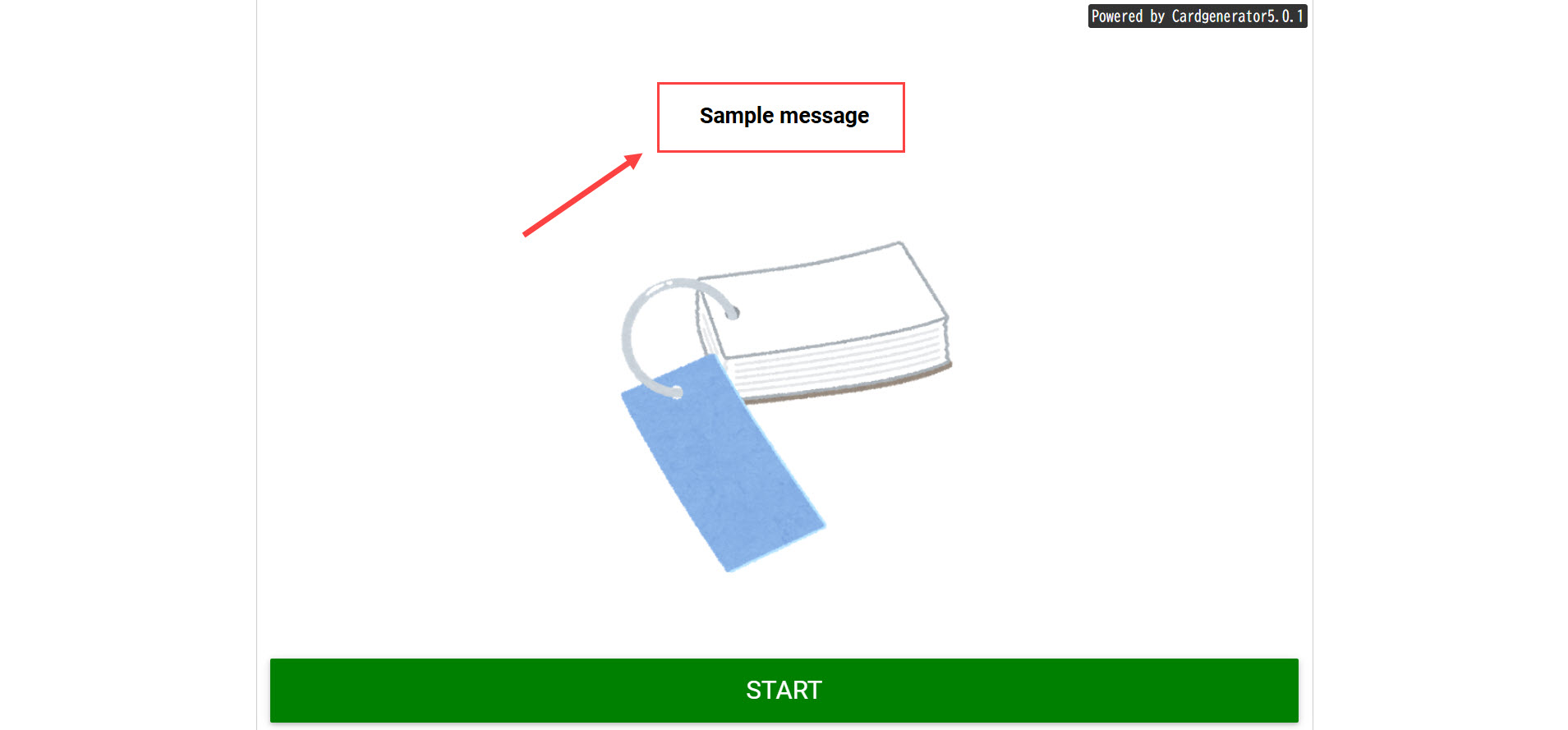
3. Start screen message: Enter a message to display when starting the flashcards. (Optional)
4. Shuffle: Turn on the toggle key to shuffle the cards. (Optional)
5. Swipe to answer: When learners use a smartphone, swipe-up and down is available to move the cards to Memorized and Not sure.
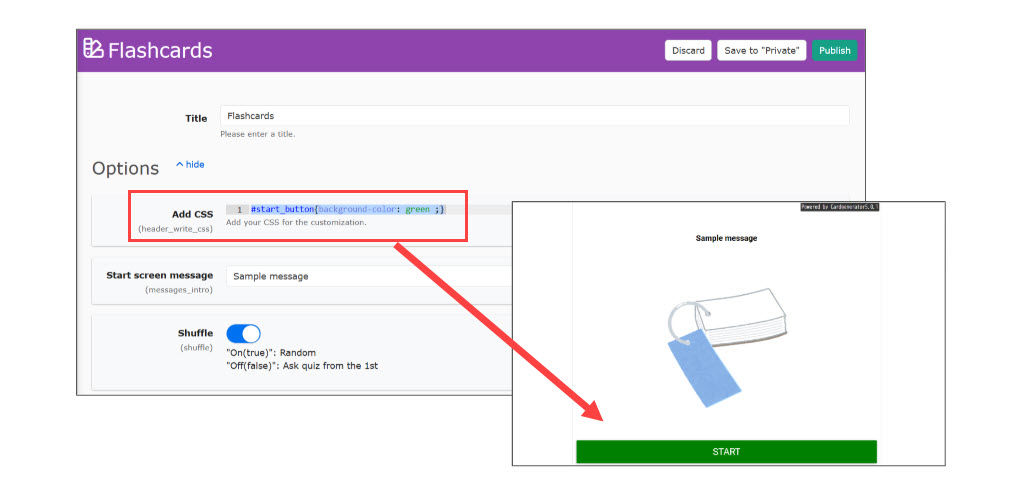
▼CSS
e.g.) Change button color
#start_button{background-color: green ;}
▼ Start screen message
04. Customize the content
Create content of the flashcards.
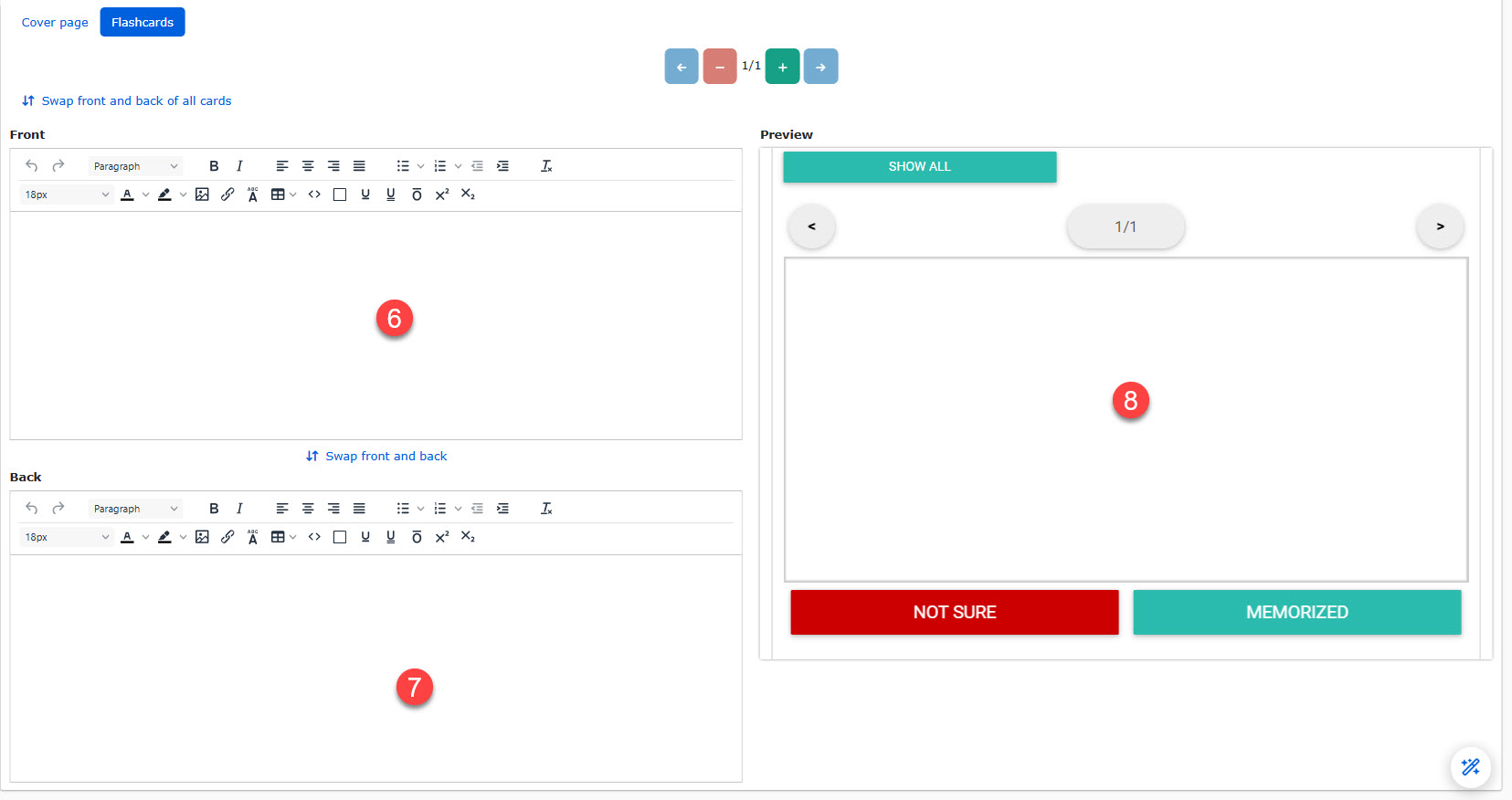
The following explain each item:
6. Front: Enter text for the front page of the card.
7. Back: Enter text for the back side of the card.
8. Preview: You can view the preview of the card.
Image/Voice/Chemical Formula
You can customize the text with font size, color, etc.
Also, images, tables, audio files, and chemical formulas can be inserted.
Image
Click on "Insert/edit image."
Click the file upload icon.
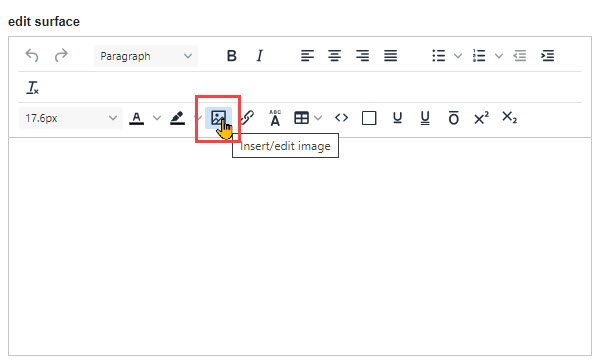
Drag and drop an image file, and double-click it.
After completing the settings for each item, save the file.

Audio file
Click on "Insert/edit image," and select the File upload icon.
Drag and drop a file, and close the pop-up window.
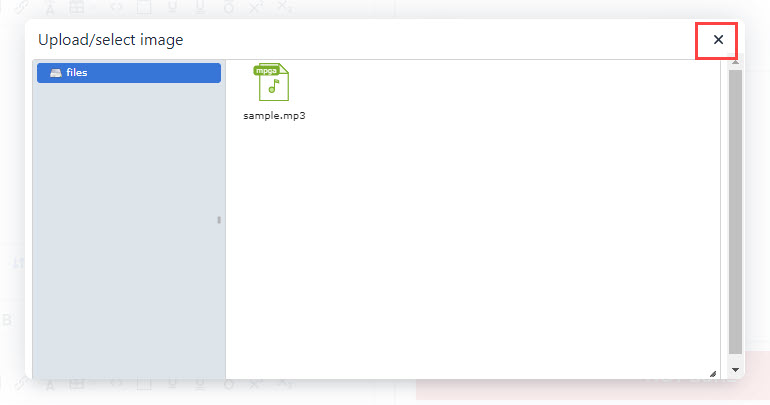
Click "Save."
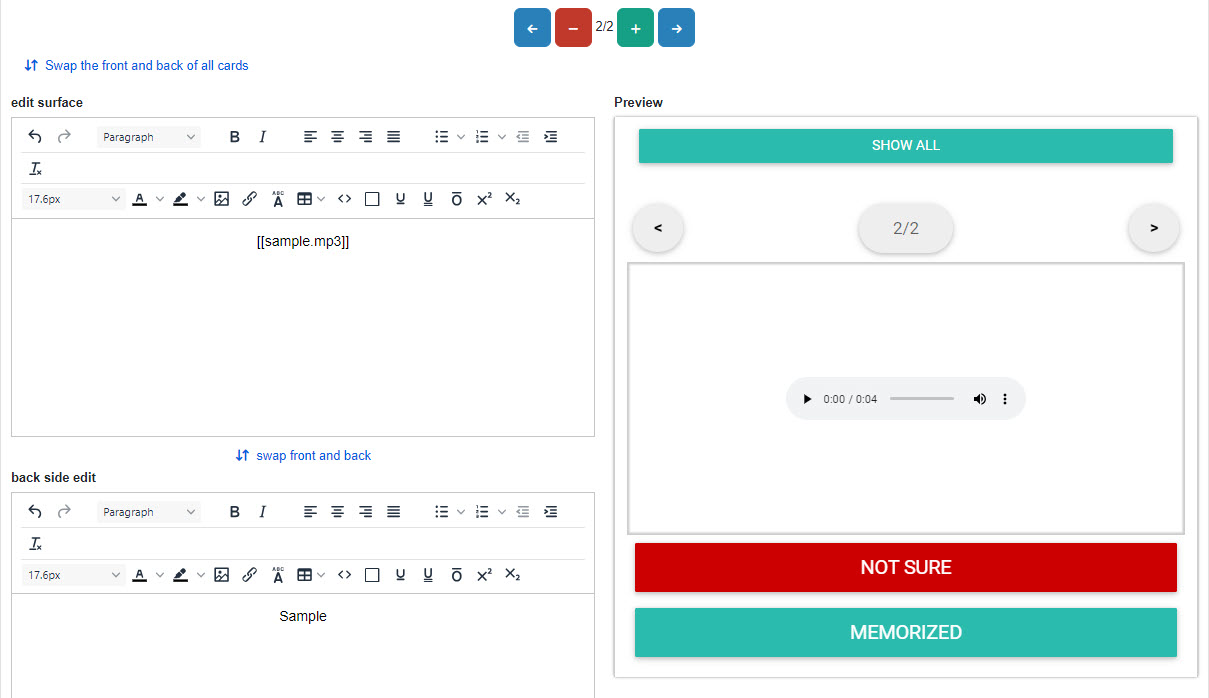
Enter the file name and file extension in the input fields and enclose them in [[ ]].
*e.g.) [[sample.mp3]]
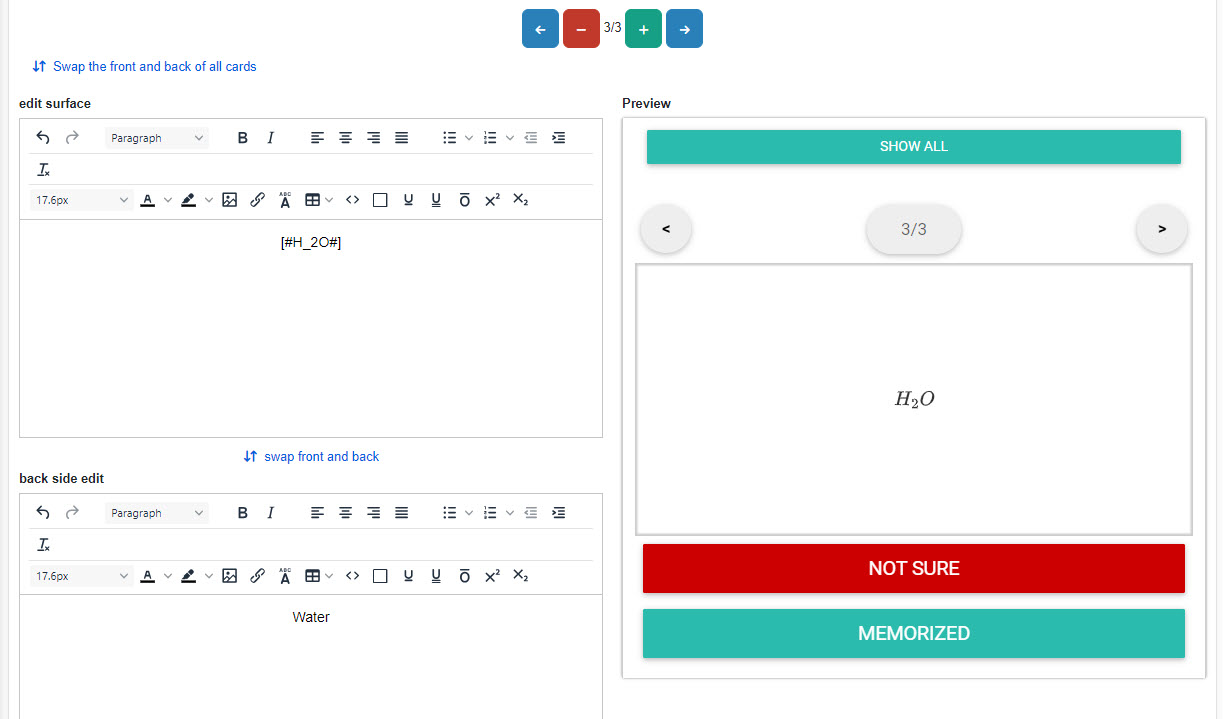
Chemical formula
Enter a formula in Tex format between [# and #].
Refer to Tex verification tool for QuizGenerator.
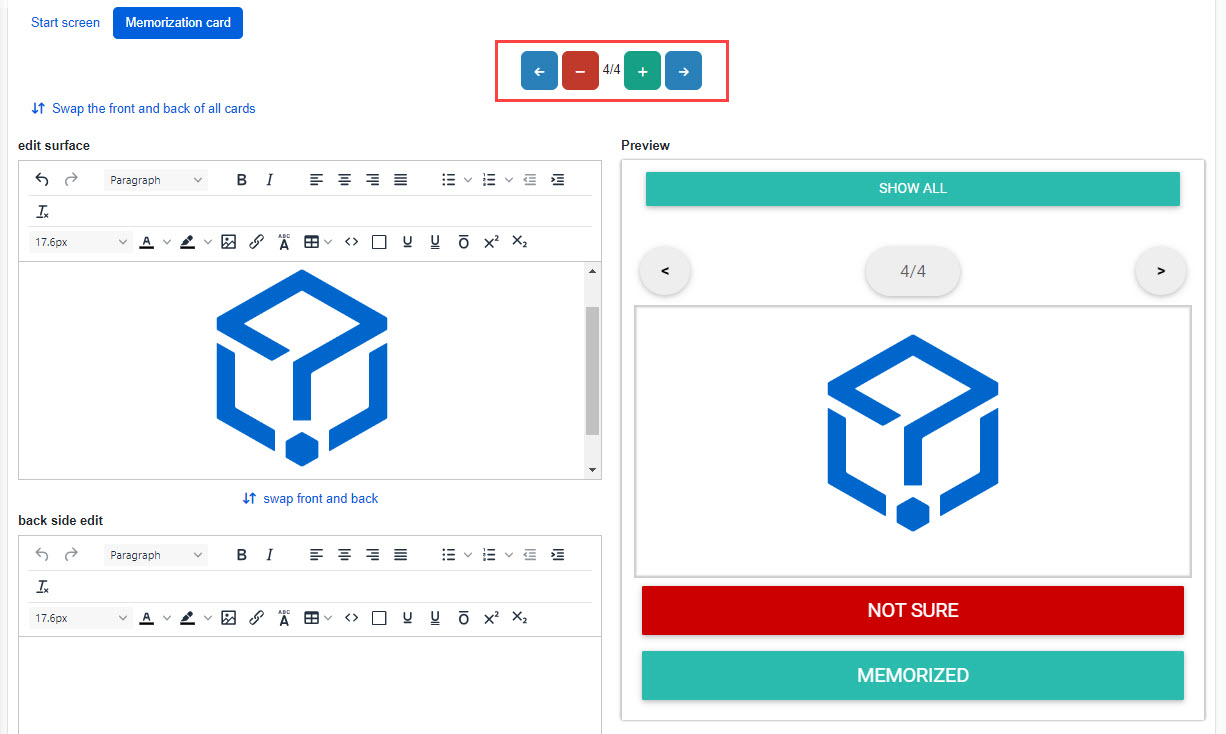
05. Add/Remove cards
Click the "+" icon to add or the "-" icon to remove a card.
You can also use the "←" and "→" icons to move cards you have created.
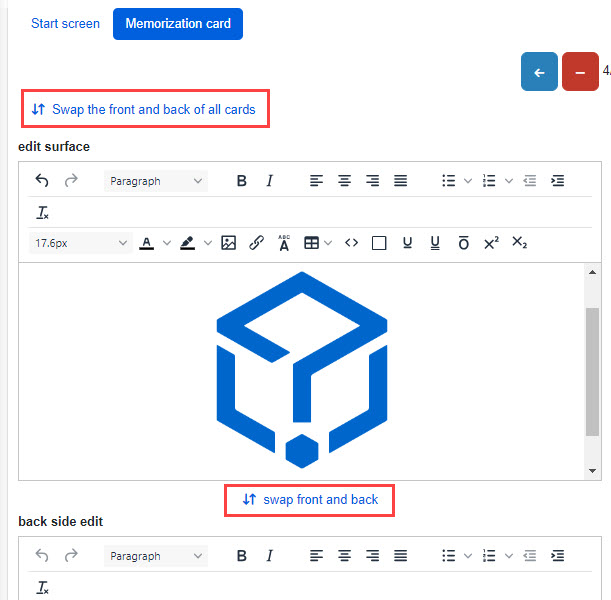
06. Swap front and back
You can swap the front and back page of the cards.
- Swap the front and back of all cards: You can swap all cards.
- Swap front and back: You can swap only the card currently displayed.
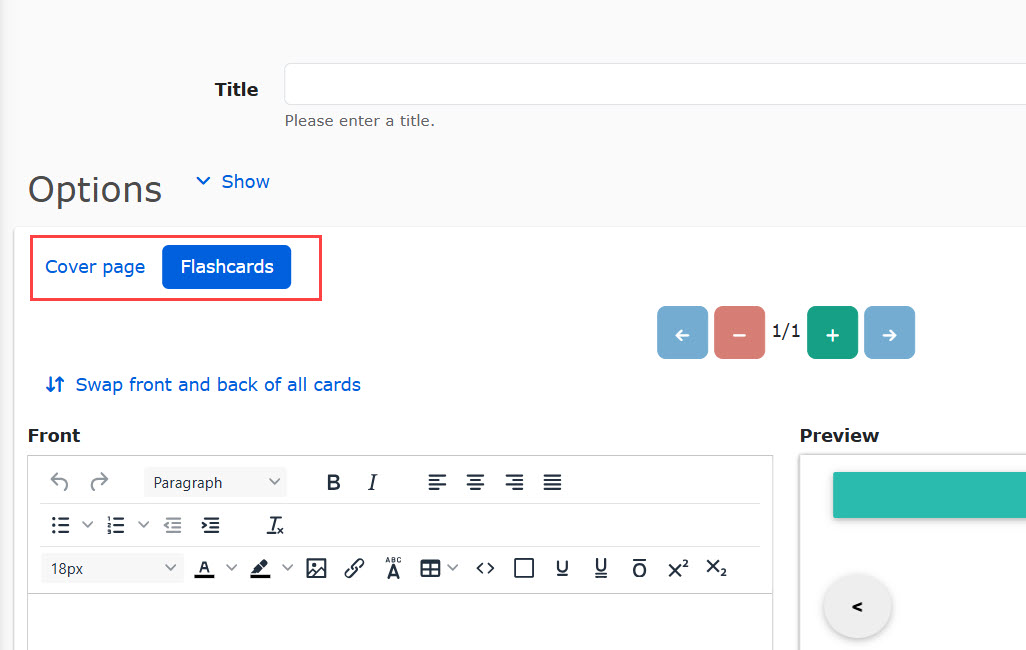
07. Switching between cover page and flashcards
Click on the icon in the red frame to switch the page.
Types of the save button:
・Publish: Saved and publish to assigned users once the cards are saved.
・ Save to "Private": The content is saved but will not be displayed to users.
Create flashcards with text/Excel
Flashcards can be created in text and uploaded to learningBOX.
This will help you to create flashcards in bulk.
▼ Steps
STEP1: Enter text to show on the front page of the flashcard.
STEP2: Press the tab key on the keyboard.
STEP 3: Enter text shown on the backside of the flashcard.
Repeat the steps above.
*For more details, refer to How to create flashcards.
AI Assist
AI assists you to create flashcards.
*For more details, refer to AI Assist - Flashcards.
User interface
Learners can:
1. Swipe to move to the next/previous page.
2. Tap to view the backside of the card.
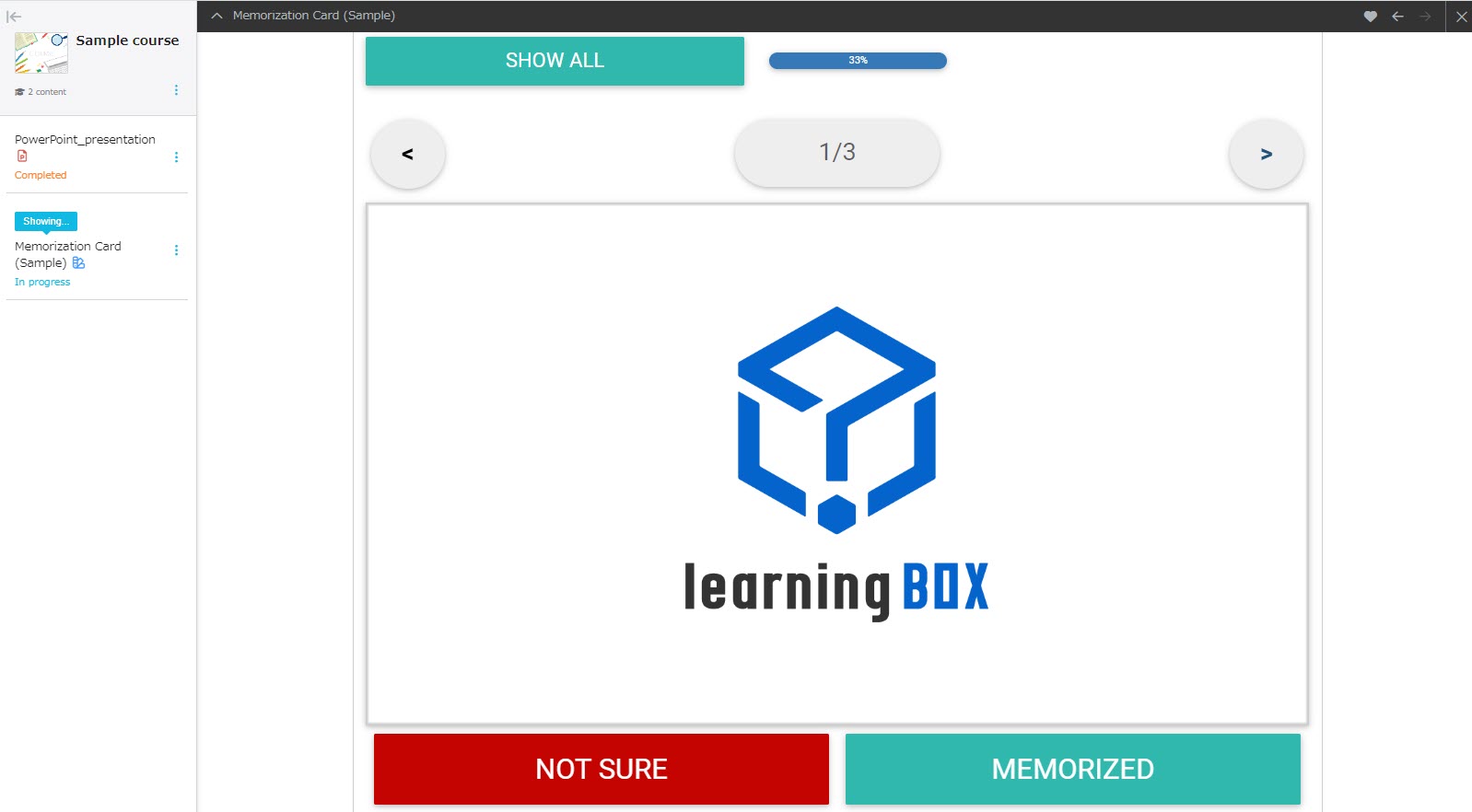
3. Select a status from SHOW ALL/NOT SURE/ MEMORIZED/NOT ANSWERED.
Edit flashcards
01.Upload
Click on the course you have created.
Click on the "+" icon > Content > Flashcards > Upload flashcards
02. Re-upload
Right-click on the flashcards or select the gear icon > "Re-upload".
You can overwrite the flashcards by re-uploading.
03. Download
Right-click on the memorization card or select the gear icon > "Download".
The downloaded zip file contains the text and image data.
04. Edit
Right-click on the flashcards or select the gear icon > Edit
To edit the content, refer to Create flashcards.
Completion rate
When a learner clicks "MEMORIZED," the completion rate will be shown on the top of the page.
For example, when the learner clicks "MEMORIZED" for one card out of three, the rate will be 33%.