My grades
Learners can check their grades.
*You can also set it so that users cannot view your results. For more information, please see the "Gear icon in Manage gradesPlease refer to "Setting up your own results viewing" in the "My results viewing settings" section.
Check grades
01. Go to Manage grades
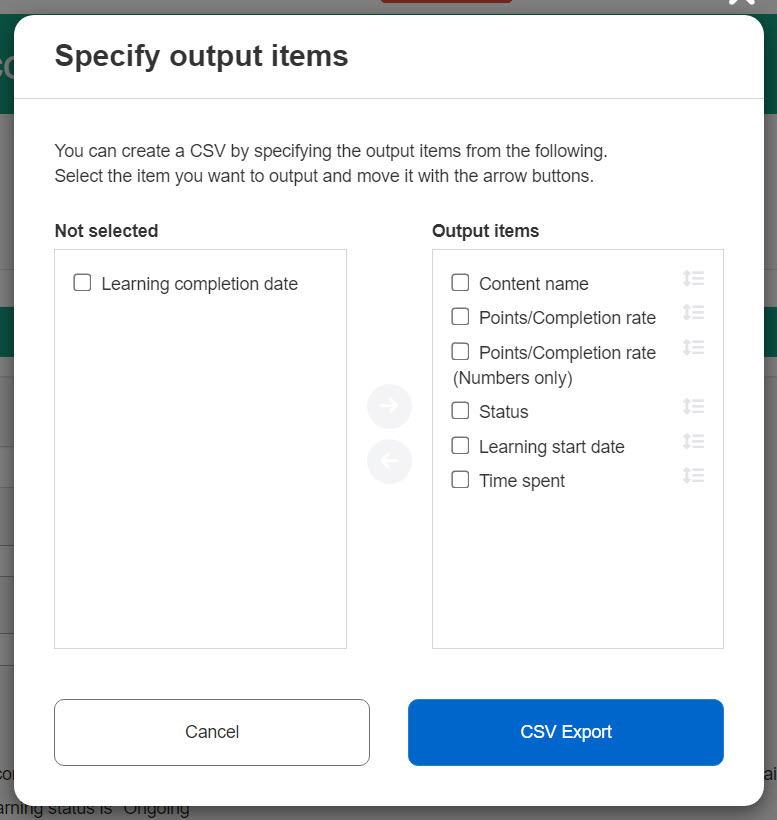
The following shows the user interface.
It can be set to hide pass/fail and scores for content.
*For more details, refer to Exam mode.

02. Sort
You can sort learners' grades using the items below.
The following items are available:
- Content
- Content type
- Date range
- Status
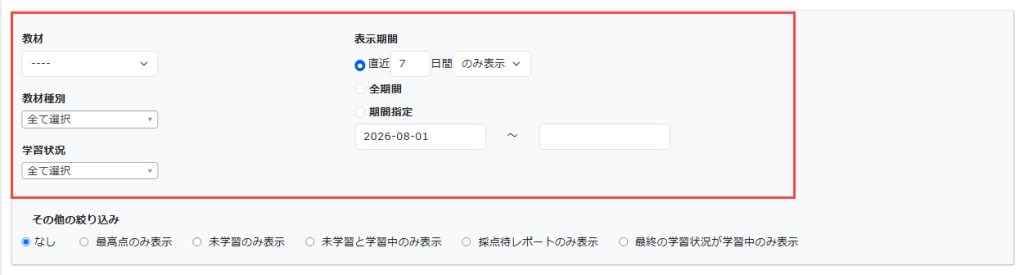
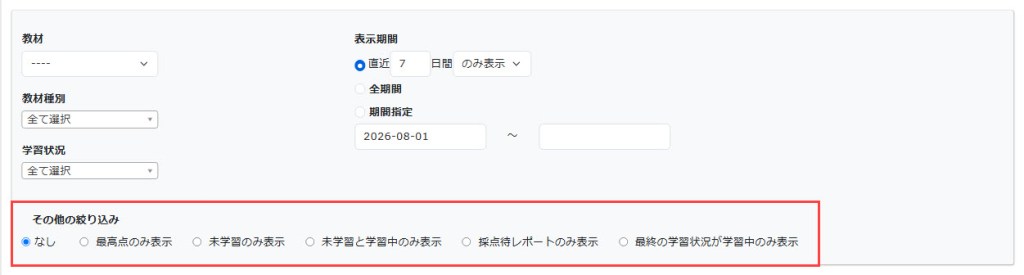
You can search for an assignment with an advanced condition.
Select an item if necessary.
Details
From the "Details" button to the right of each score, you can check the details of your answers, the grading status of your report, and information on the device you are using individually.
(You can also check the same by clicking on "Study start date and time")
You can disallow learners to check their answer details on Exam mode.
Pass/fail and scores can also be hidden using the "Test Mode Setting".
CSV export
Grades can be exported to a CSV file.
01. CSV export
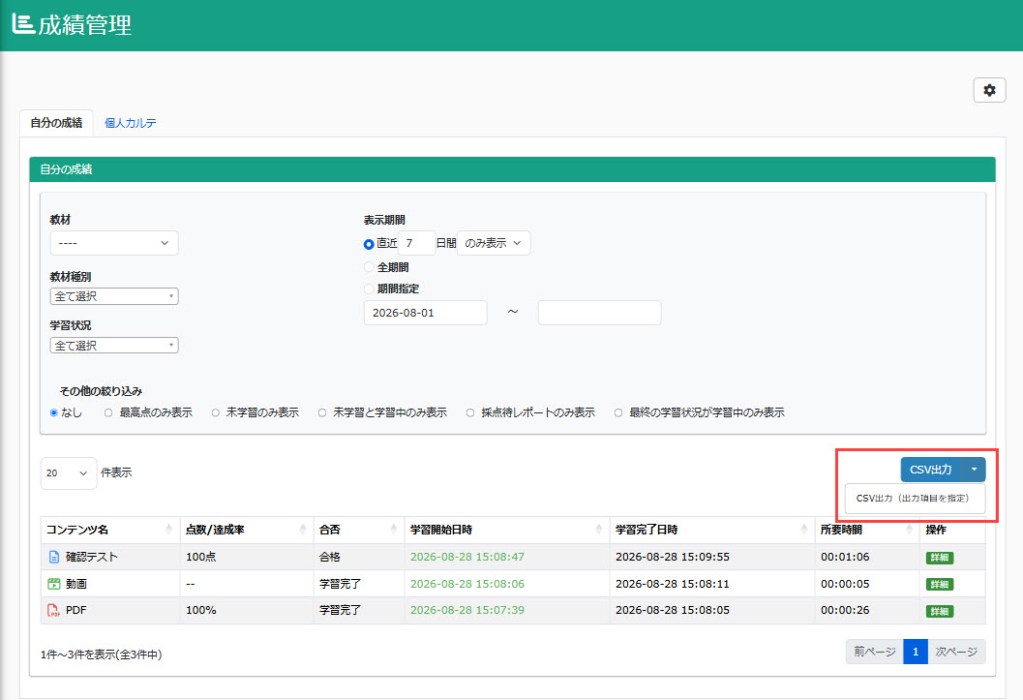
Click on "CSV Export."
The list of the content displayed on the screen can be exported in CSV file.
02. Select output items
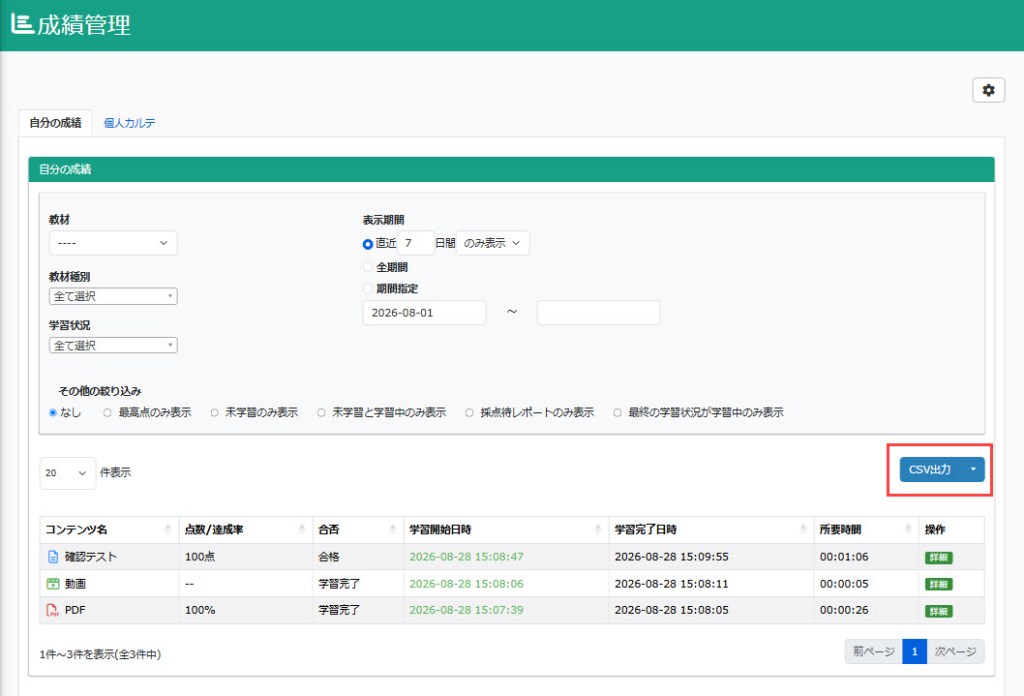
Output items in a CSV file can be selected in advance.
Click the arrow and choose "Specify output items."
The following window will appear.
Tick an item you wish to output or remove, and click the arrow button to move the item.
Click on "CSV Export."