PDF <Operation in the Manage contents (Old)
Your PDF files can be uploaded to learningBOX.
Also, learners can highlight the text and take notes on the PDF.
*The FAQ.
Note that depending on the specifications of your device, the function may not work properly.
Required
Management role of Content manager (Edit)
Upload PDF file
Required
[PDF-5.0] or later
*Horizontal scroll direction per page. This function requires [PDF-5.2] or later version.
01. Create a course
First, create a course in the Manage contents.
*For details on course creation, refer to Course/Folder.
02. Go to PDF page
Click on the course you have created.
In the course, select the "+" icon > Content > PDF.
*[PDF-5.0] or later version is required.
For more details, refer to Manage generator version.
03. Upload file
The following window will appear.

Set the following items.
▼ Title
Enter a title of the PDF content.
▼Upload file
Upload a PDF file from the "Choose File."
▼Show the "Download PDF" and "Print" buttons
Configure whether to display the PDF download and print buttons on the user's learning screen.
Tick the box to enable this warning.
▼ Language
Select a language from the list.
*The selected language will be applied to the function names and description on the tool bar which is displayed in the user interface.
Page settings
▼Initial settings
You can specify the default scroll direction of PDF from page by page, vertical scroll or horizontal scroll.
If you wish to fix the direction, tick "Use the pre-selected page settings only."
▼Scroll direction
Specify left or right for the scroll direction.
When horizontal scroll is selected in the page settings, "Left" cannot be selected.
Tool Settings
▼Enable highlight
Tick the box when you want to display the highlight menu in the toolbar.
▼Initial settings
You can specify a tool as default.
Note that when re-uploading PDFs, highlights and handwriting which the user left may be corrupted.
PDF Scroll Direction
The following explain the scrolling direction of the PDF content.
▼Vertical scroll
Learners can scroll the content vertically.
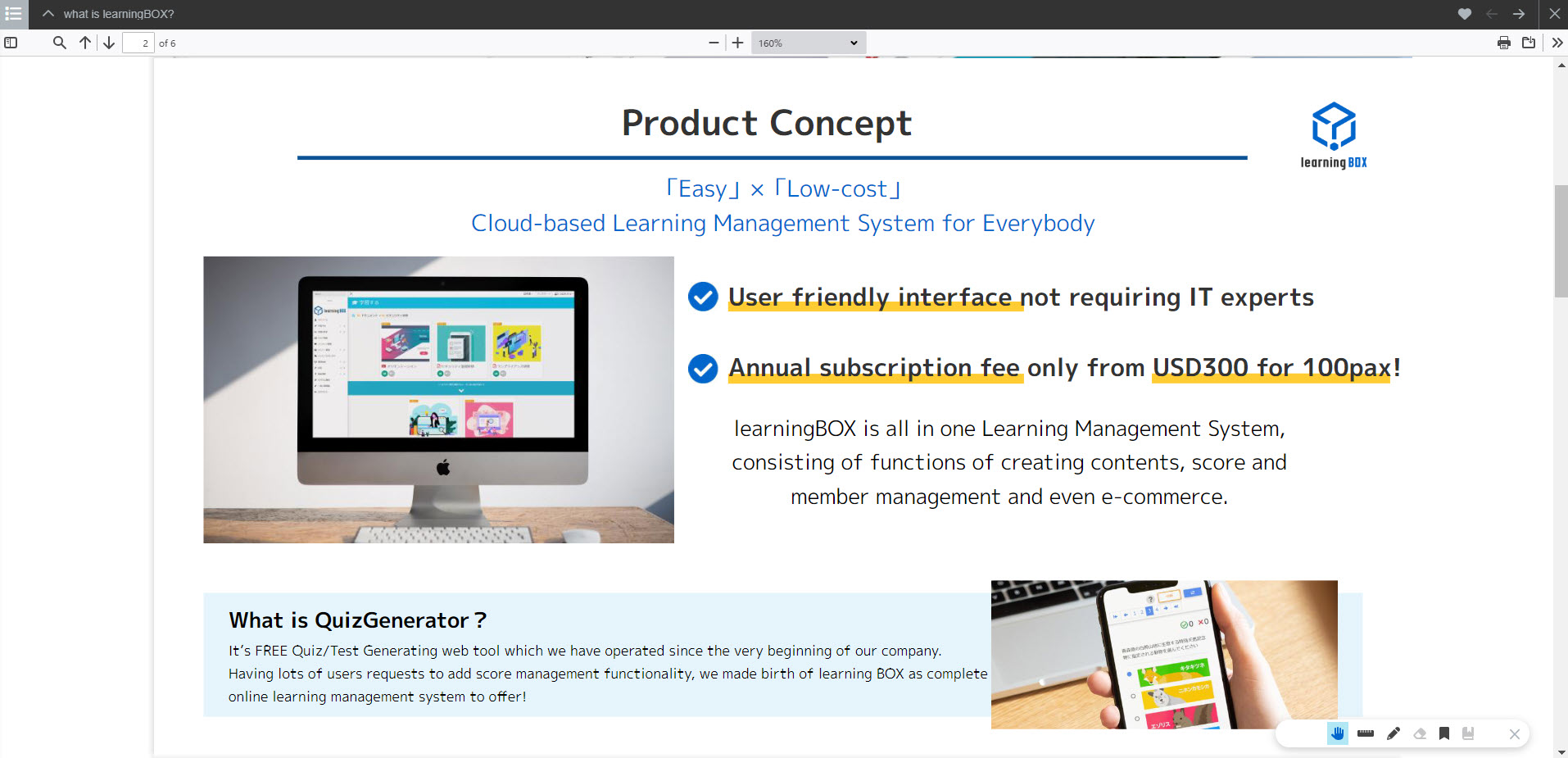
▼Horizontal scroll
Learners can scroll the content horizontally.
*Left-to-right scroll is not available.
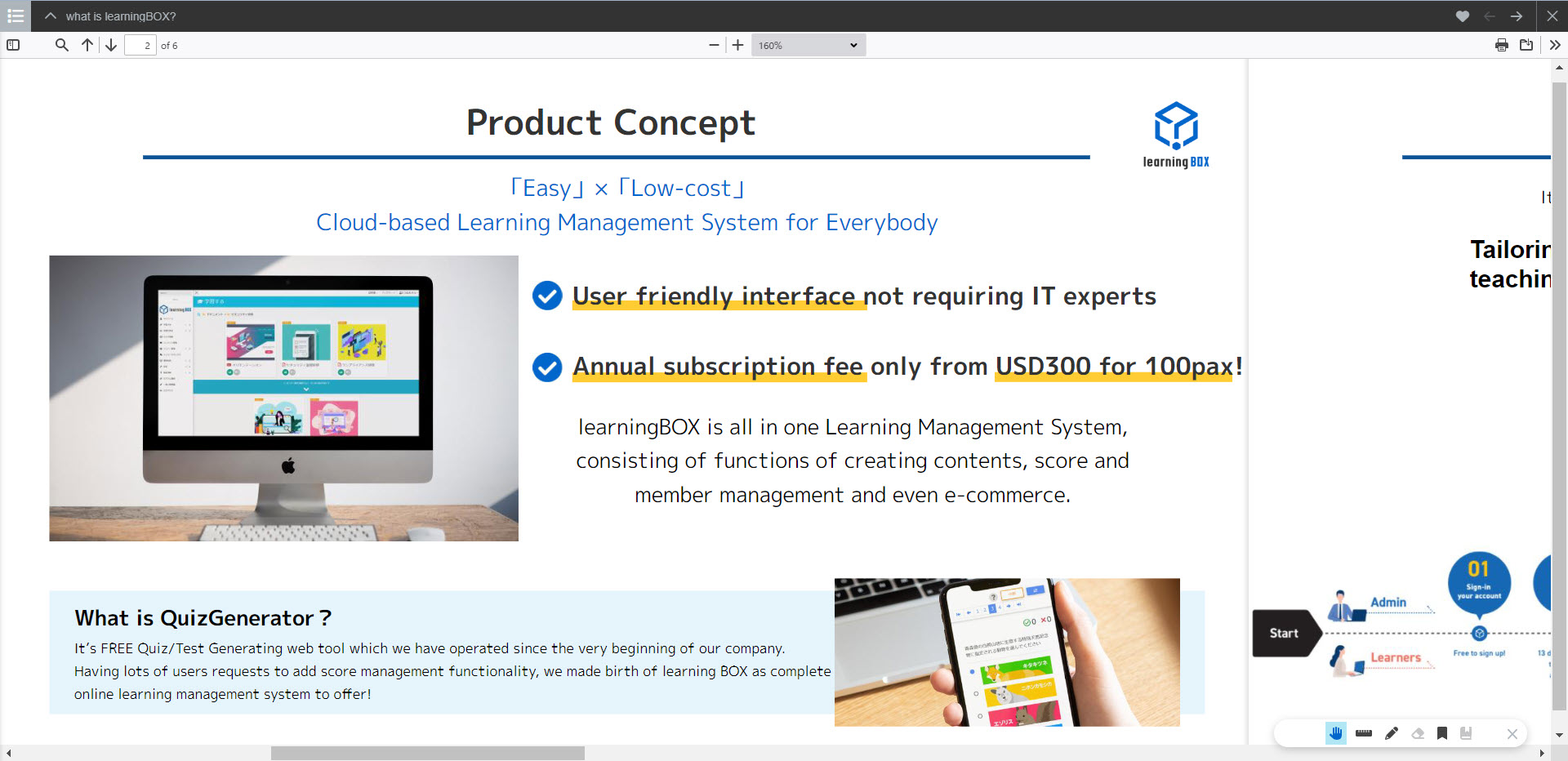
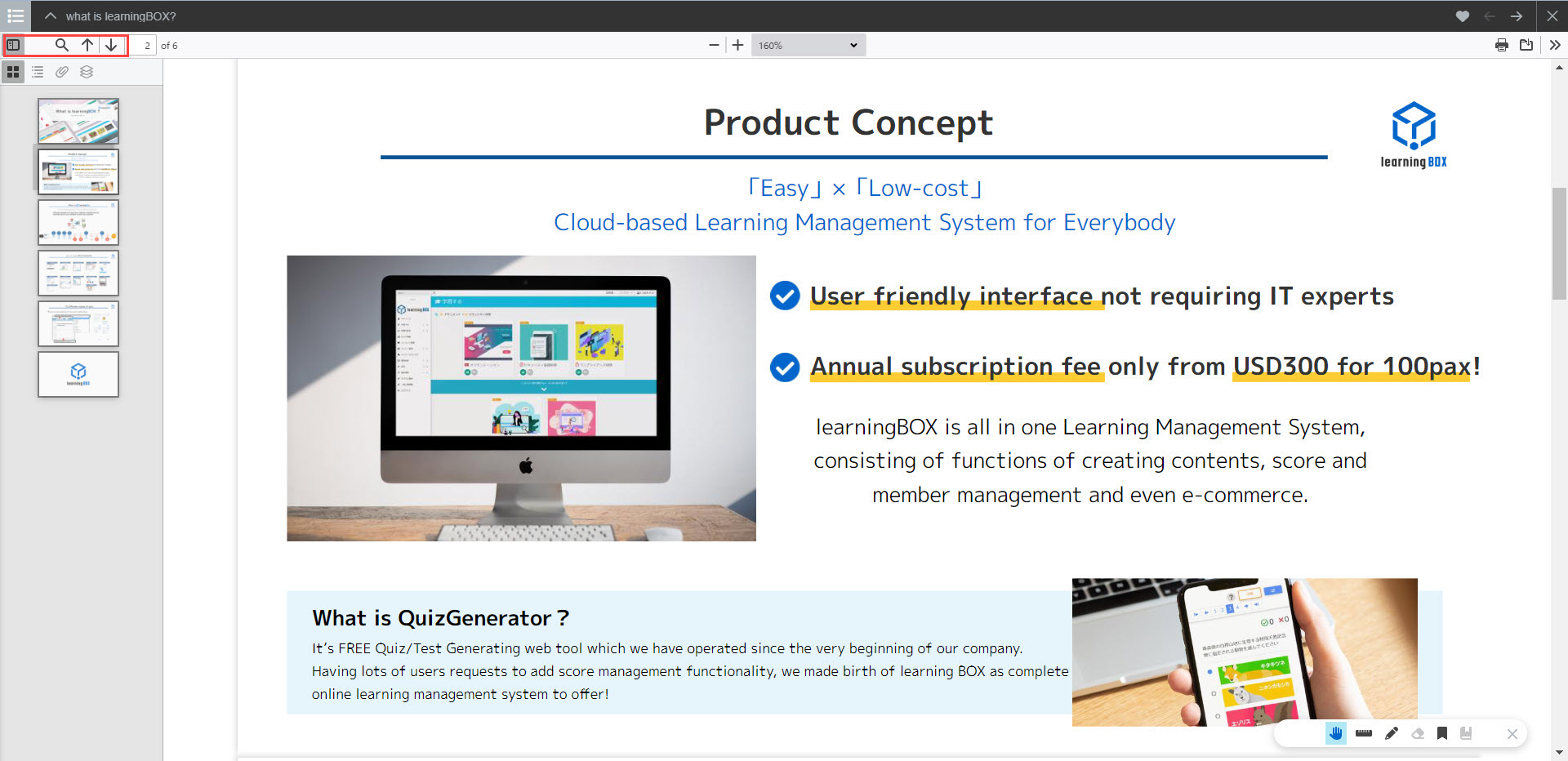
▼ Page units
PDFs are displayed one page at a time.
Learners can scroll pages by using the sidebar icon in the upper left corner or the arrow icons.
Toolbar
The following explain each menu in the toolbar.
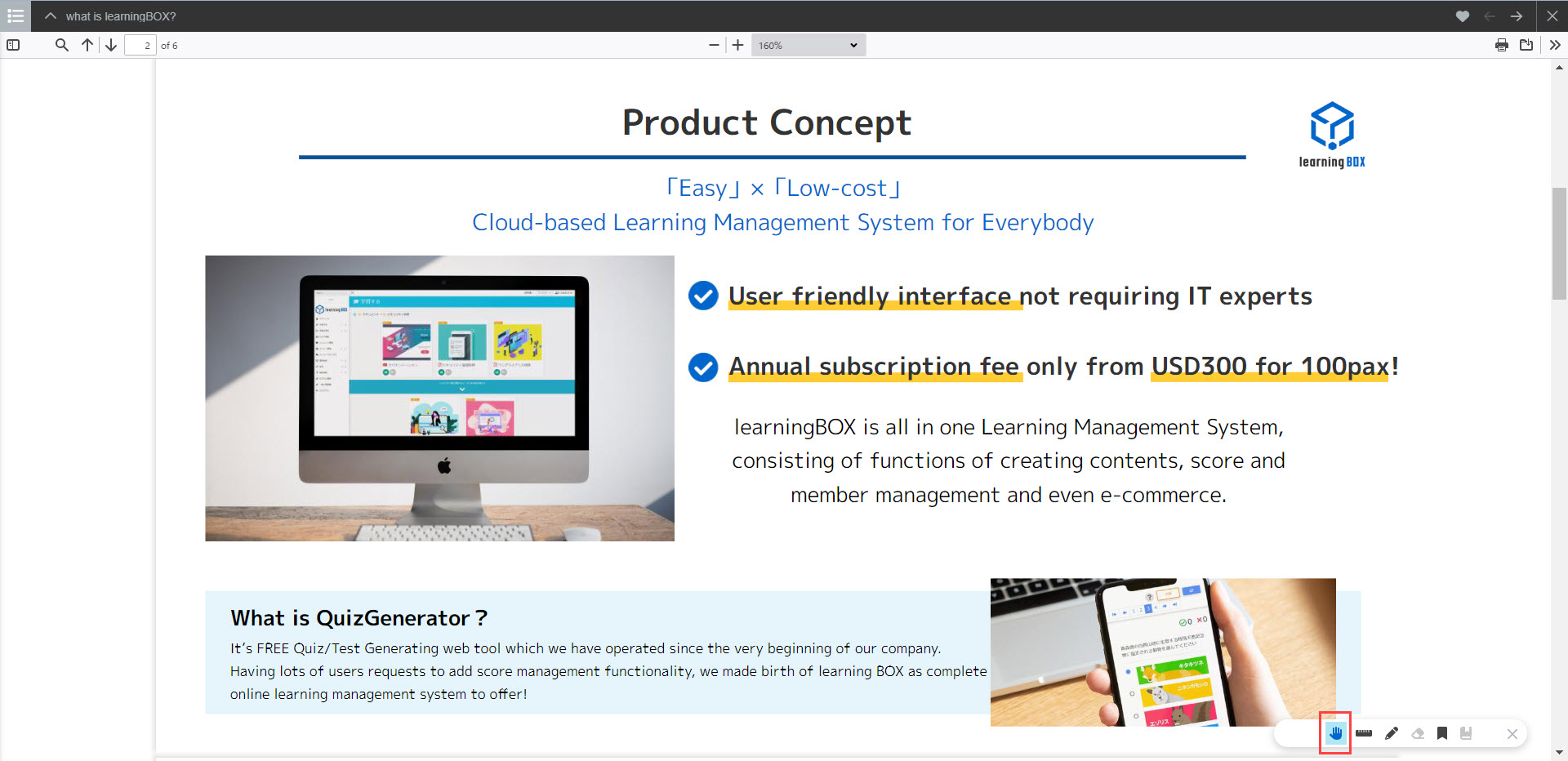
01. Palm
Learners can change the position of the page according to the scroll direction.
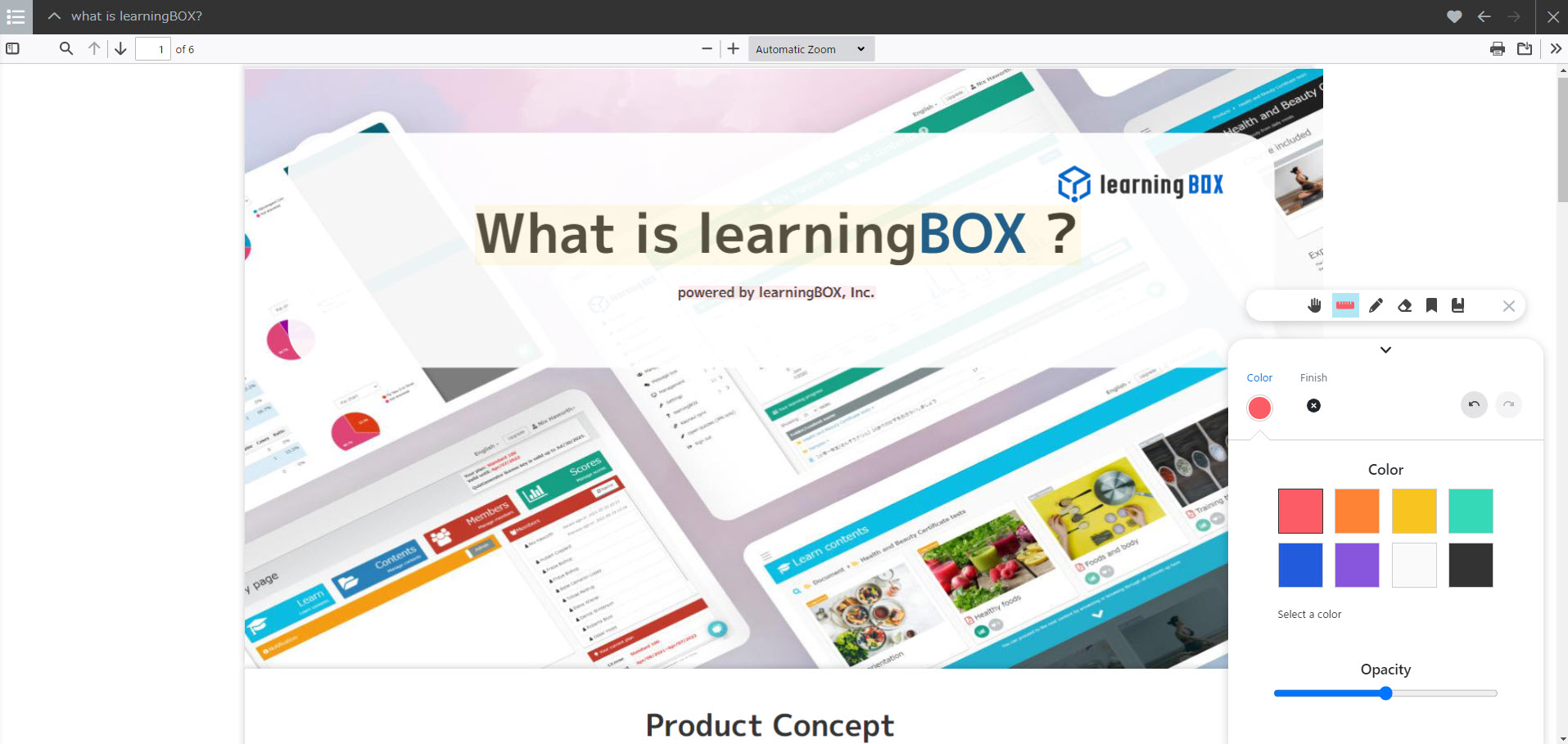
02. Highlight
Learners can highlight the text on the PDF.
Color opacity can also be adjusted.
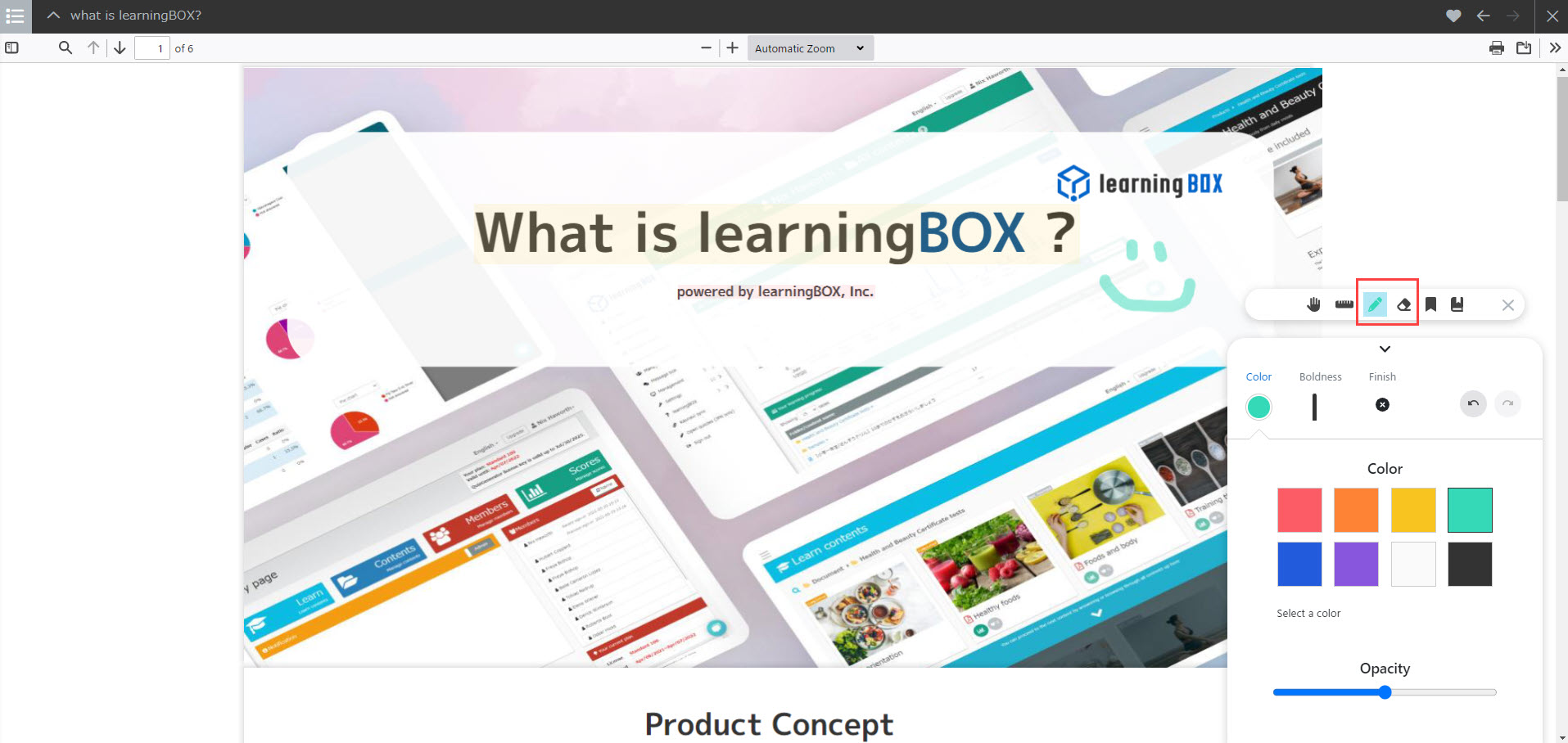
03. Pen/Eraser
You can draw lines with a pen tool.
*Highlights and lines can be deleted with an eraser.
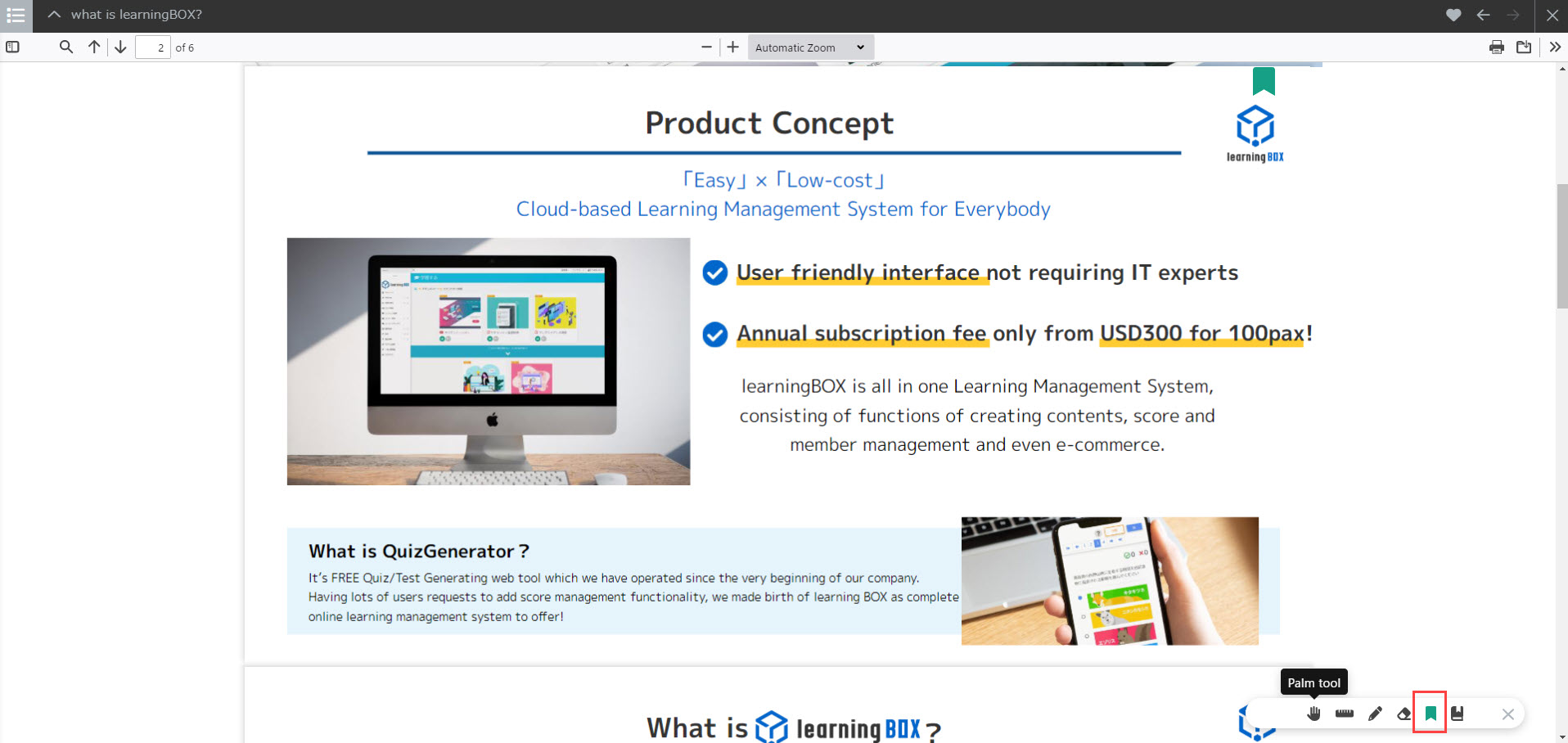
04. Bookmark
Learners can bookmark the page.
05. Notebook
Learners can leave a note for each tool they used.
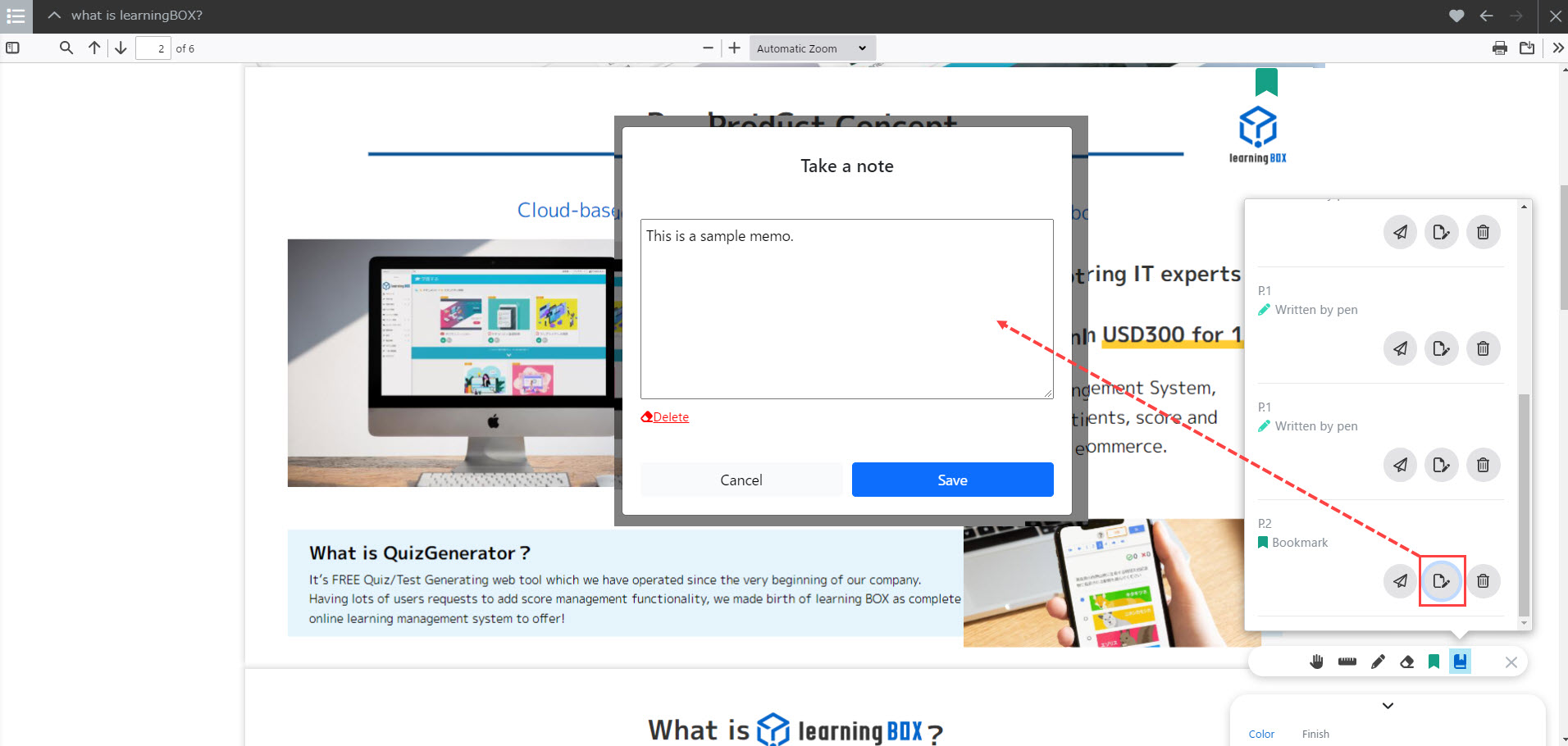
The paper plane icon let learners go to the page where the tool was used.
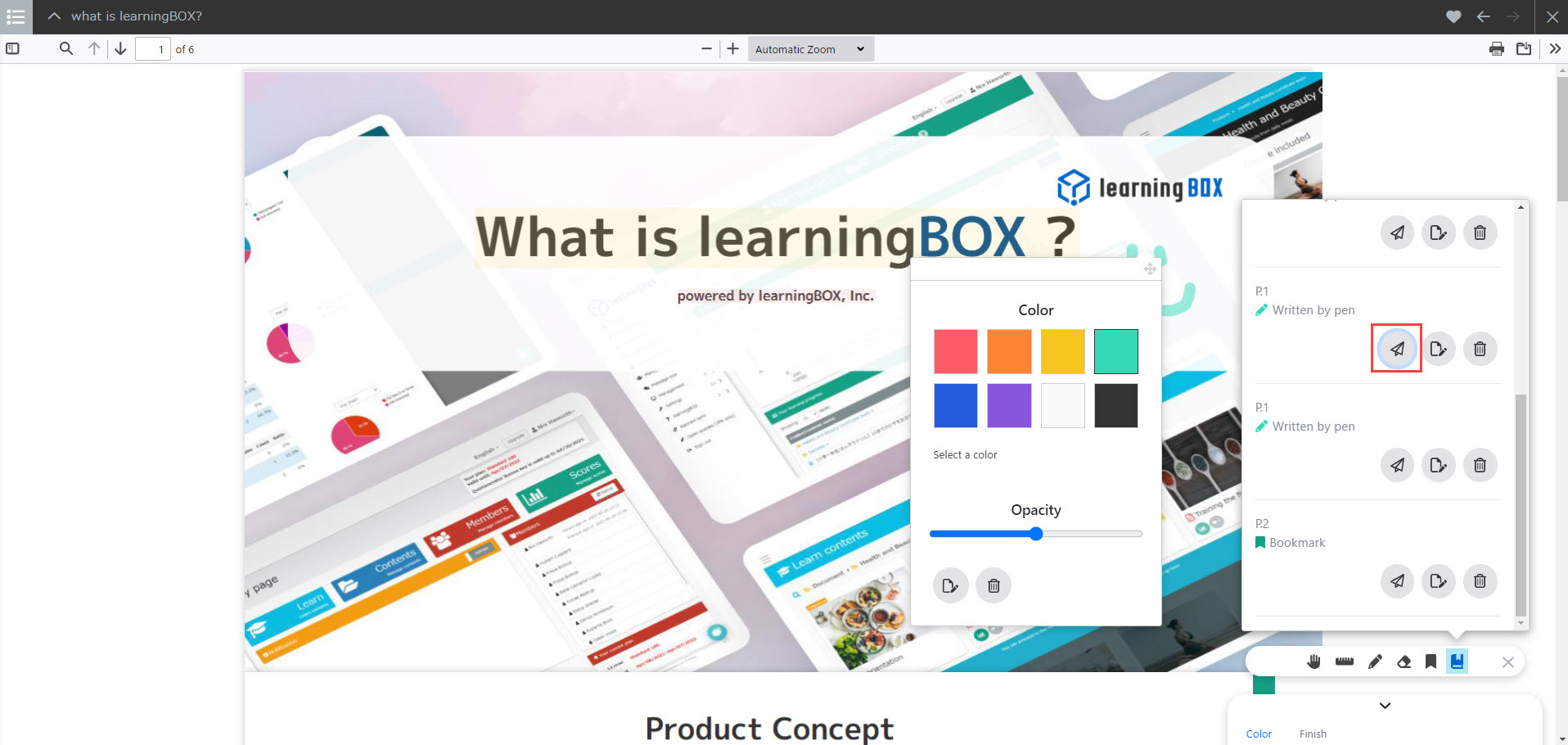
Click the trash can icon to delete.
06. Print/Download
Learners can print/download the PDFs.
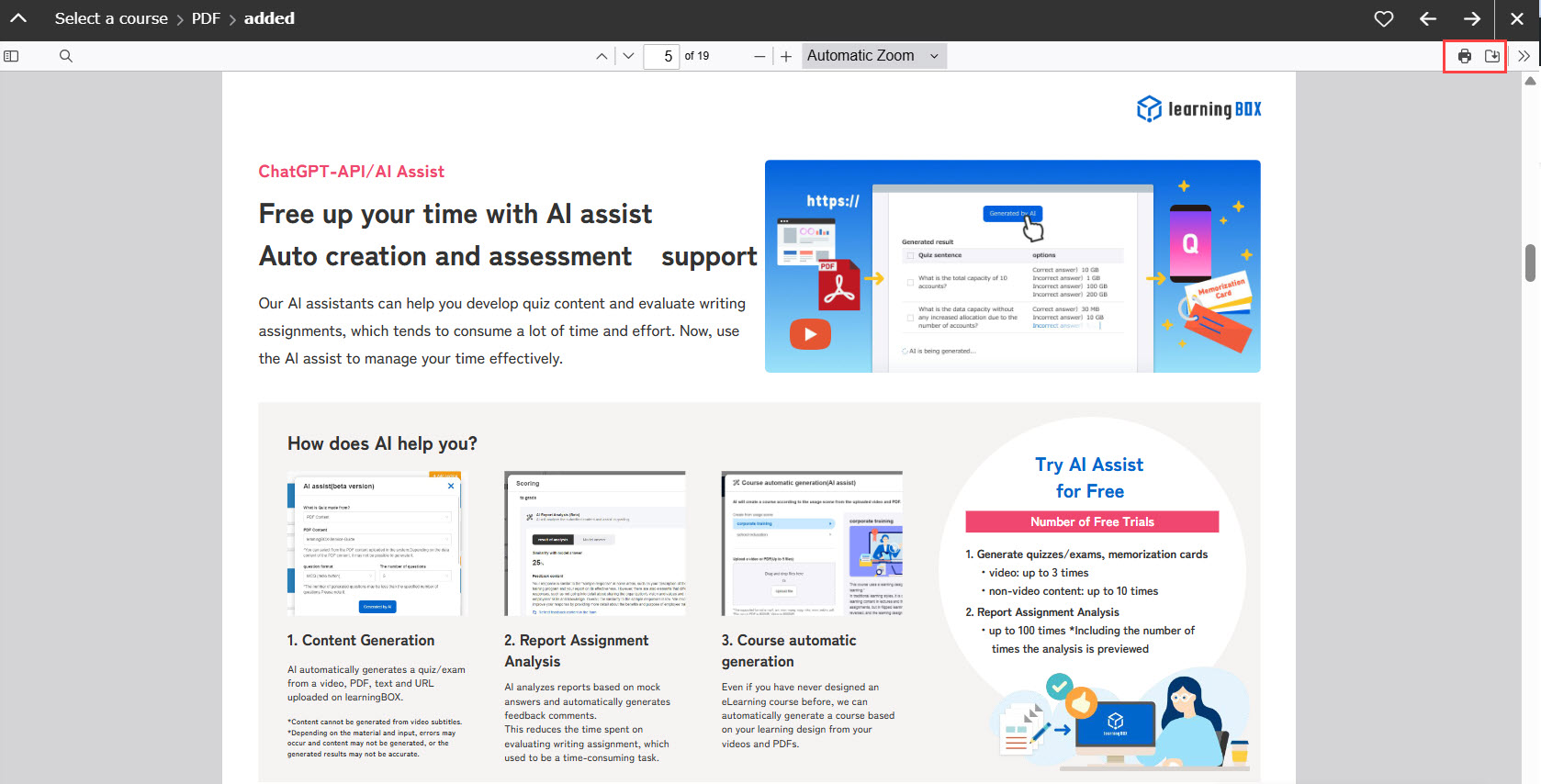
Highlights and lines which learners drew will not be printed or downloaded.
On mobile devices
Pinch-in/pinch-out, double-tap, and swipe are available.
To allow the above actions, the initial settings in the page settings must be per page.
Required
[PDF-5.2] or later
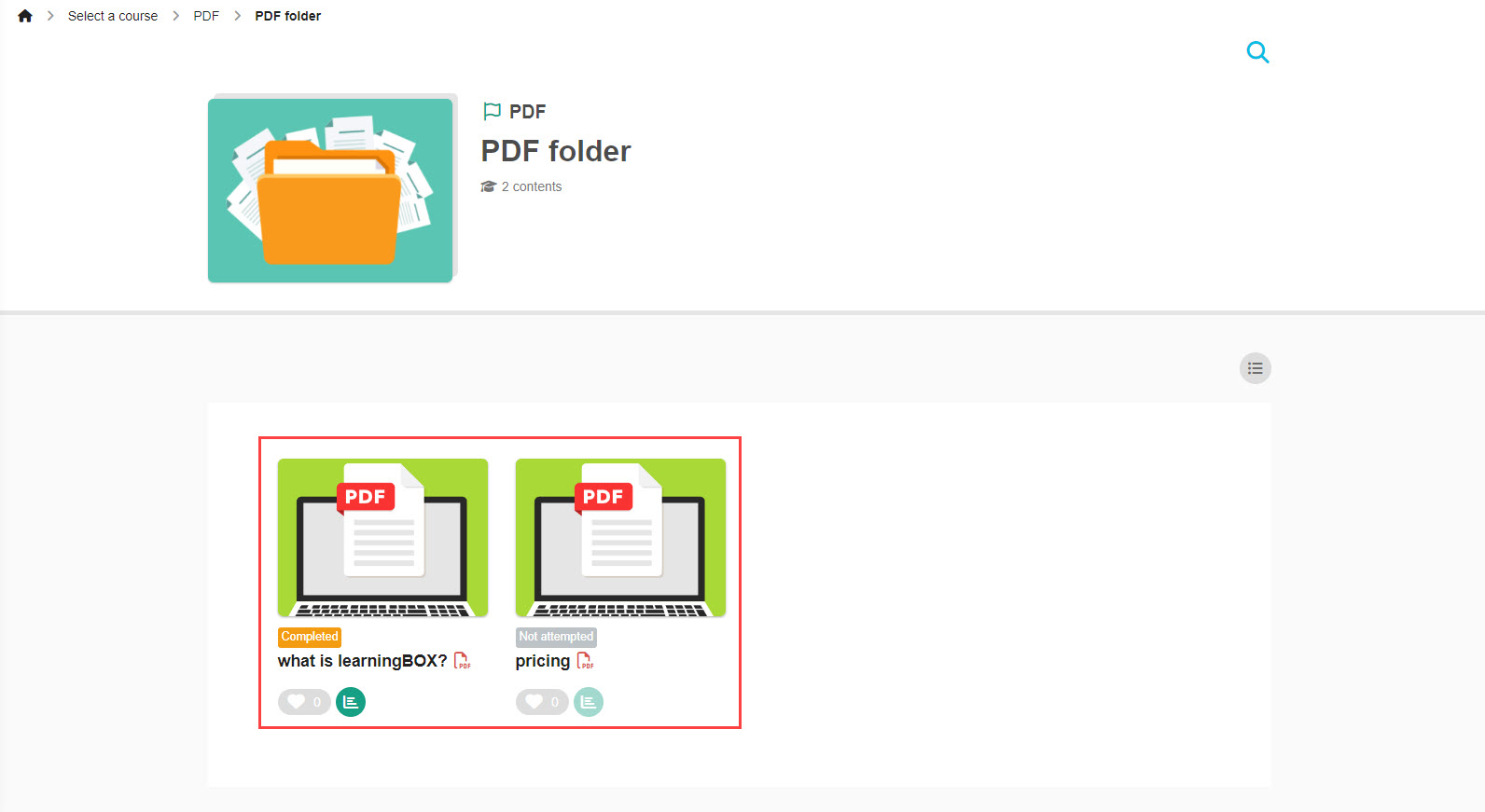
01.Select a course
The following describe the steps when learners log in to learningBOX with their mobile devices.
Click on the course and select a PDF content.
02. Pinch in / Pinch out
Learners can pinch in/out on the PDF page.
The zoom magnification will be displayed while pinch-in/pinch-out.
[Pinch-in]
Pinch-in involves bringing your fingers closer together on the screen to reduce its size.
[Pinch-out]
Pinch-out involves moving your fingers further apart on the screen to increase its size.
03. Double-tap
Double-tap refers to an action of quickly tapping a screen on device's desplay twice in succession.
Behaviors will be different if the screen is:
▼Zoomed larger than the entire display
The entire display will fit the size of the page.
▼Not zoomed
The screen is enlarged to three times its size.
04. Swipe
Swiping refers to the action to place your finger on the screen and move it across the surface in a specific direction.
[Browser forward]
This refers to the action of swiping from the right edge of the screen to the left. You can come back to the page after viewing the previous page.
[Browser back]
This refers to the action of swiping from the left edge to the right on the screen to go back to the previous page displayed.
Edit settings
The following explain how to edit the settings.
01. Go to Manage contents
Click on "Manage contents."
02. Go to the settings page
Click the gear icon on the PDF you want to edit, and select "Edit."
03. Settings
Edit the settings and save it.
For more details, refer to Upload PDF file.
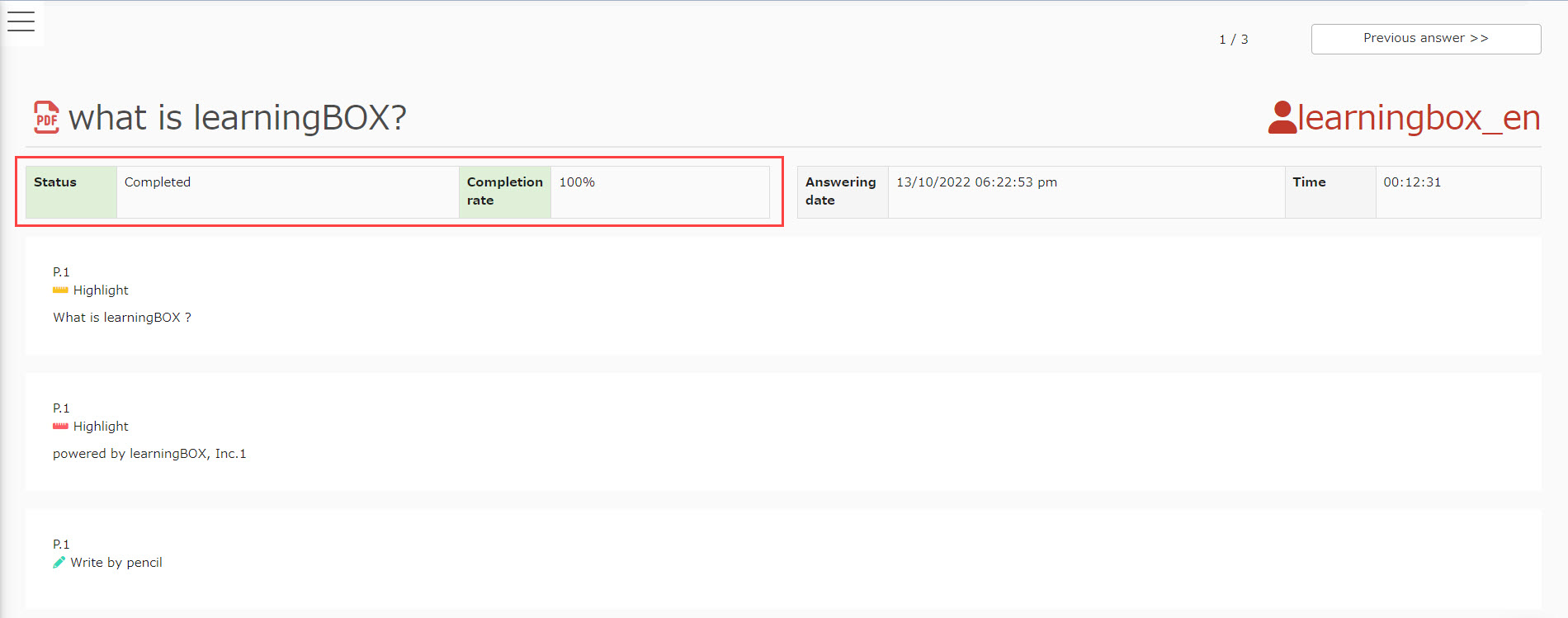
Grade details
You can check the status of the PDF content on the Manage grades page.
With the [PDF-5.0] or later version, the completion status will be displayed based on the performance on the PDF content.