
Quiz/Exam <Operation in the Manage contents (Old)>
The following explain quizzes and exams.
Difference between quiz and exam
▼ Quiz
Quizzes are recommended for repetitive learning and review to deepen learner understanding.
With the Master mode, a graph shows how much the learner understands the content at the start page.
▼ Exam
Best suited for formal assessments and exams to gauge learner proficiency.
Selecting "Create exam" activates "Normal mode," providing a score-based assessment of the learner's performance.
*For more details, refer to What is the difference between Quiz and Exam?.
Create quiz/exam
You can create quizzes/exams using learningBOX.
*For more information, refer to Create quiz/exam.
Download created quiz/exam
The created quizzes/exams can be downloaded.
Select Manage contents in the side menu.
Right-click on the quiz/exam, or click the gear icon > Choose file to download > select a file type.
The downloaded zip file contains the text and image data.
Create questions in bulk
Questions can be created in bulk in the text or Excel format.
To register the questions in learningBOX, upload the file created.
*You can also upload files that have been downloaded.
01. Create quiz
First, create a quiz in the text or Excel format.
・ Create quiz in text
・ Create quiz in Excel
02. Create course
The following explain how to create a course.
*For details on course creation, refer to Course/Folder.
03. Upload CSV file
To upload a file, the following two methods are available:
▼ Upload file from the "+" icon
Click on a course you created.
Select the "+" icon > "Content" > "Quiz/exam" > "Upload quiz/exam"
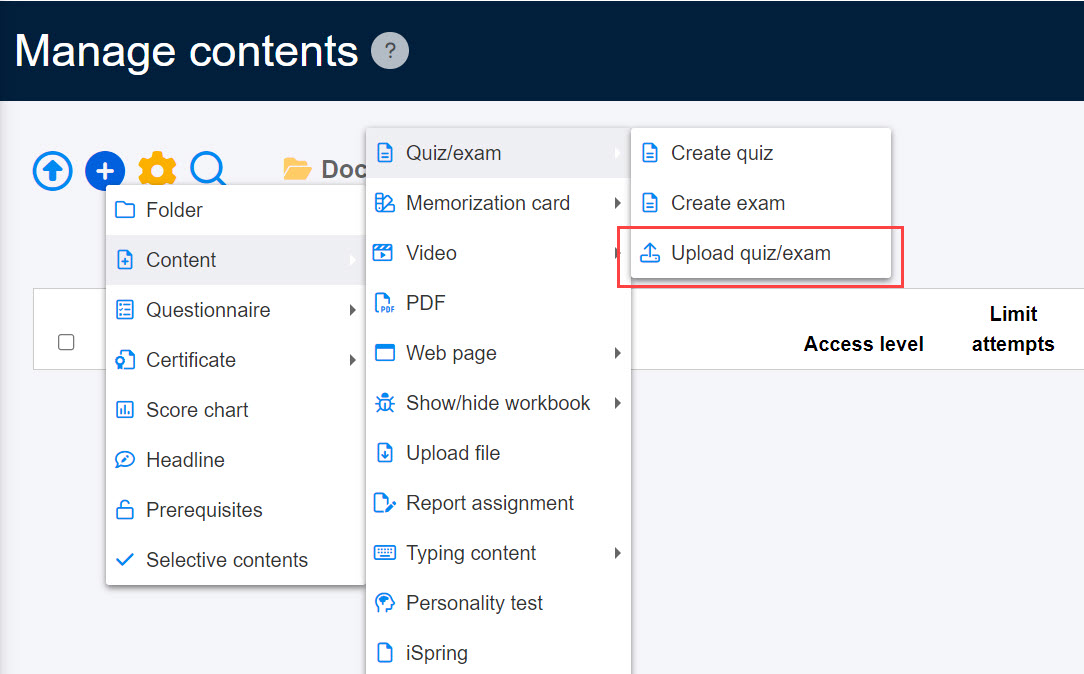
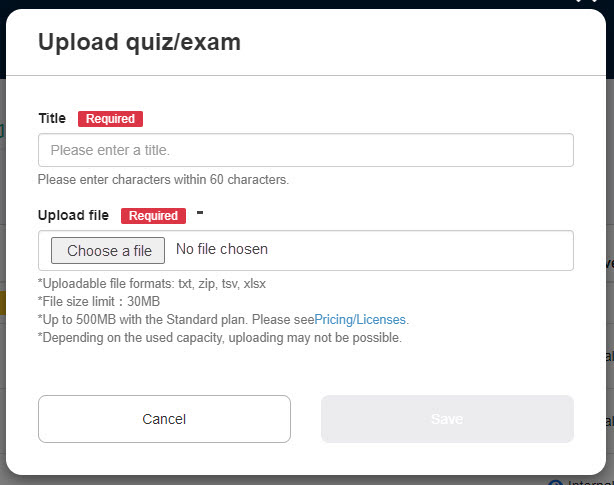
The following window will appear.
Enter a title, and upload the file you created from "Choose File."
▼Upload file from Quiz/exam creation form
Click on a course you created.
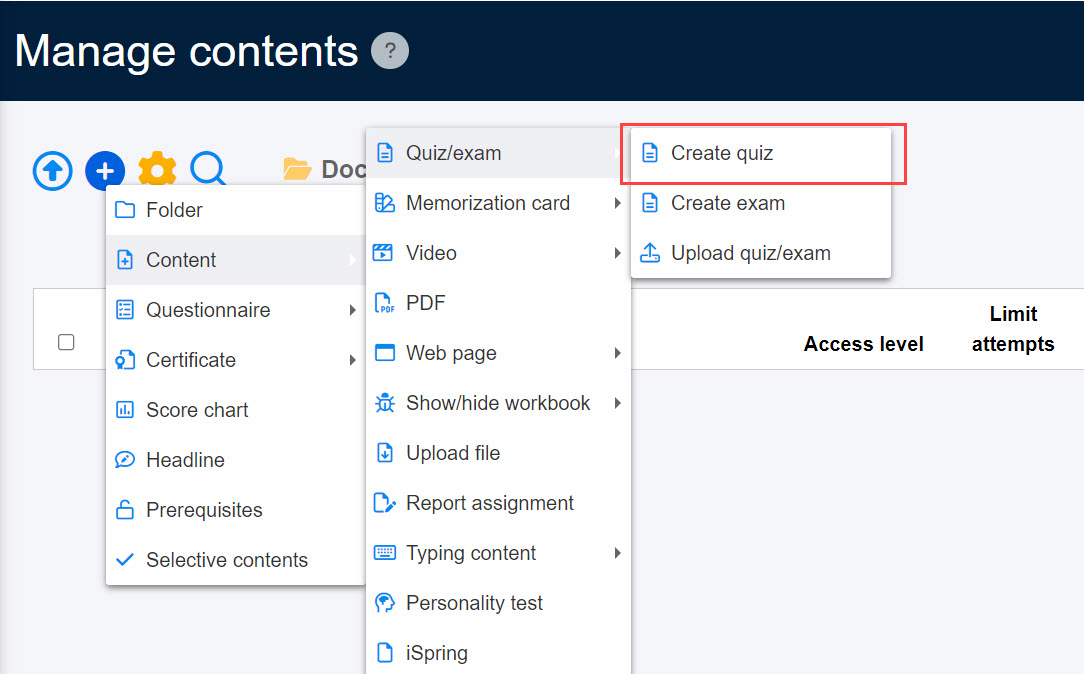
Select the "+" icon > Content > Quiz/exam > Create quiz or Create exam.
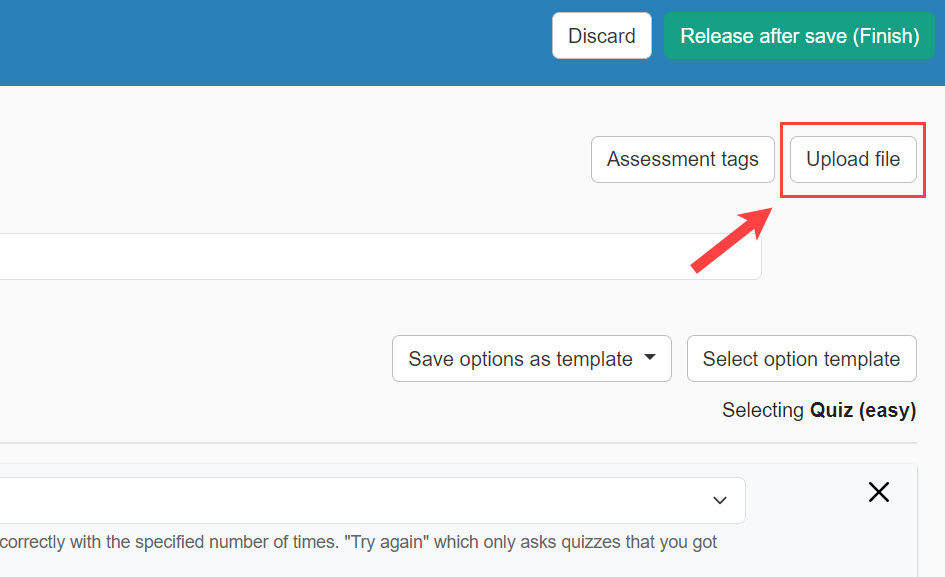
Click on "Upload file" on the Quiz/exam creation form.
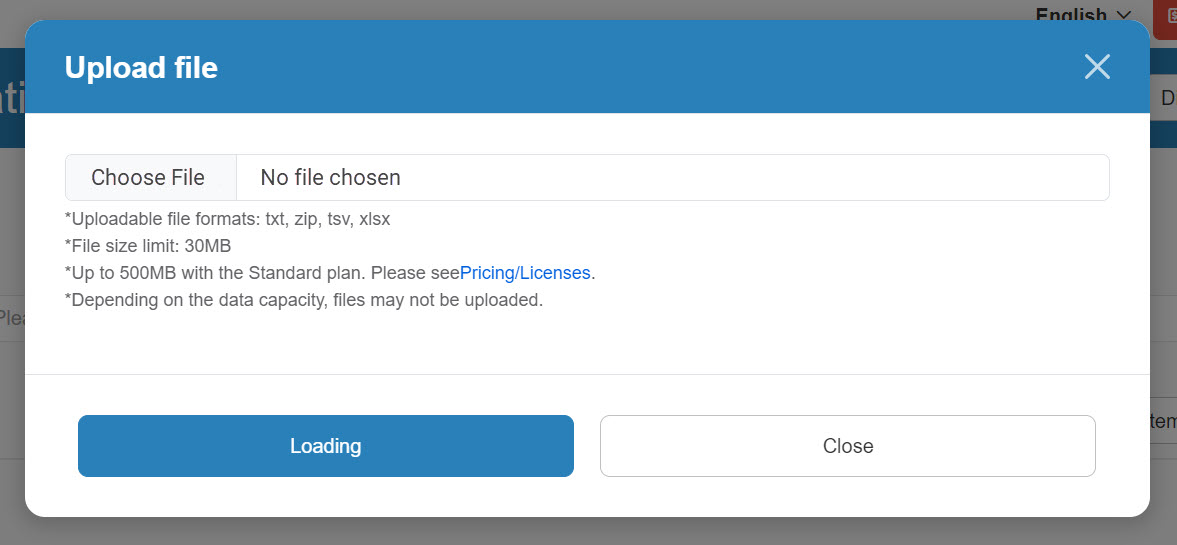
The following window will appear.
Upload the file you created from "Choose File" and click "Load."
04. Save
Click "Release after save (Finish)" at the bottom of the form to save.
Re-upload quiz/exam
Re-upload allows you to replace quiz/exam.
Select Manage contents in the side menu.
Right-click on the quiz/exam, or click the gear icon > Re-upload
Edit quiz/exam
Select Manage contents in the side menu.
Right-click on the quiz/exam, or click on the gear icon > Edit
When paused quiz/exam exists
Learners can pause a quiz/exam during the attempt by applying the setting.
When the Content manager edits a quiz/exam which learners paused, the changes will not be applied immediately to the learners' page.
To avoid confusion, learningBOX notifies the Content manager of learner pauses before they edit the content.
*For more details, refer to Paused quiz/exam.