
Create quizzes and exams
<Operation in the Manage contents (Old)>
You can create quizzes/exams using learningBOX.
Create quiz
You can create quizzes one by one or in bulk.
The following explain the steps on the Quiz/exam creation form.
To find how to create quizzes/exams in bulk, refer to Create questions in bulk.
*When editing for an extended period, we recommend you to save your work frequently to prevent any data loss.
01. Create a course
First, create a course in the Manage contents.
*For details on creating a course, refer to Course/Folder.
02. Open the Quiz/exam creation form
Click on the course you created.
Select the "+" icon > Content > Quiz/exam > Create quiz
03. Create a quiz
Enter the title of the quiz.
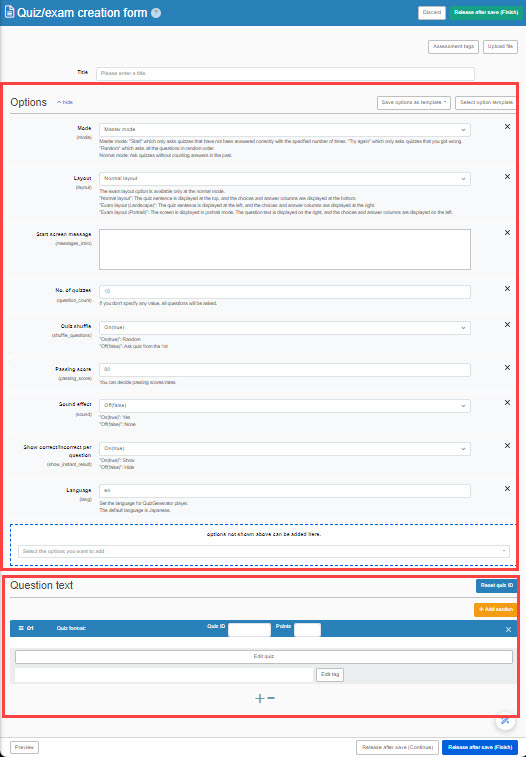
The creation form consists of the following two components:
- Options: Various settings for the quiz are available.
- Question: Questions can be added.
04. Options
You can customize your quiz with a variety of options such as the number of questions, shuffle questions, the passing score and more.
*For more details, refer to Options.
You can select more options from the list in the blue dotted frame.
Note
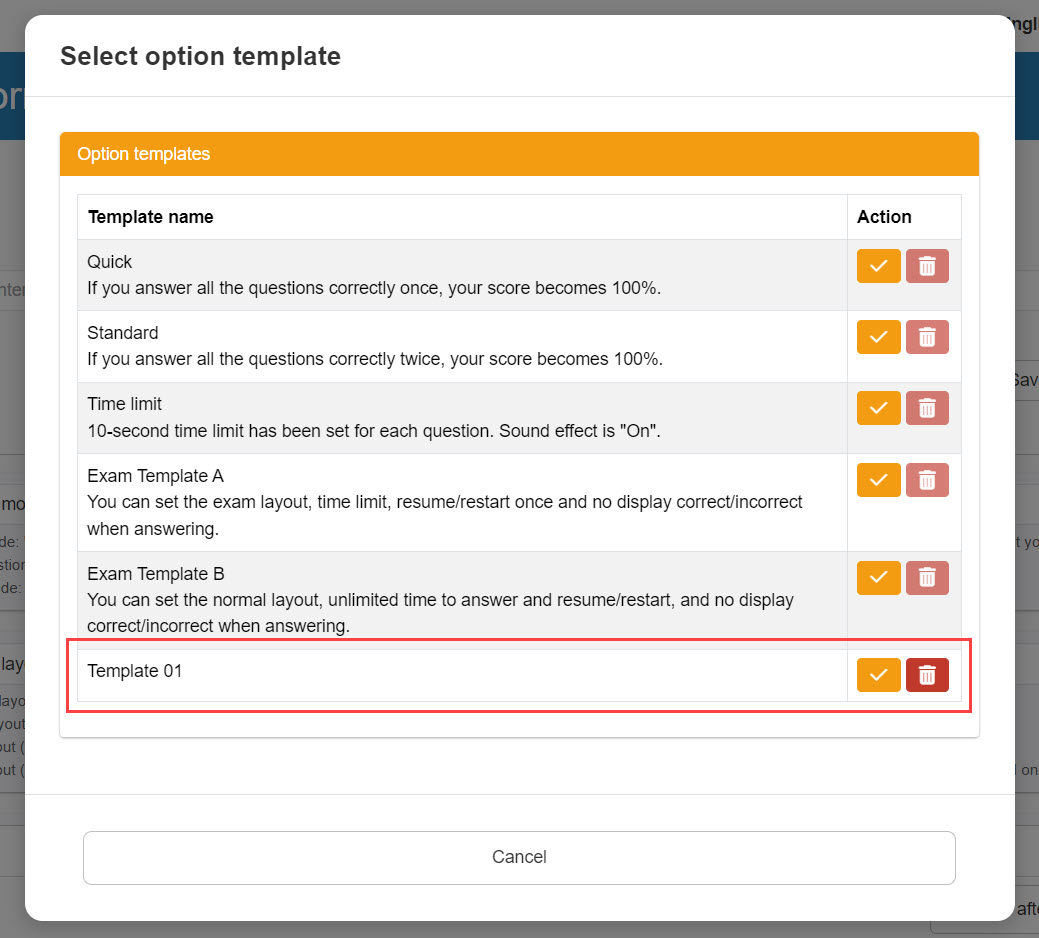
Option templates are available.
This allows you to save time when creating a quiz.
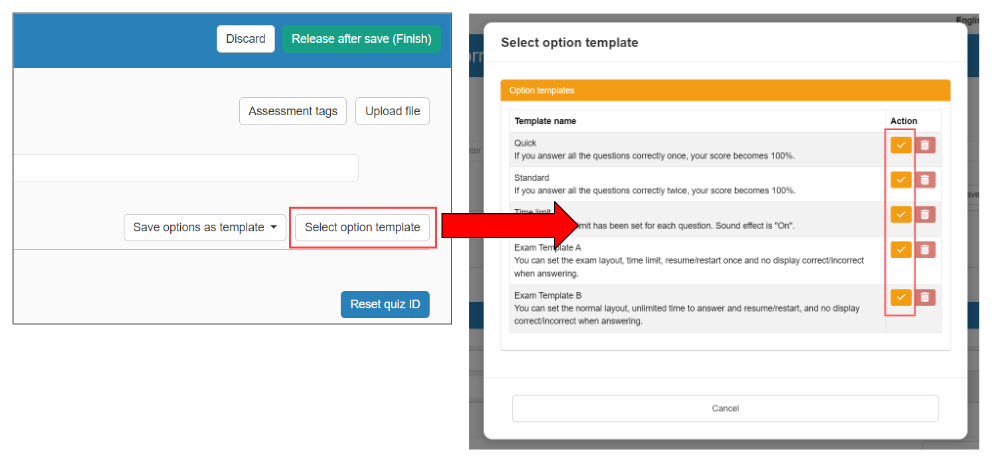
Click "Select option template," and select a template to use.
*Five templates are available as default.
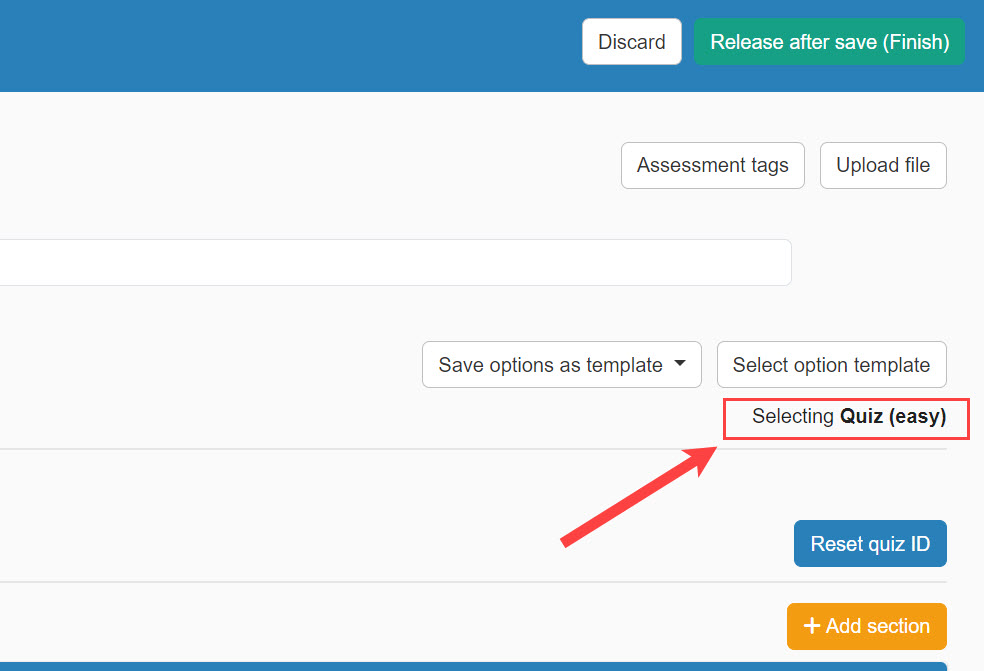
You can check the selected template as shown below.
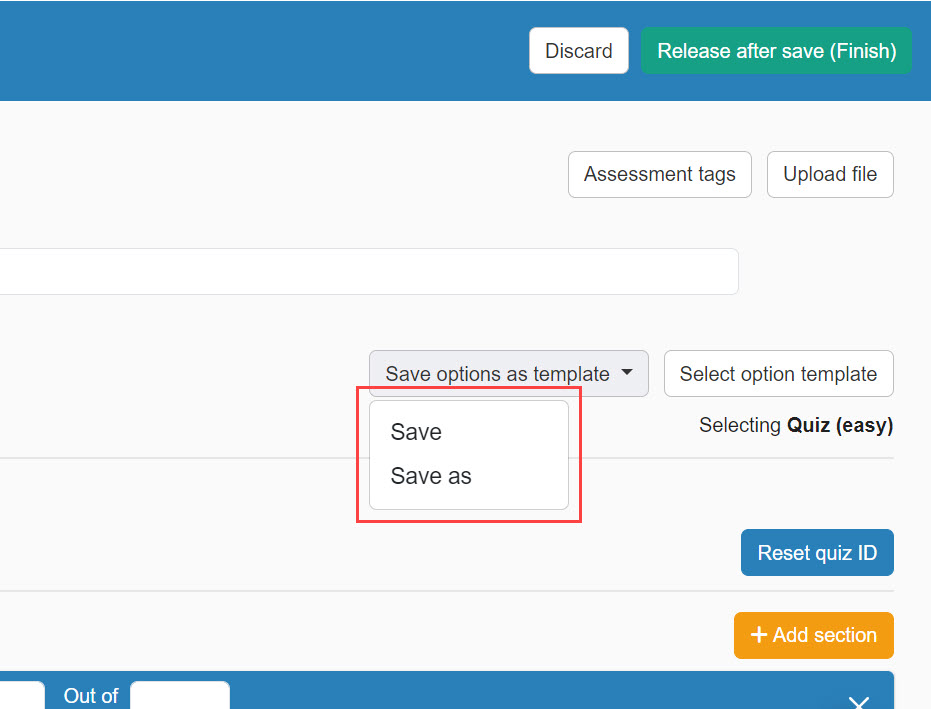
Also, customized options can be saved as a template.
After selecting options, click "Save option as template" and select "Save/Save as."
*The default templates cannot be overwritten.
Customized options can be selected from "Select option template."
To delete a template, click on the trash can icon.
The default template cannot be deleted.
05. Add questions
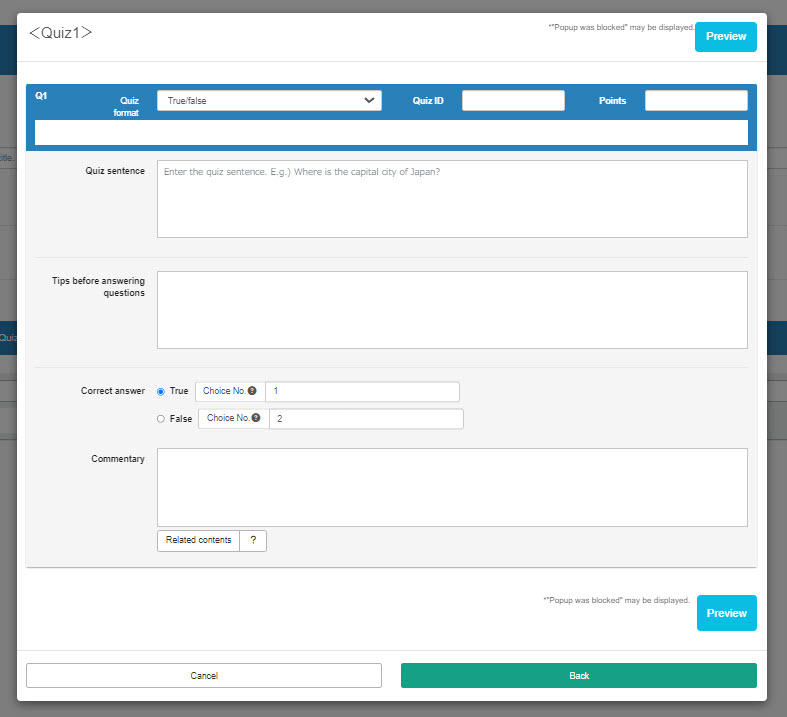
Click on "Edit."
Select a quiz format from the list.
Enter the question text, correct/incorrect answers.
*Add a description and commentary if necessary.
Click on "Preview" to check the quiz you created.
Click on "Back" to go back to the creation form.
Voice recording
You can create voice recording questions.
Learners can record their voice directly within learningBOX and submit it.
Submitted audio files can be played back directly on the Grade details or Grading page on the Manage grades.
*For more details, refer to Voice recording.
06. Add/delete question
To add a question, click the "+" icon at the bottom of the creation form.
You can delete a question by clicking the "-" icon.
Or, you can click the "x" button to delete.
07. Points
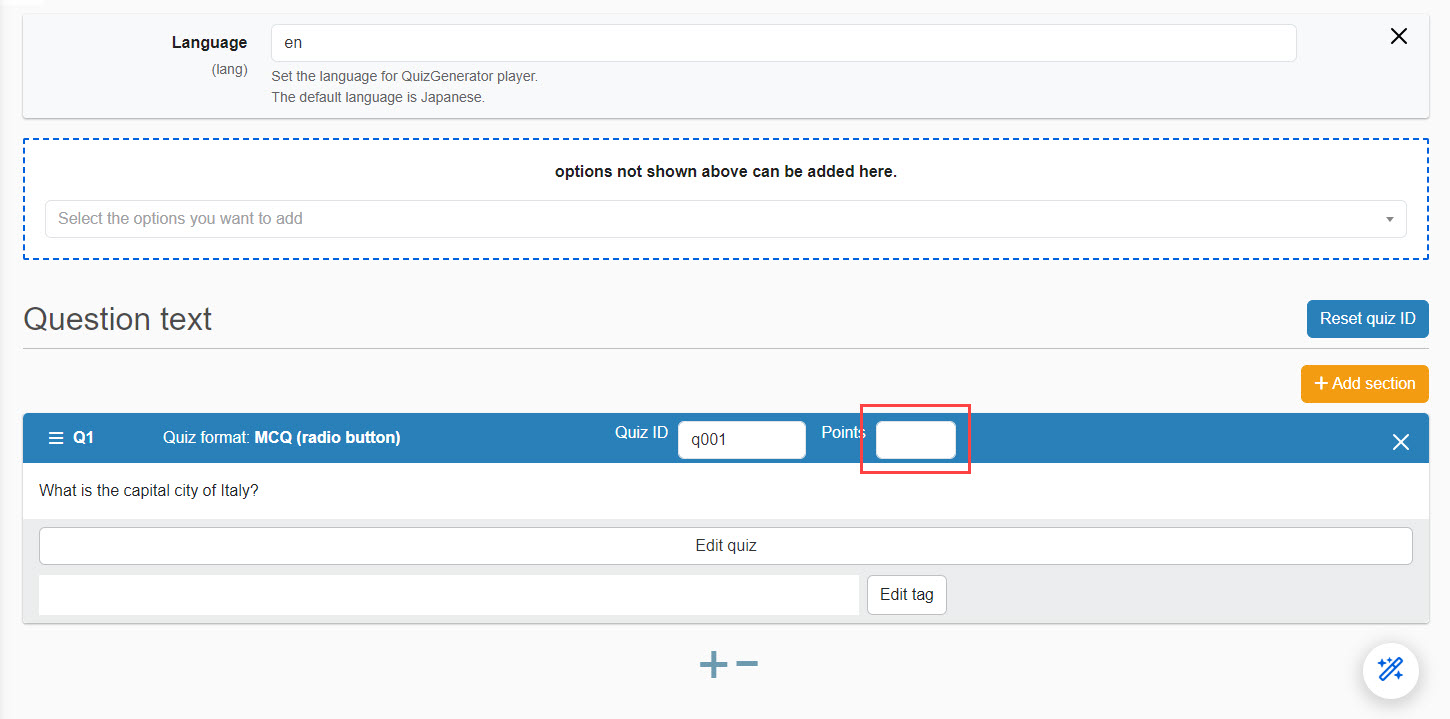
For each question, you can set points.
This function is available when the "Normal mode" is selected in the options.
If you leave it blank in the points column, the score for each question will be evenly distributed by dividing 100 points by the number of questions.
08. Section
This option allows you to manage questions by sections.
*For more details, refer to Section.
09. Tag
The same tags can be set for each section of the quiz/exam or for questions in the same category.
By taking correct/incorrect data for each of these tags, learner trends and areas of weakness can be analyzed.
*For more details, refer to Tags.
10. Related content
You can add other content created on learningBOX to the commentary box as related content.
*For more details, refer to Related content.
11. Assessment tags
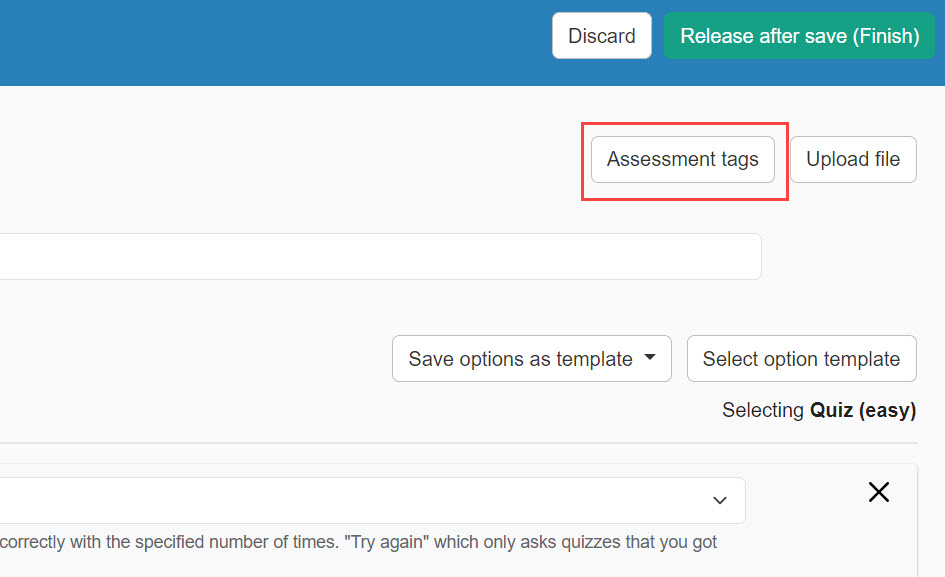
Answers can be assessed by tags.
*For more details, refer to Assessment tags.
12. Storage
To save and continue editing the quiz, click on "Release after save (Continue)."
Click "Release after save (Finish)" to finish editing.
Create exam
You can create exams one by one or in bulk.
The following explain the steps on the Quiz/exam creation form.
To find how to create quizzes/exams in bulk, refer to Create questions in bulk.
*When editing for an extended period, we recommend you to save your work frequently to prevent any data loss.
01. Create a course
First, create a course in the Manage contents.
*For details on creating a course, refer to Course/Folder.
02. Open the creation form
Click on the course you created.
Select the "+" icon > Content > Quiz/exam > Create exam
03. Settings
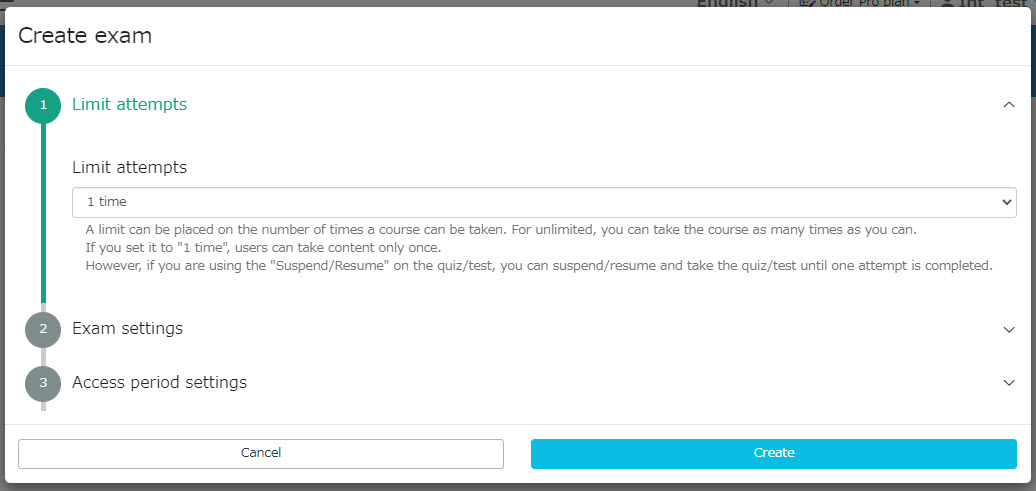
Set the following items.
When completed, click "Create."
- Limit attempts: You can limit the number of times learners can take the content.
- Exam mode: You can set whether to display scores, status, etc. on the learners' page.
- Access period: The duration to take the content can be set for each group.
For more details on test settings, refer to Exam mode.
You can also set the duration that learners can access the content in the Access period.
*For the following steps, refer to Create quiz.
AI Assist
AI assists you to create quizzes and exams.
*For more details, refer to AI Assist - Quiz/Exam.