
Report/Questionnaire
This question type allows learners to write their answers to a given question.
Required
Management role of Content manager (Edit)
Create a question
01.Open the creation form
In the Quiz/exam creation form, click Edit quiz.

02.Select the quiz format
In the Quiz format drop-down menu, select Report/questionnaire.

03. Create the question
The following input form will appear.

Configure each item as described below.
Question text
Enter the question text for the report assignment.
Description
Enter any supplementary information for the question if needed.
Submission method
Select one of the following four methods:
Text
Learners type their answers as text.
Text & file upload
Learners type a response and also upload a file.
Select the maximum file size and file types permitted for submission.
Handwriting
Learners write directly on the screen using a pen or mouse.
Select the size of the handwriting area.
④Voice recording
Learners record their own voice and submit the recording.
Enter the maximum recording duration.
Character limit
This setting is available when Text or Text & file upload is selected as the submission type.
*The character limit can be set between 1 and 10,000 characters.
If AI report analysis or AI grading is selected, the limit can be set between 1 and 3,000 characters.

Grading
Select one of the following four methods:
1. Manual
A Grade manager manually grades the report, determines pass/fail, and returns the results to the learner.
2. Manula & AI report analysis
AI report analysis assists the Grade manager's manual grading process.
3. AI
AI automatically grades the report, determines pass/fail, and returns the results to the learner.
4. Regarded as correct when any text is entered.
Points are automatically given whenever any response is submitted.
Up to five questions per Quiz/exam can use AI report analysis or AI grading.
The items available for configuration vary depending on the Grading method / Evaluation method selected.
Refer to the table below for details.
| Grading | Evaluation method | Configuration items |
|---|---|---|
| Manual | ・Note for graders | |
| Manual & AI report analysis | Similarity to model answer | ・ AI report analysis settings ・Report analysis settings ・Note for graders |
| Rubrics | ・ AI report analysis settings ・Rubrics | |
| AI grading | Similarity to model answer | ・ AI report analysis settings ・Report analysis settings |
| Rubrics | ・ AI report analysis settings ・Rubrics | |
| Regarded as correct when any text is entered | ・Use character count as the scoring criteria |
AI report analysis settings
▼ Language
Select the language to use: Japanese, English, or Vietnamese.
▼ Analysis
Ticking "Auto-analyze upon submission" triggers AI report analysis at the same time a learner submits their response. If unchecked, AI report analysis is performed only after a grade manager clicks the AI report analysis button on the grading page in Manage grades.
*This option is displayed when Manual & AI report analysis is selected as the grading method.
▼ Custom prompt
Enter supplementary information to help the AI analyze submissions more accurately.
*This option is displayed when Rubrics is selected as the evaluation method.
Practical use cases and guidance on what to enter are introduced on a separate page.
*For more details, refer to Custom prompt.
Report analysis settings
Create a model answer in advance; the AI will assess the similarity between submissions and the model answer.
Enter the model answer in the input field.

Click "Show preview" to open the following section.
Enter content in the See how AI analyzes field and click Preview.

Rubrics
What are rubrics?
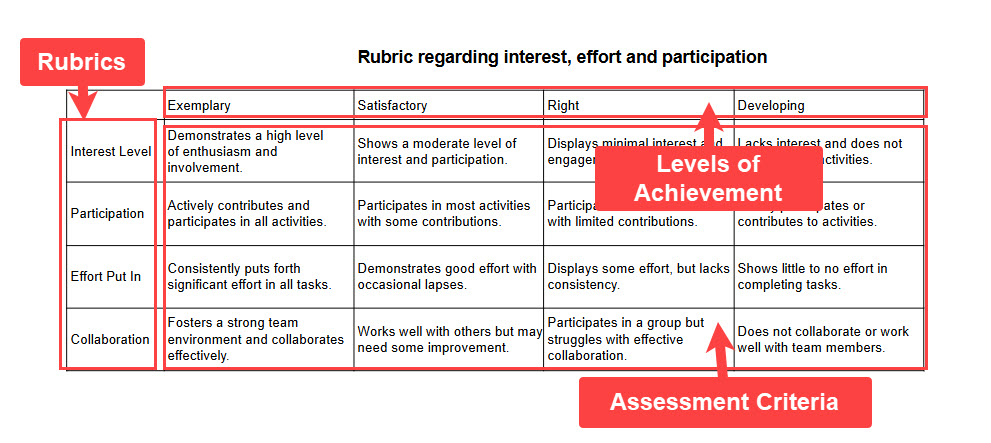
Rubrics are a grading method that uses a table with evaluation criteria (rubric titles) arranged on the vertical axis and levels of achievement on the horizontal axis, defining assessment standards for measuring learning outcomes.
Example:
The following explains how to create rubrics manually.
Configure the items below for use in rubric evaluation.
▼Title of rubric
Enter the name of the evaluation criterion (within 60 characters).
*Duplicate criterion names are not permitted.
▼Description
Enter a description of the criterion.
▼Levels of achievement
Configure the following items:
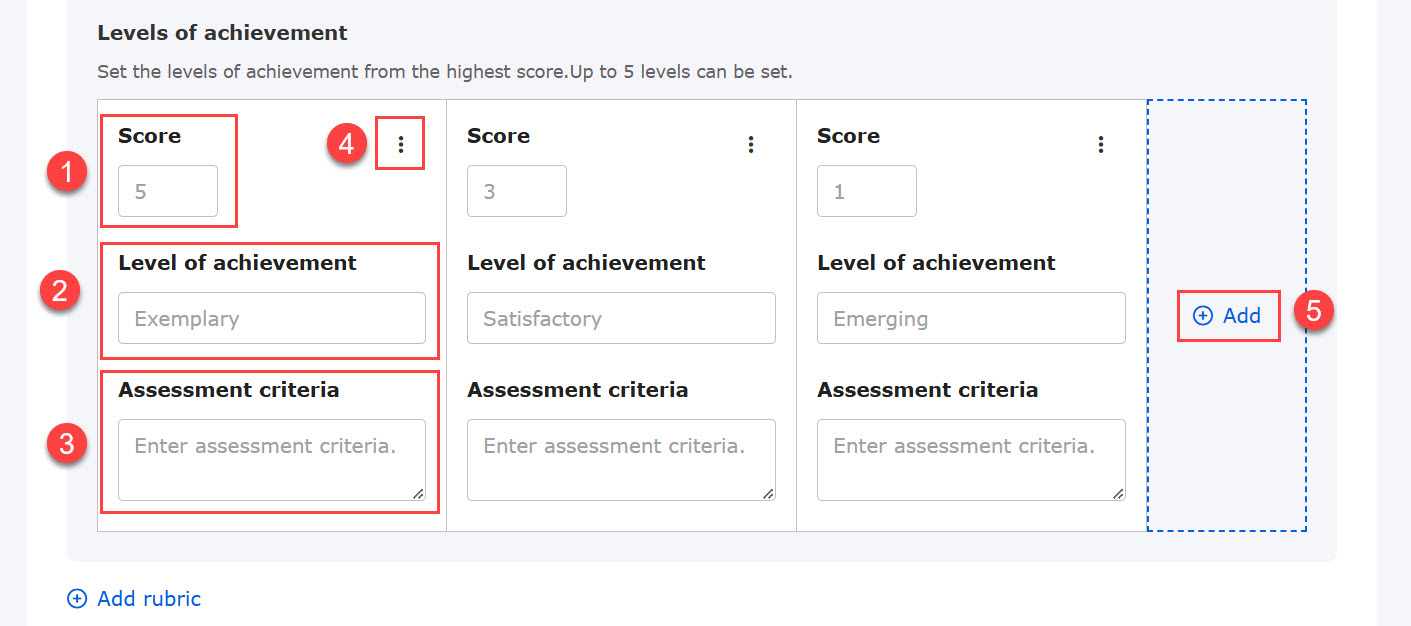
1. Enter the score for each level of the criterion (between 0 and 100).
2. Enter the name of the level (within 20 characters).
3. Criteria: Enter the assessment criteria for each level of the criterion (within 200 characters).
4.︙: Duplicate or delete individual levels.
5. +Add: Add a level (between 2 and 5 levels).
Within the same criterion, duplicate scores, levels, and criteria are not permitted.
▼︙ (Criterion edit menu)
Clicking the ︙ icon in the upper-right corner of each criterion displays the following menu:
・Duplicate: Duplicates the criterion
・Move up: Moves the criterion one position up
・Move down: Moves the criterion one position down
・Delete: Deletes the criterion
▼+ Add rubric
Add a criterion (up to 10 criteria).
Generate with AI
Clicking Rubric generation displays the following pop-up.
Configure the rubric theme and the number of rubric titles and levels of achievement, then click Generate.
AI will automatically generate rubric evaluation based on the configured settings.
*The rubric theme must be entered within 2,000 characters.
A Standard plan or higher is required to use this feature.

Learner view
Learners can review rubric evaluation results on the grade details screen.
The assessment criteria, score, level, and feedback for each criterion are displayed within each question.

Use character count as the scoring criteria
Tick "Use the number of characters as the basis for scoring."
Scoring criteria can be added using + Add setting and deleted using the ✕ button (up to 10 criteria).
*This setting is available when "Regarded as correct when any text is entered" is selected as the grading method.

Notes for graders
Enter any information you wish to communicate to the grader.
Description
A description can be displayed to learners after they submit their response.
If you wish to use this feature, enter the content to be displayed.
About points
When using rubrics, points must be configured.
Ensure that the sum of the highest scores across all criteria equals the total points assigned.
You can check how the learning screen will appear using Preview.
Once all settings are complete, click "Back."

Grading a question
Submitted responses are graded from Grading status.
01. Open the Manage grades page
From the side menu, select "Manage grades" > "Grading status."
02. Review the submitted response
On the Manage grades page, click the target content from the list.
The submissions list page will appear. Click Details for the relevant grade record.

03. Grade the submitted answer
The grade details will appear.
Click the Grade button to grade the submitted response.
*For more details, refer to Grading.
