
Grade report assignments
On the "Manage grades" page, Grade managers can view and grade submitted report assignments in one place.
For report assignments, both individual and bulk grading via Excel are supported.
You can also use AI-assisted grading.
Required
Grade manager (Edit)
Check grades
Subissions can be viewed in a list.
01. Go to "Manage grades"
Select the "Report" tab.
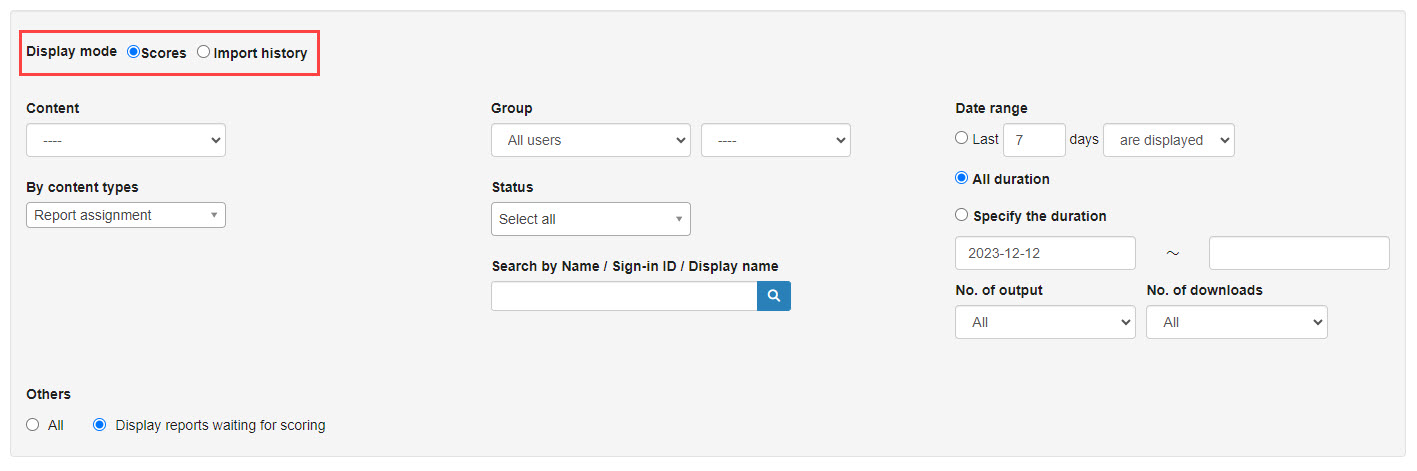
02. Display mode
Select Scores or Import history.
- Scores: Grades displayed in the List tab will be displayed.
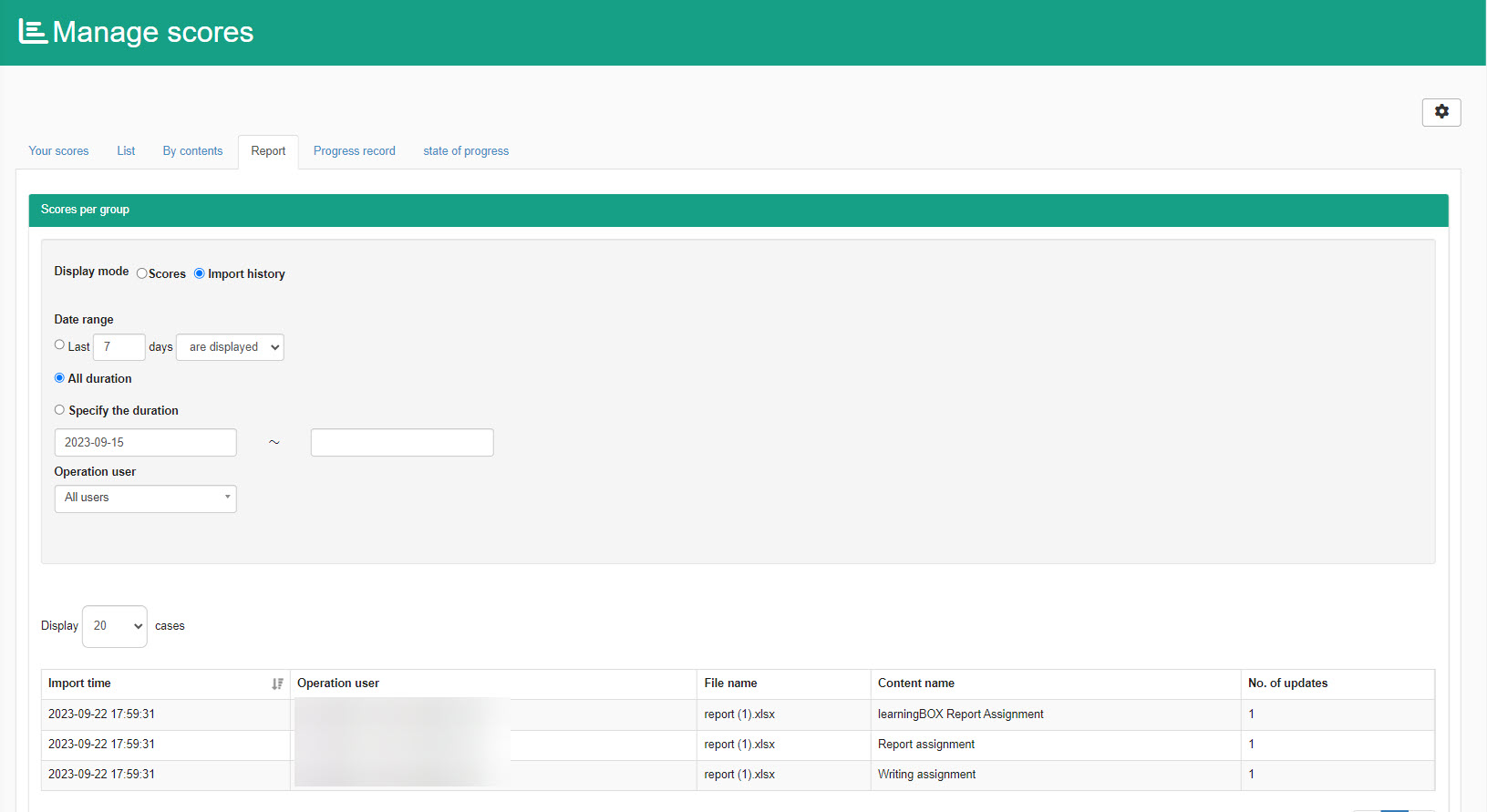
- Import history: History imported in Excel will be listed.
*For more details, refer to Excel upload.
03. Search
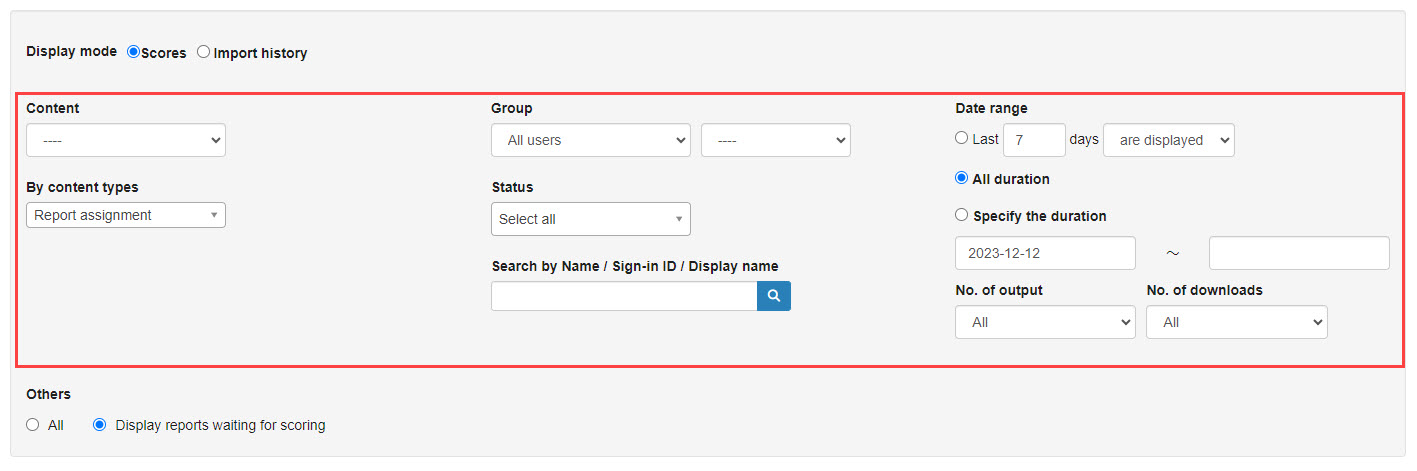
When "Scores" is selected, the following items will be available to search grades.
- Content
- Content type
- Group/User
- User Status
- Search by Name/Login ID/Display Name
- Date range
- No. of output
- No. of downloads
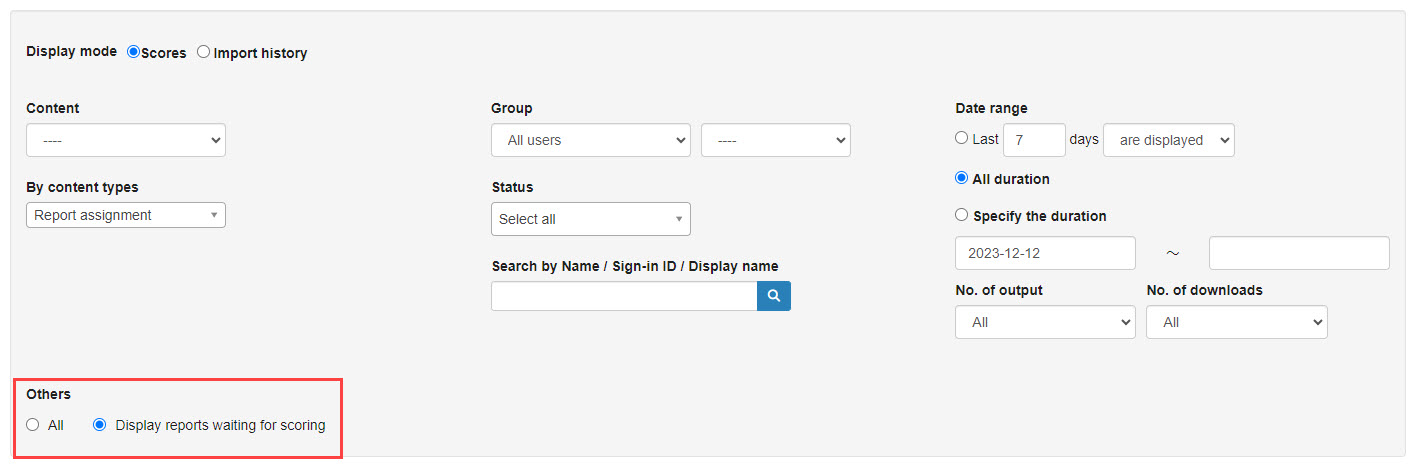
You can also search report assignments waiting for grading.
04. Answer details
Click "Details" for each report assignment to view its answer details.
*For more details, refer to Grade details.
Grading
There are two ways to grade: Individual grading and bulk grading.
You can also use AI-assisted grading.
01. Individual grading
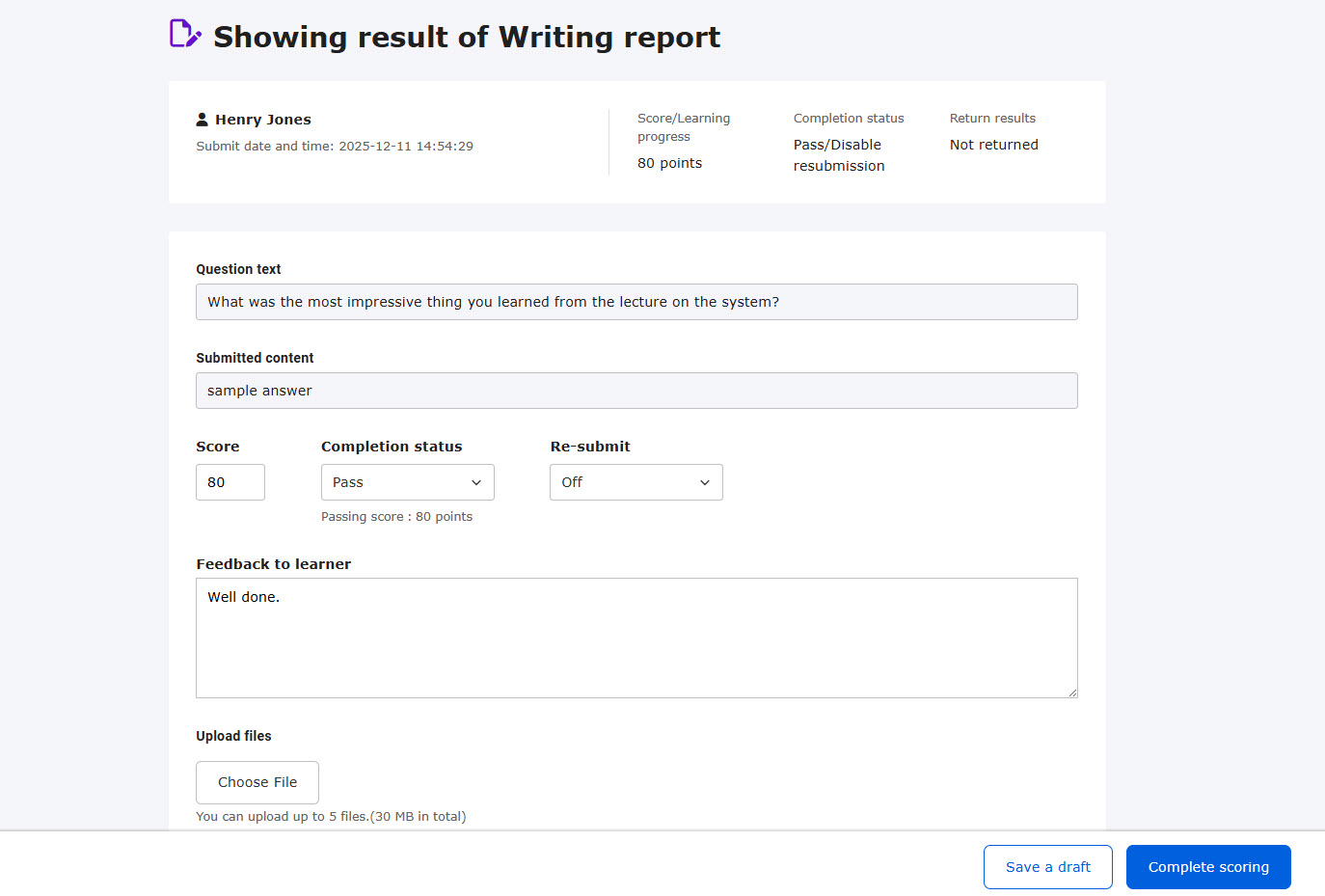
Click the "Grade" button for the target submission.
▼Report assignment
Set the score, pass/fail status, and whether to allow resubmission.
▼ Quizzes/Exams (Quiz type: Report/questionnaire)
Select correct or incorrect.
If you select partial point, enter the specific score.
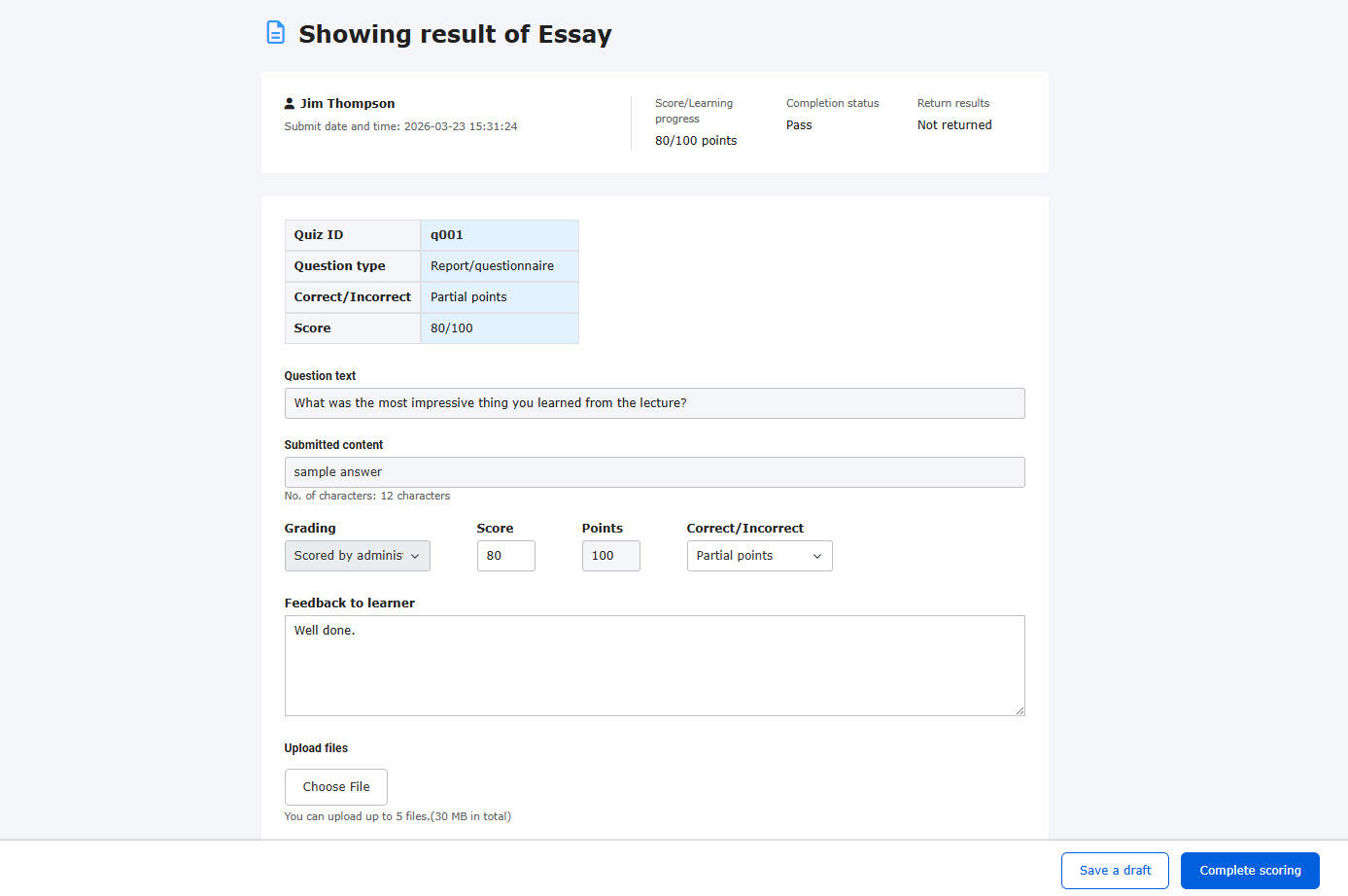
Enter comments for the learner in the "Feedback" field if necessary.
You can also upload files from "Choose file."
*For more details, refer to File upload when giving feedback.
Click "Save as Draft" to save your progress.
The status will remain "Waiting for grading" even if a pass/fail is set.
Click "Complete scoring" to finalize.
02. Bulk grading
You can grade multiple reports at once using Excel.
*For more details, refer to Excel upload.
AI-assisted grading
AI-assisted grading is available.
This will help Grade managers reduce their manual workload.
*For more details, refer to AI report analysis/Grading.
Section feedback
Feedback can be entered for each section on the quiz/exam grading page.
*For more details, refer to Section feedback.
Overall feedback
You can add a summary comment for the entire quiz/exam.
*For more details, refer to Overall feedback.
Email notification
You can send notifications to Grade managers to ask grading submissions.
*Notification history will be automatically saved.
*For more details, refer to Email notification.
Excel upload
You can download report data to Excel, grade offline, and upload it back to the system.
01. Create Excel file
Click "Create Excel" to download the displayed data of report assignment.
02. Edit Excel
Open the file.
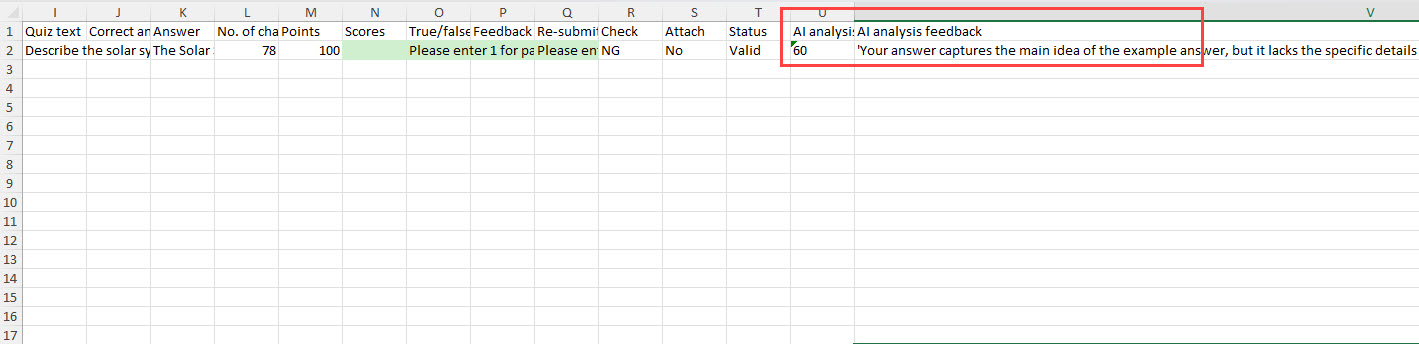
Edit the green-shaded columns:
- Score: Enter the score
- Correct/Incorrect: Enter "1" for pass, "0" for fail.
- Feedback: Enter feedback for the learner
- Re-submit: Enter "1" to allow, "0" to disallow.

The "Check" column will change from "NG" to "OK" once entered correctly.

Grade managers can save grades as a draft.
Save the Excel file and upload it after completing grading.
AI report analysis
If "AI report analysis" is enabled, the results will be pre-filled in the Excel file.
They will help you save time for grading.
▼ Model answer
AI analysis similarity and AI analysis feedback will be pre-filled.
▼ Rubrics
Each sheet will show the submission details individually.
Enter each item including score, pass/fail, etc.

03. Import Excel
Click "Import Excel."
Select the saved file and upload it.
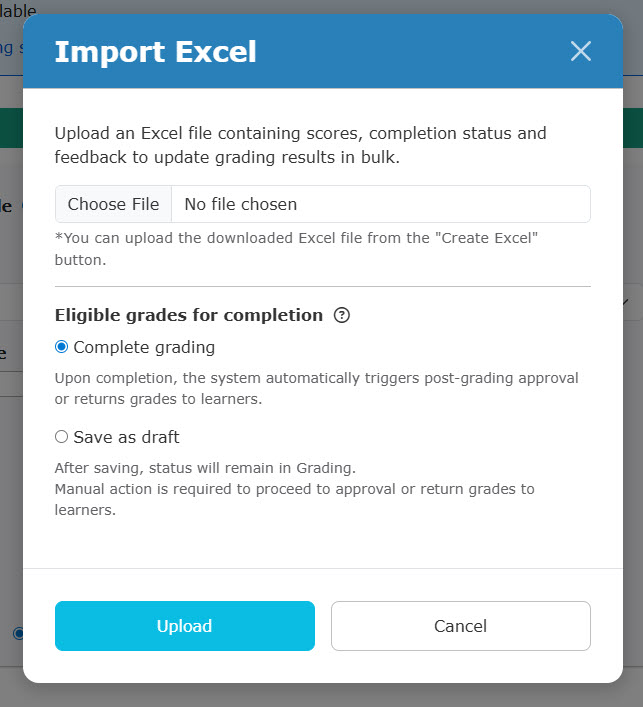
Choose one of the following:
- Complete grading: Finalize and move to the approval/return phase.
- Save as Draft: Stay in the grading phase without finalizing.
Grades outside of the grading phase cannot be saved as draft.
04. Import history
Select "Import history" in the Display mode to see a list of previous uploads.
You can filter by date.
Download submitted answers
Submitted report assignments can be downloaded from Manage grades.
There are two ways to download: Individial download and bulk download.
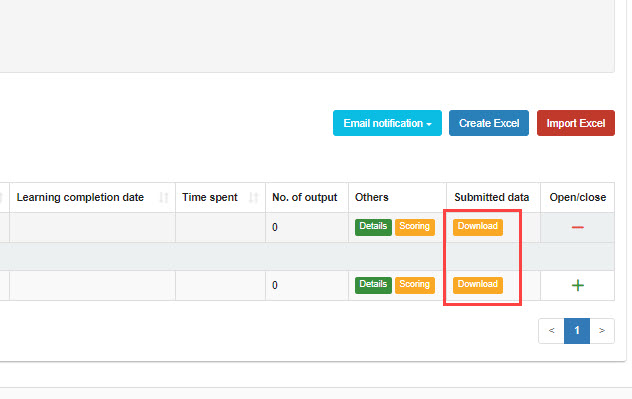
▼Individual download
Click on "Download" on a specific grade.
The data will be downloaded in a zip file.
▼Bulk download
Tick multiple boxes, go to go to "Action" > "Download."
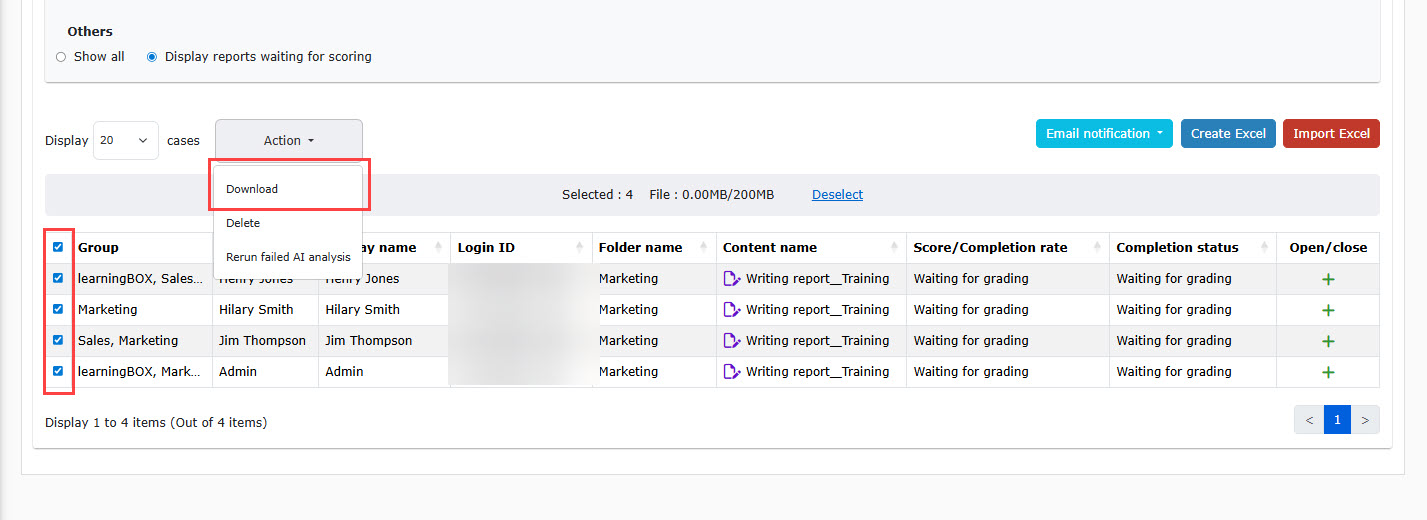
The latest downloaded date will be displayed.
Delete grades
You can delete multiple grades.
Check the boxes, go to "Action," > "Delete."
