
Bulk actions (Manage content assignment)
You can perform bulk operations on Assign content, Deadline and Access period by content, group, or user.
*Manage content assignment can access Search by content and Search by group/user. The following explain details on pages after clicking Bulk actions.
Required Management role of Content manager (Assign)
Definitions regarding content assignment
On the Assign tab of the Bulk actions page, you can configure the following four main types of settings:
- Not selected (checkbox left blank): No assignment has been made.
- Directly selected (blue checkbox ✔): The item has been directly selected.
- Dependent selection (grayed-out checkbox ✔): The original content has been selected directly, and its sub-content has been assigned as a result.
- Undecided selection (checkbox with a blue underline): The original content is not directly selected, and only the sub-content is directly selected.
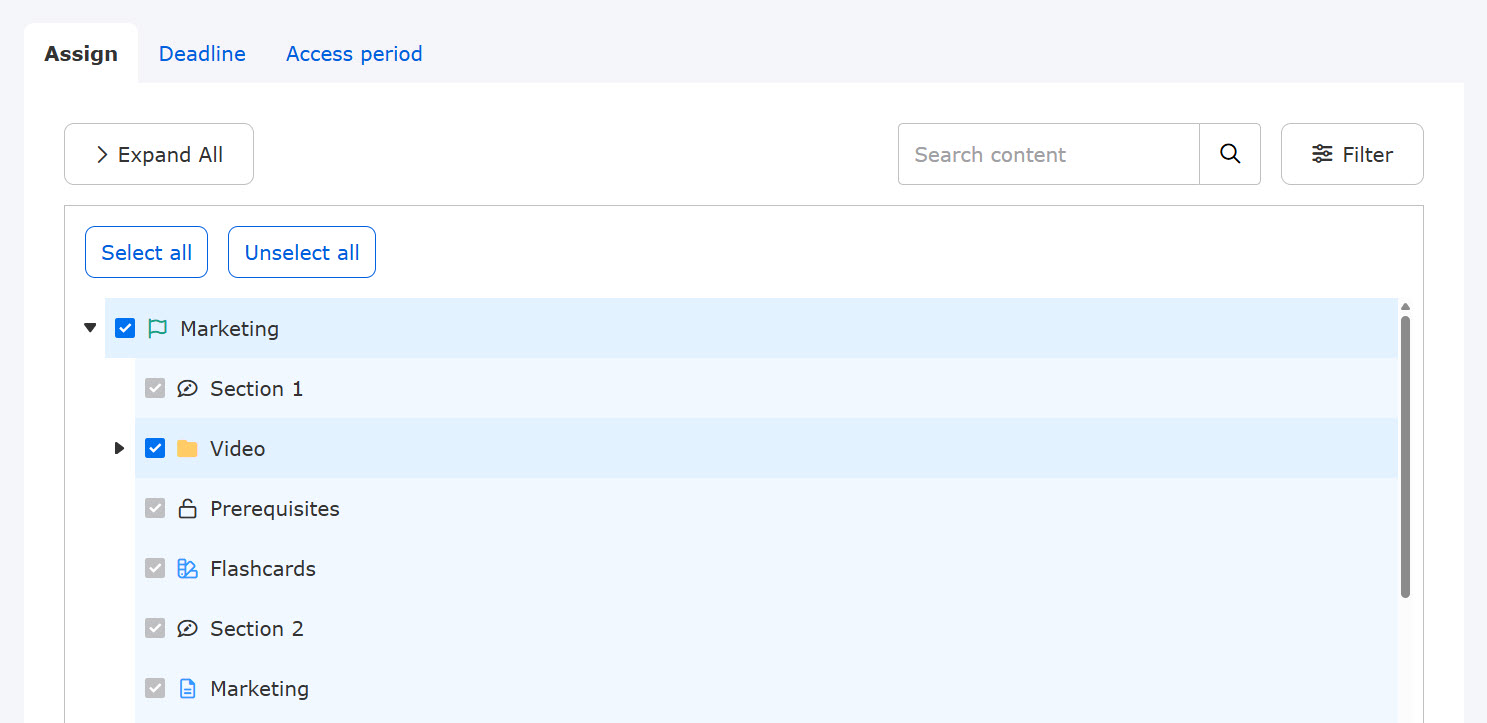
You cannot deselect sub-content set to dependent selection.
You must first deselect the parent element.
Search by content
This section explains how to proceed when navigating to the Manage content assignment page from the Search by content tab.
Below are the details for the Group and User tabs.
Group tab
Clicking Bulk actions on the Group tab displays the following screen.
For content selected on the Manage content assignment page, you can manage content assignments, course deadlines, and access periods across multiple groups at once.
The Assign, Deadline, and Access period tabs appear as shown below.

▼Assign
A list of groups under your assignment permissions will be displayed.
Tick the boxes to assign, or untick to unassign.
Tick the box at the bottom to apply the same group assignment to the subfolders.
Select all and Unselect all buttons are available for quick selection.
Click Save to complete the settings.

Click Expand all or Collapse all at the top left of the page to fully expand or collapse the group structure.
You can also use the keyword search or the Filter option.
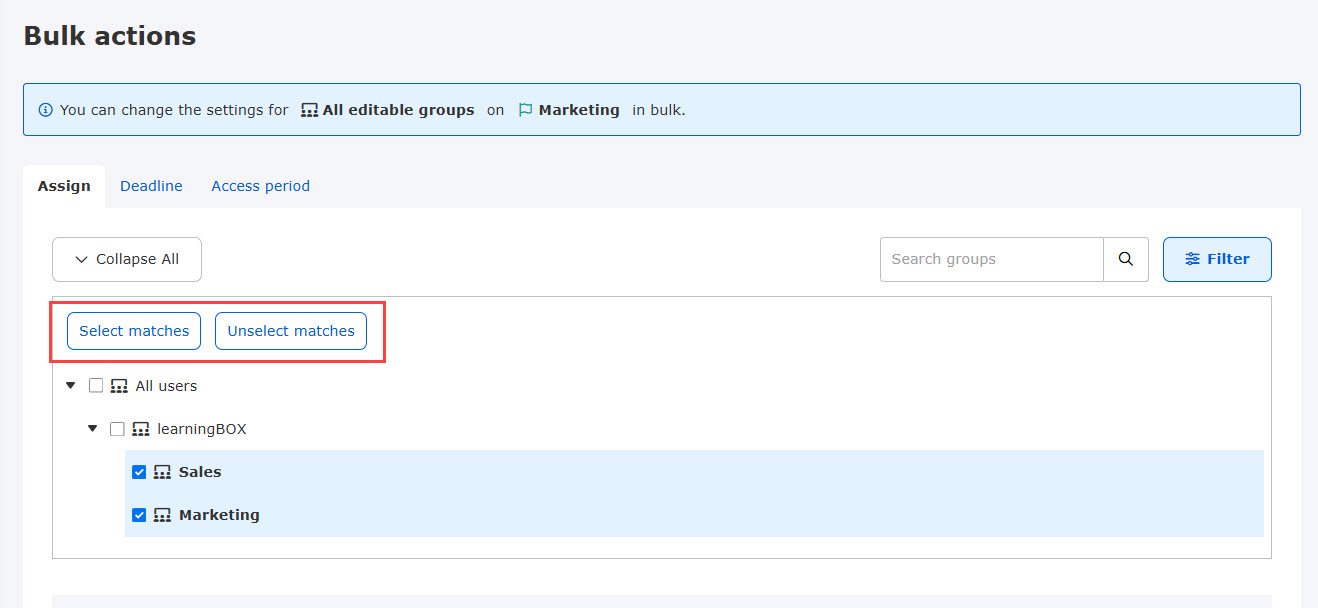
Use the Select matches or Unselect matches buttons to quickly select or deselect items matching your current search or filter criteria.
- Select matches: Directly selects all hierarchical elements matching the filtered search.
- Deselect matches: Deselects only directly selected items that match the filtered search results. Dependent selections will not be deselected unless their parent element is directly selected and matched.
▼Deadline
Groups within your assignment permissions will be displayed.
You can also use the keyword search or the Filter option.
To edit or remove a deadline, select an item in the Action column.
For bulk actions, tick the boxes and click the Action button.
*For more details, refer to Deadline.

Click Expand all or Collapse all at the top left of the page to fully expand or collapse the group structure.
▼Access period
Click + Add access period to add a new period, and the settings will be listed.
You can also use the keyword search or the Filter option.
To edit or delete deadlines, click the button in the Action column.
For bulk actions, select multiple groups and click the Action button.
Under Off-period display settings, you can customize how the content appears on the user's course selection page when it falls outside its active period.
*For more details, refer to Access period.

User
Clicking Bulk actions on the User tab displays the following screen.
For content selected on the Manage content assignment screen, you can manage content assignments and course deadlines across multiple users at once.
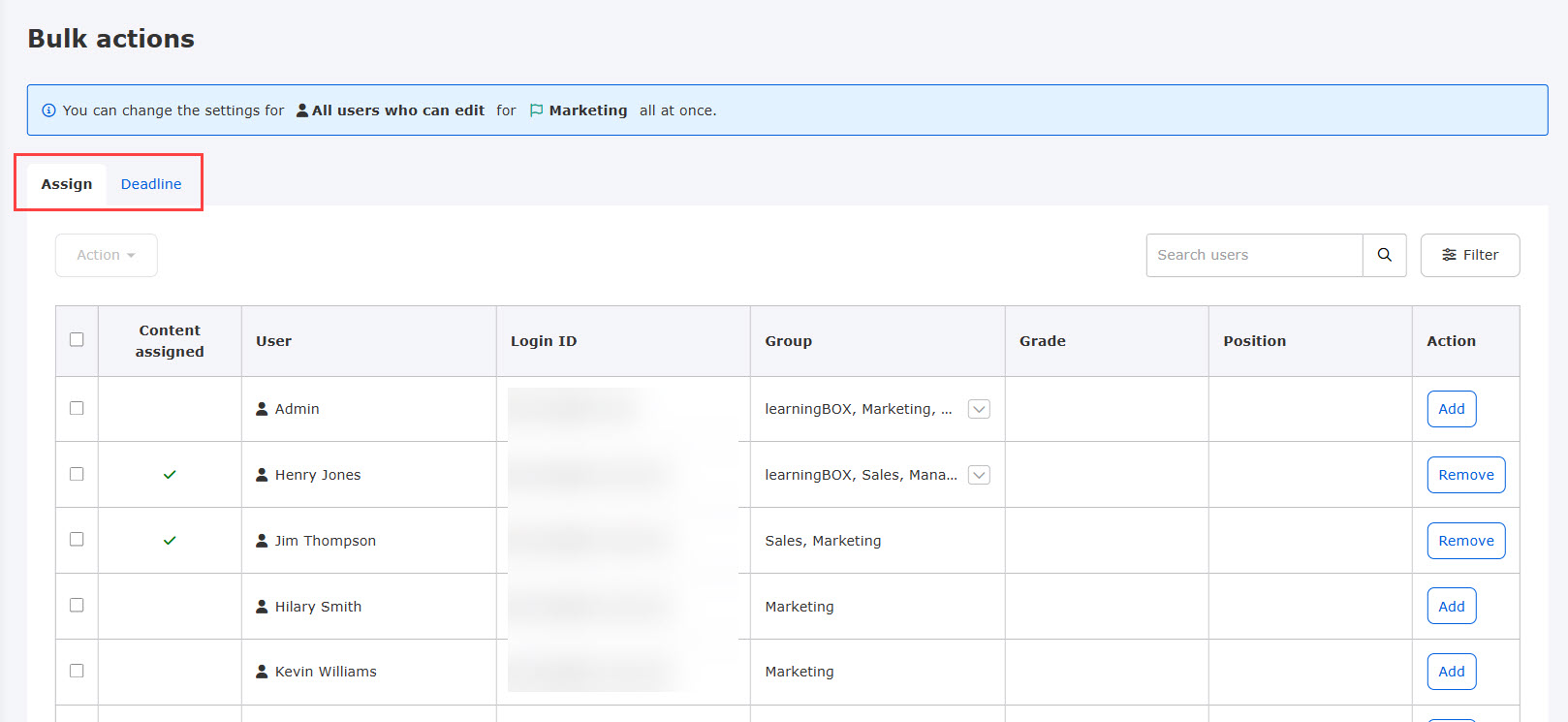
Select either Assign or Deadline.
▼Assign
Users under your permissions are displayed.
You can also use the keyword search or the Filter option.
To apply settings individually, click Add or Remove for the target user.
Tick Assign/Unassign all subfolders to apply changes to all subfolders within the course.
For bulk actions, tick the boxes and click Action.
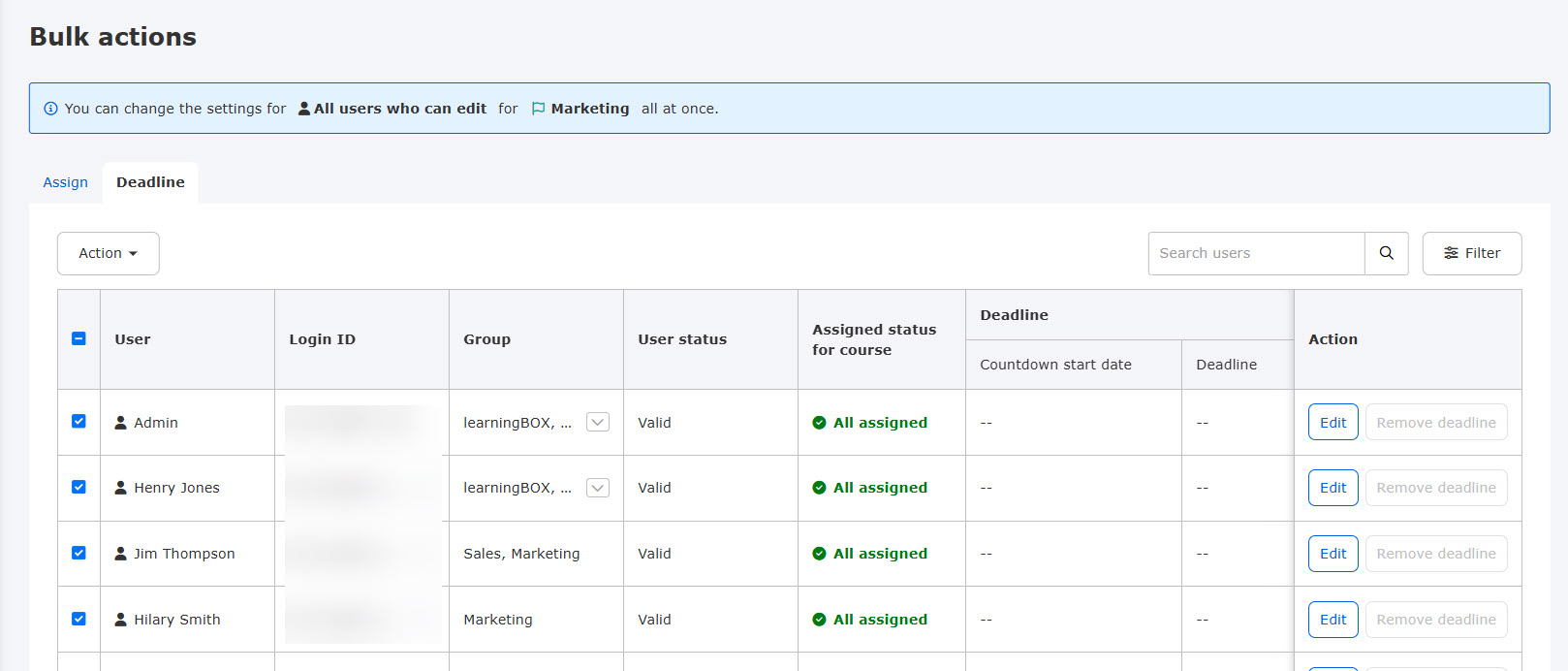
▼Deadline
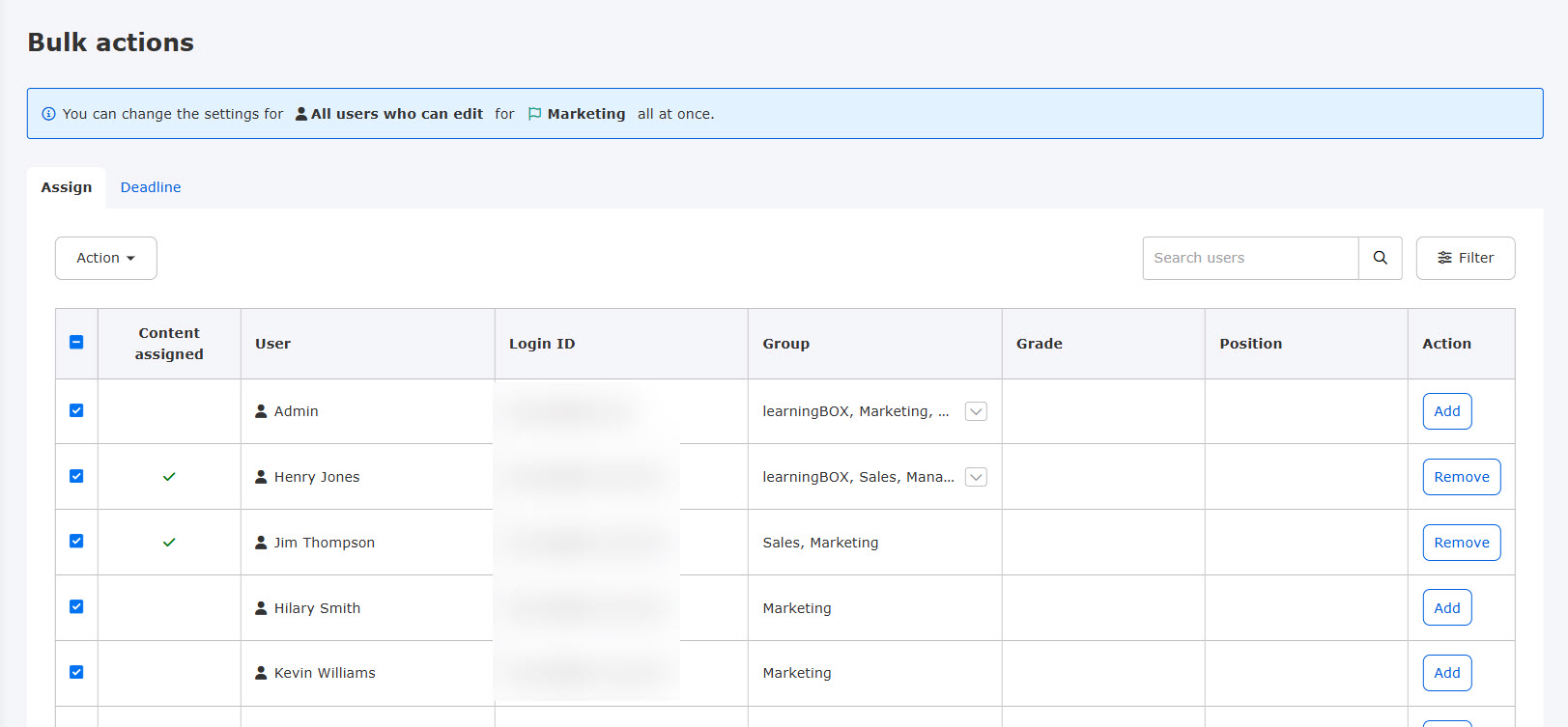
Users under your permissions are displayed.
You can also use the keyword search or the Filter option.
You can edit or remove the deadline individually in the Action column.
For bulk actions, tick the boxes and click the Action button.
*For more details, refer to Deadline.
Search by group/user
This section explains the steps to follow when navigating to the "Content Allocation Management" screen from the "Search by Group/User" tab.
Below are the details for the Group and User tabs.
Group tab
Clicking Bulk actions on the Group tab displays the following screen.
For the group selected on the "Content Assignment Management" screen, you can manage the "Content Assignment, Course Expiration Date, and Publication Period" for multiple pieces of content all at once.
The Assign, Deadline, and Access period tabs appear as shown below.
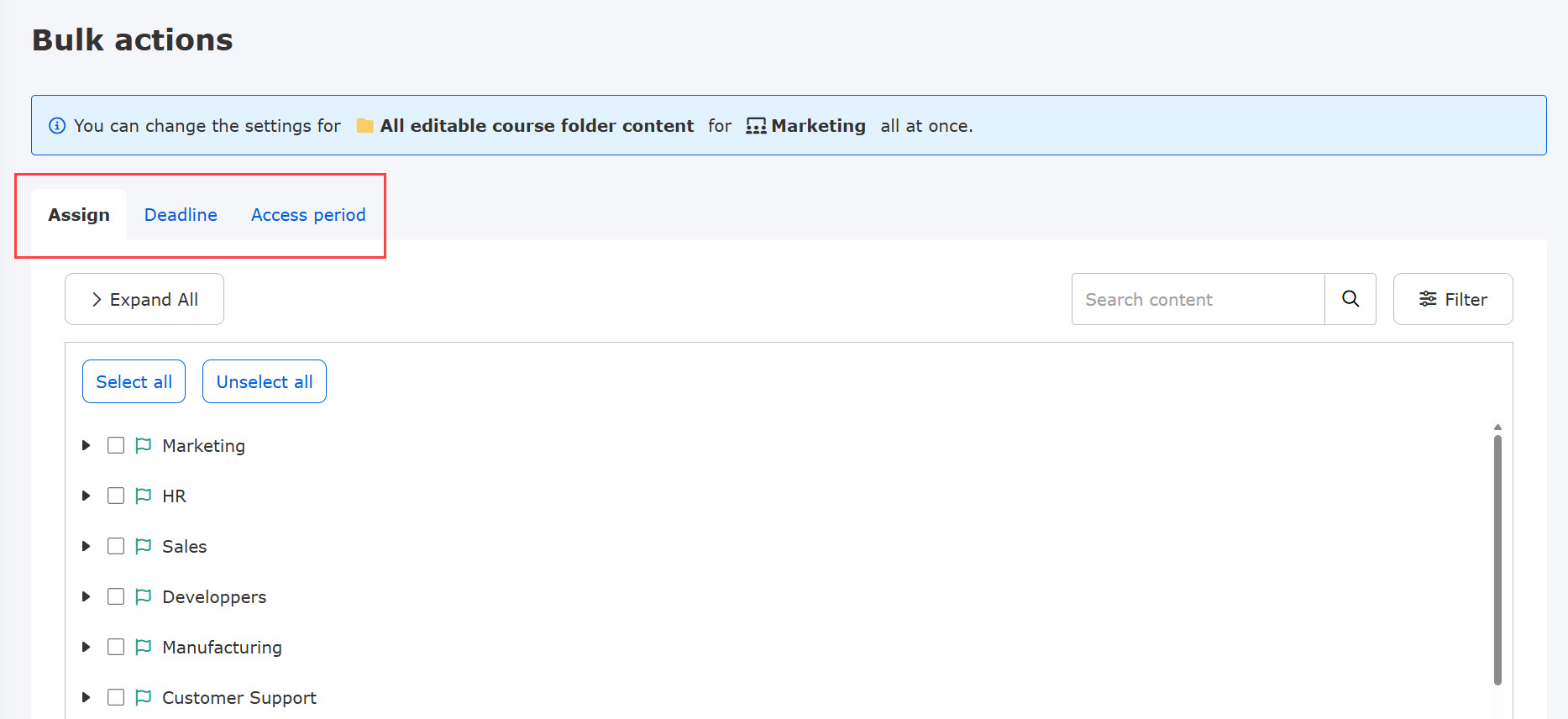
▼Assign
Content under your permissions will be displayed.
Tick/untick the boxes to assign/unassign groups.
Select all and Unselect all buttons are available for quick selection.
Click Save to complete the settings.
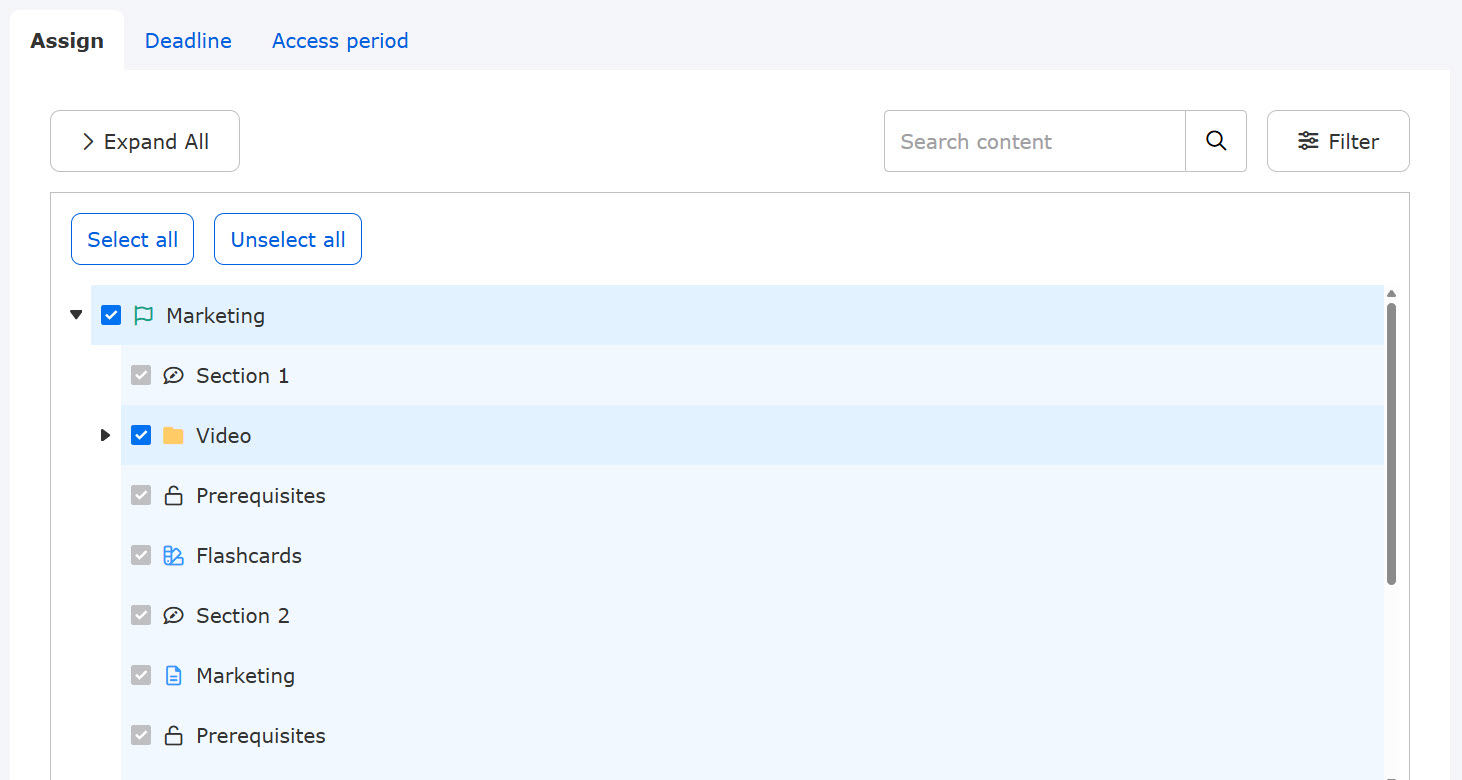
Click Expand all or Collapse all at the top left of the page to fully expand or collapse the group structure.
You can also use the keyword search or the Filter option.
Use the Select matches or Unselect matches buttons to quickly select or deselect items matching your current search or filter criteria.
- Select matches: Directly selects all hierarchical elements matching the filtered search.
- Deselect matches: Deselects only directly selected items that match the filtered search results. Dependent selections will not be deselected unless their parent element is directly selected and matched.

If you select only a course, the settings will not be applied to the folders under the course.

▼Deadline
Content under your permissions is displayed.
You can also use the keyword search or the Filter option.
Edit or remove individual deadlines using the Action column.
For bulk actions, select the desired checkboxes and click Action.
*For more details, refer to Deadline.
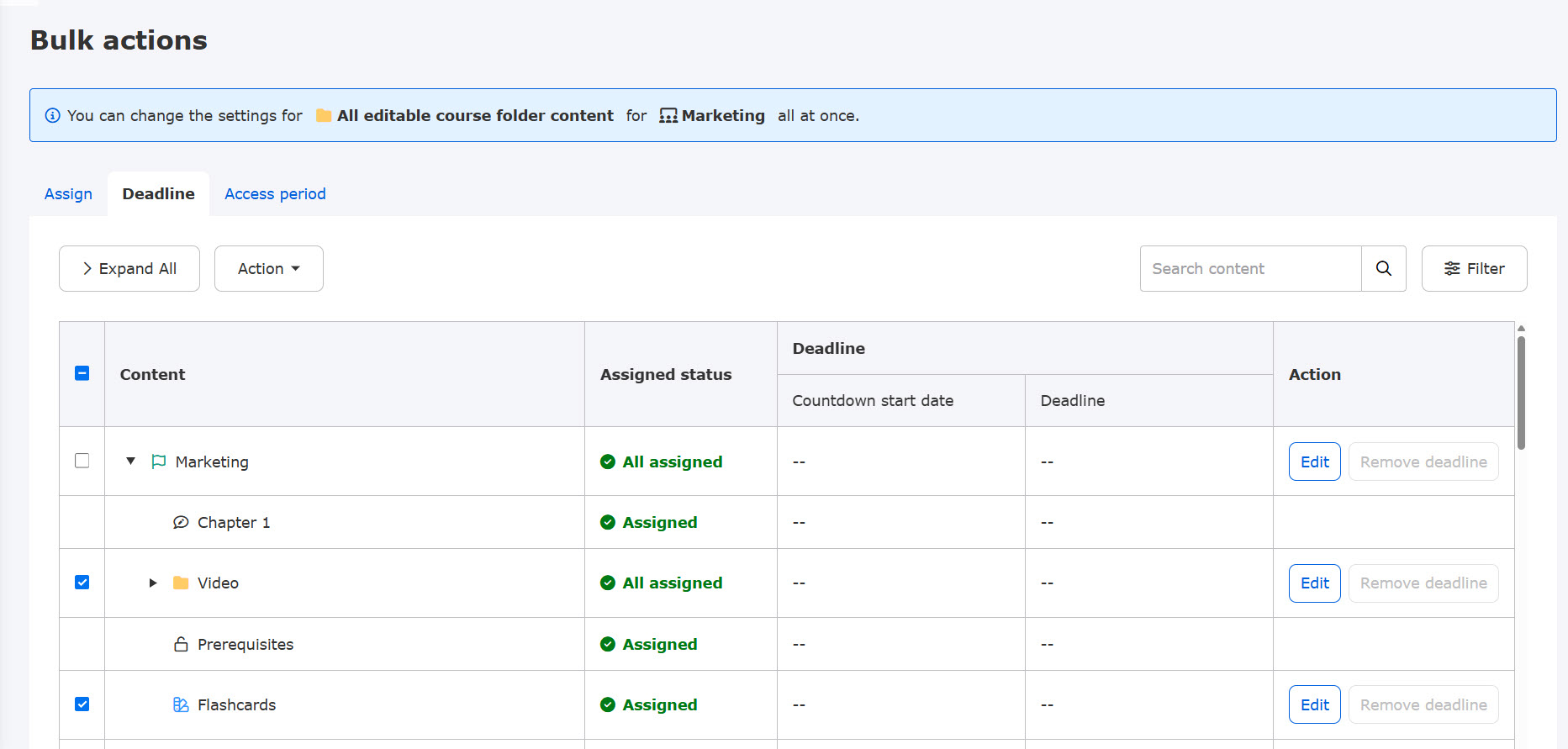
Click Expand all or Collapse all at the top left of the page to fully expand or collapse the group structure.
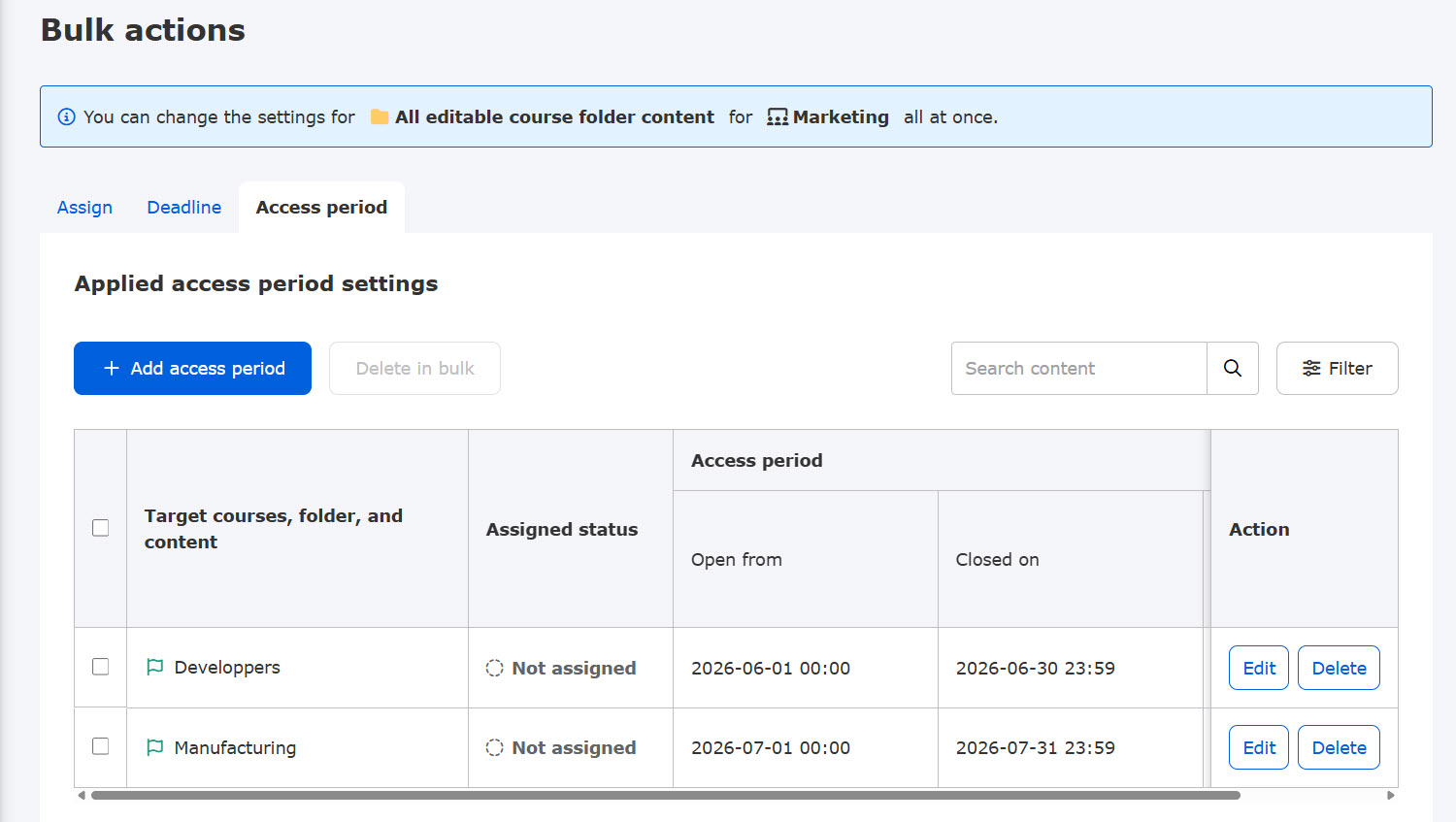
▼Access period
Click + Add access period to add a new period, and the settings will be listed.
You can also use the keyword search or the Filter option.
To edit or delete deadlines, click the button in the Action column.
For bulk actions, select multiple groups and click the Action button.
*For more details, refer to Access period.
User
Clicking Bulk actions on the User tab displays the following screen.
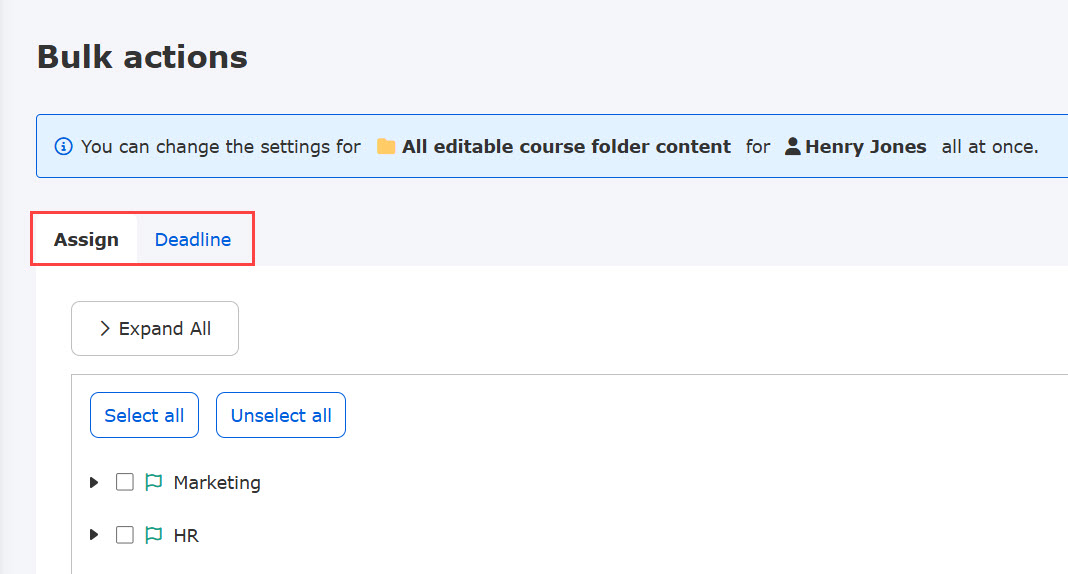
For users selected on the Manage content assignment page, you can manage content assignments and deadlines across multiple items at once.
Select either Assign or Deadline.
▼Assign
The content under your permissions is listed.
Tick the boxes to assign content.
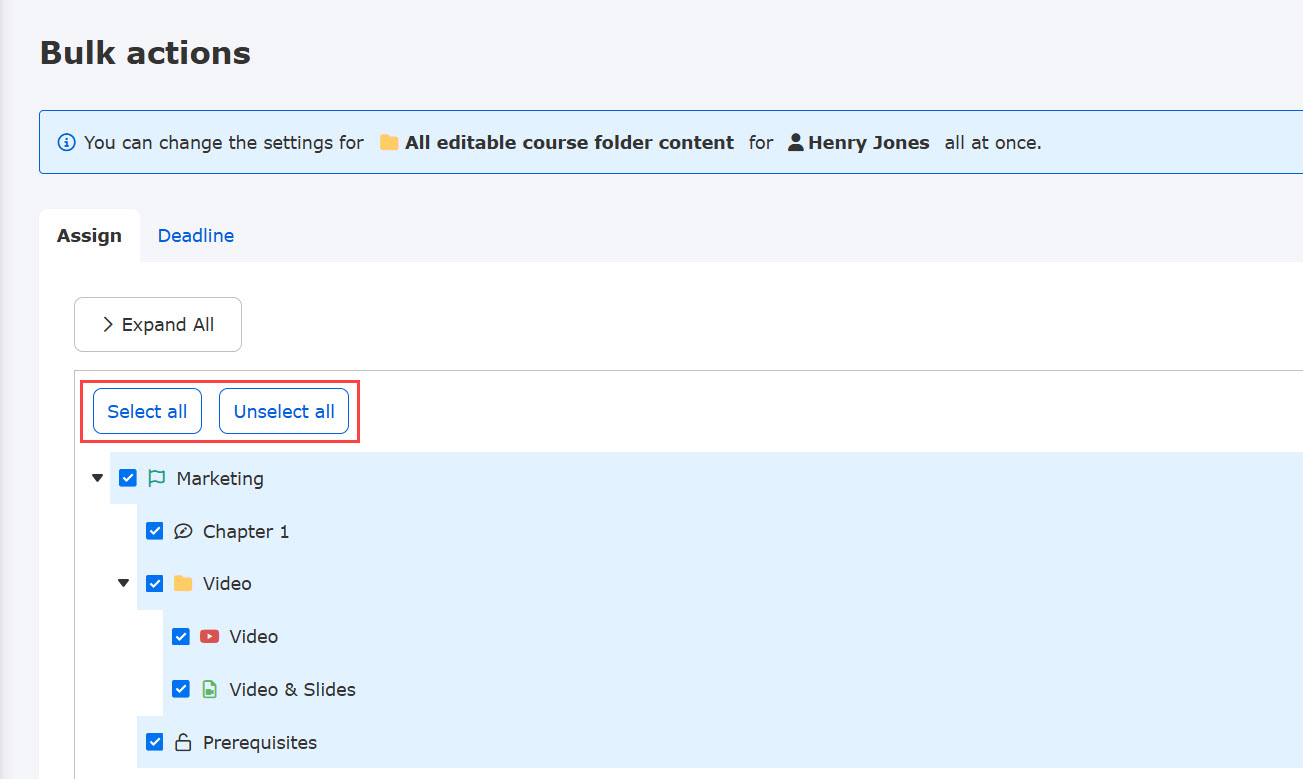
Select all and Unselect all buttons are available for quick selection.
Click Save to complete the settings.

Click Expand all or Collapse all at the top left of the page to fully expand or collapse the group structure.
You can also use the keyword search or the Filter option.
Use the Select matches or Unselect matches buttons to quickly select or deselect items matching your current search or filter criteria.
- Select matches: Directly selects all hierarchical elements matching the filtered search.
- Deselect matches: Deselects only directly selected items that match the filtered search results. Dependent selections will not be deselected unless their parent element is directly selected and matched.
If you select only a course, the settings will not be applied to the folders under the course.
▼Deadline
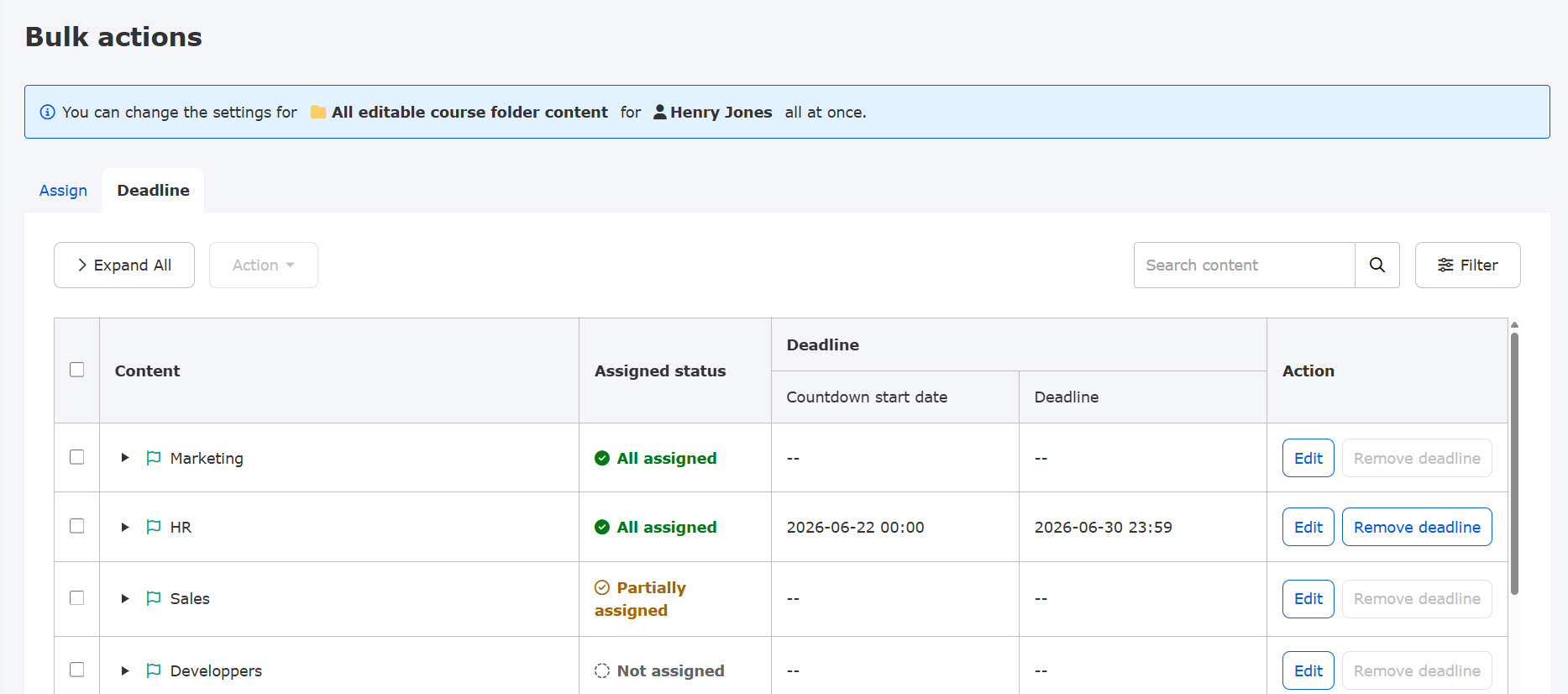
Content under your permissions is displayed.
You can also use the keyword search or the Filter option.
Edit or remove individual deadlines using the Action column.
For bulk actions, select the desired checkboxes and click Action.
*For more details, refer to Deadline.
Click Expand all or Collapse all at the top left of the page to fully expand or collapse the group structure.