Overview of Manage contents
<Operation in the Manage contents (Old)>
"Manage content" is where you create and assign content.
This page provides an overview of the Manage content features.
Important
To improve usability and scalability, we are planning a phased transition of the Manage contents interface to a new, enhanced version.
- Version 5.0 (Scheduled for mid-March 2026): The new interface will become the default display.
- Version 7.0 (Scheduled for mid-September 2026): Support for the legacy Manage contents interface will officially end.
We kindly request that you review the operating procedures for the new interface and complete your transition at your earliest convenience.
・ New Manage Content Page
Create content
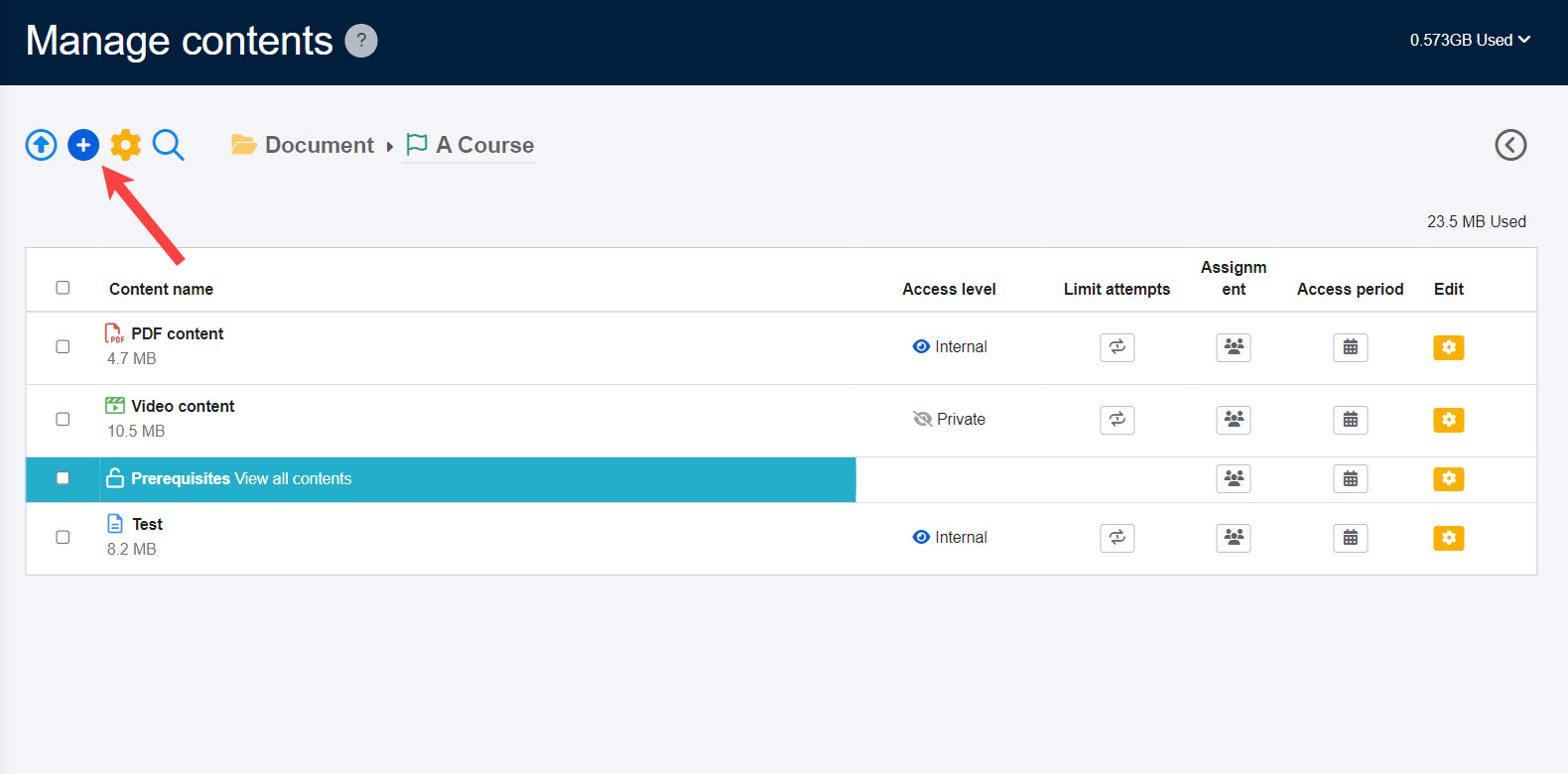
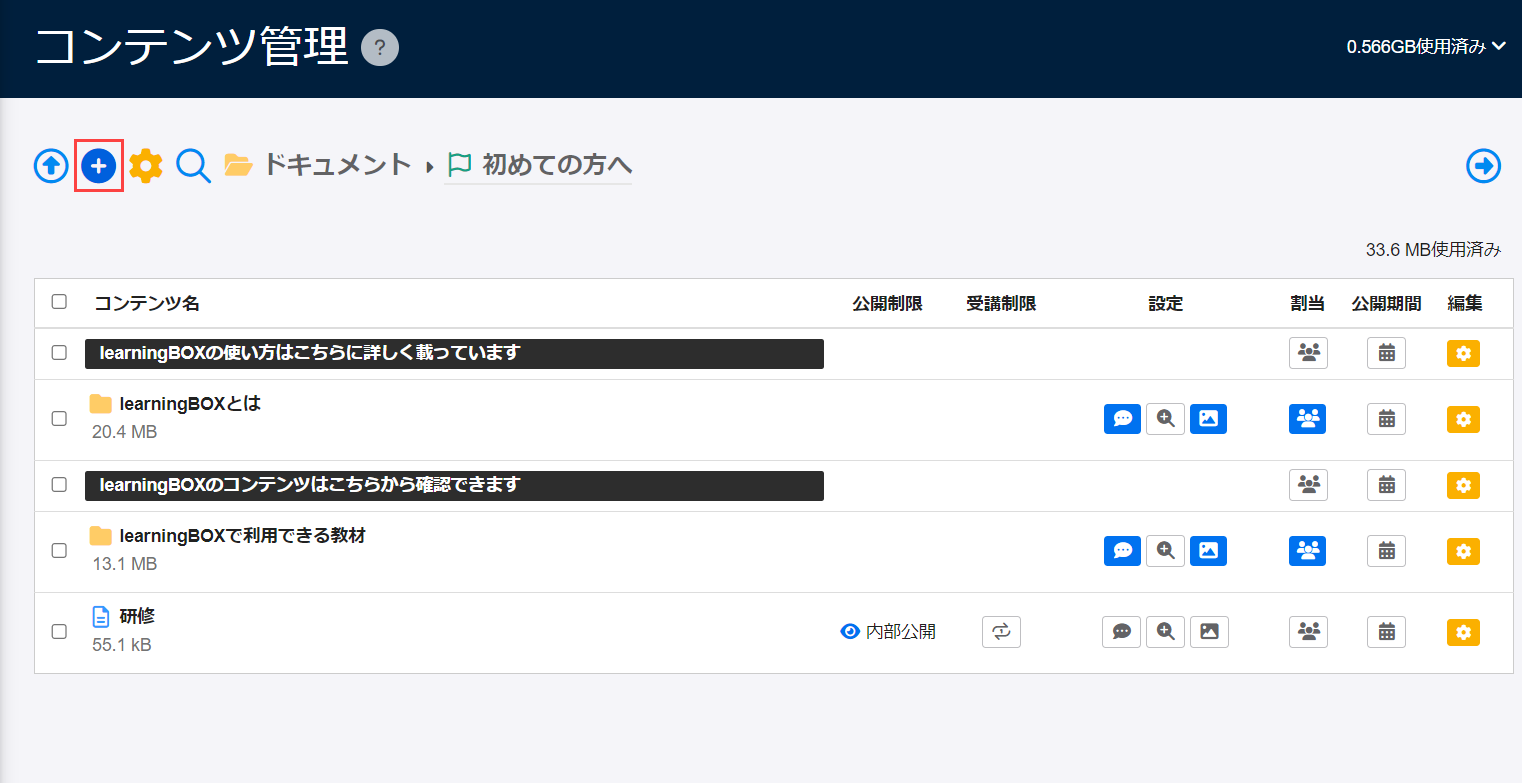
Courses and content can be created from the "+" icon on the "Manage content."
First, create a course folder, and all content will be created within this course.
*For more details, refer to Course/Folder.
Advanced settings
Apply settings for the content you have created.
Available settings include a description, thumbnail image for the content, attempt limit, duration of the content, etc.
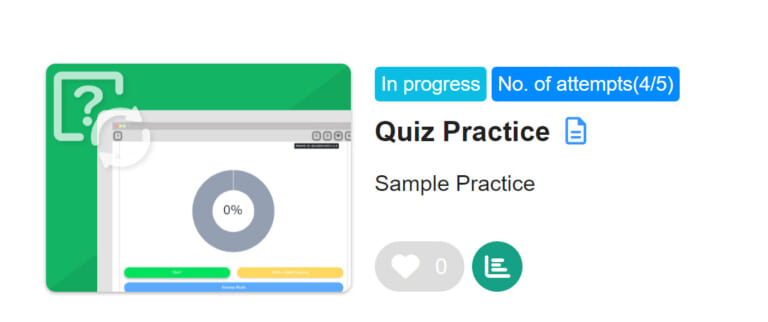
The following page will be displayed on the learner's page.
*For more details, refer to the following page:
・ Appearance
・ Functions on the first page of Manage contents
Assign content
After content creation, assign the content to users.
All users, groups and individuals are selectable.
*For more details, refer to Assign content to group.
Without assignment settings, content will not be displayed on the users' page.
Reorder content
You can reorder courses, folders and content.
*For more details, refer to Reorder content.
Data storage
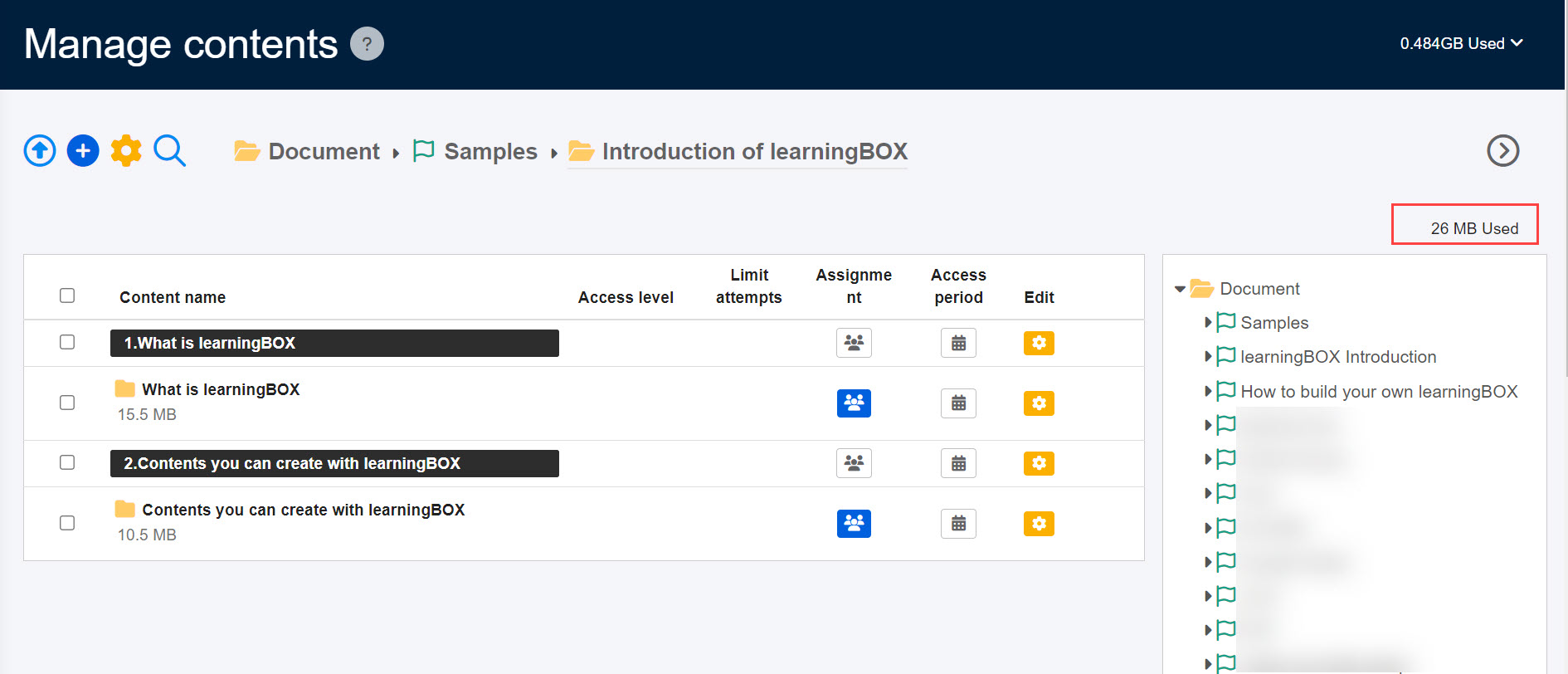
You can check the total data storage used in the Manage content and in each course.
Total data storage within the Manage content
Click the icon displayed upper right corner of the Manage contents.
*Any of the following permissions is required;
・ Content manager (All content)
・ Content manager (Edit/View) + Co-admin
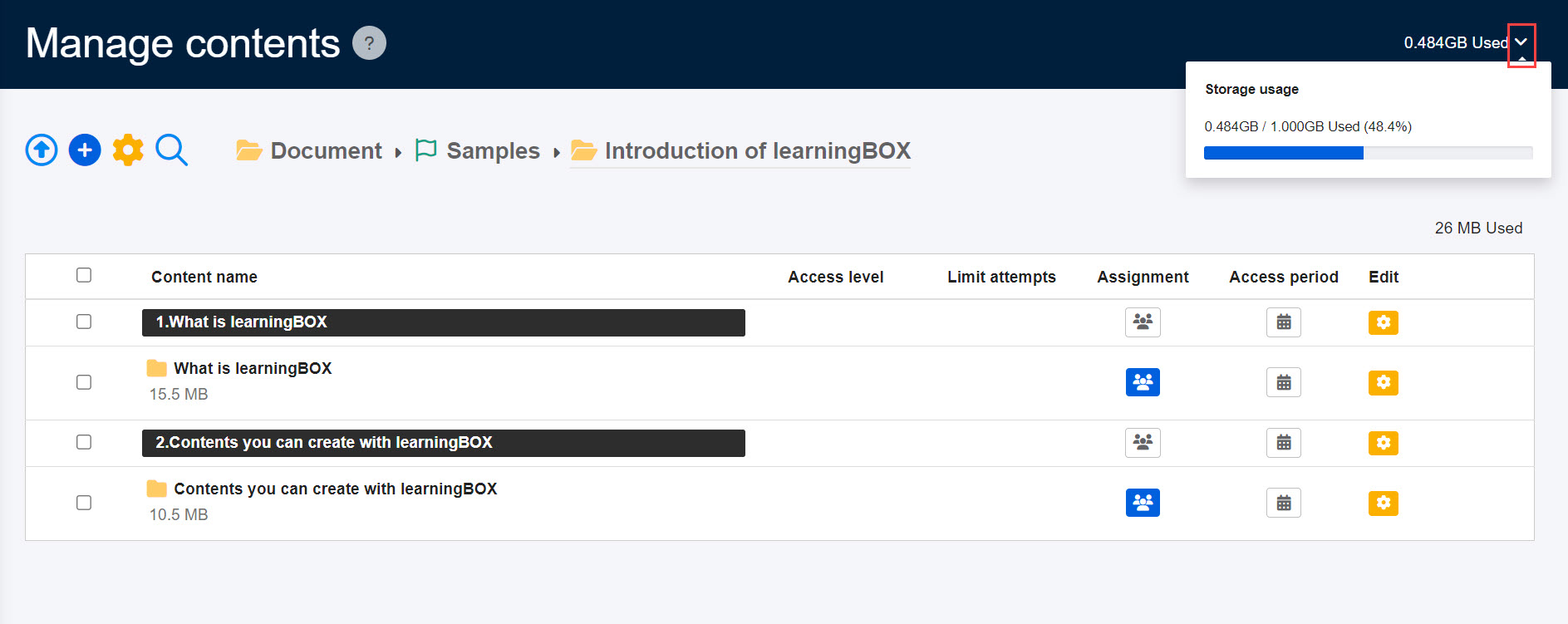
Data storage of each course
Select a course and it appears in the upper right corner of the page.
*Management role of Content manager (Edit/View) is required.