
Manage contents
On the Manage contents page, Content managers can create, duplicate, reorder, and delete content including courses and folders.
Required
Management role of Content manager (Edit/View)
Content manager (View) cannot edit courses.
*If a single course is assigned to multiple segments (excluding the default segment), you must have the corresponding segment-specific Management roles for all of those segments.
e.g.) If Course A is registered under both Segment A and Segment B:
You must hold the permissions for both Segment A and Segment B to manage it.
Create a course
Click + Create new.

Course
Required
Management role of Content manager (Edit) for all content and segments
Select Course from the menu.
Configure the following items:
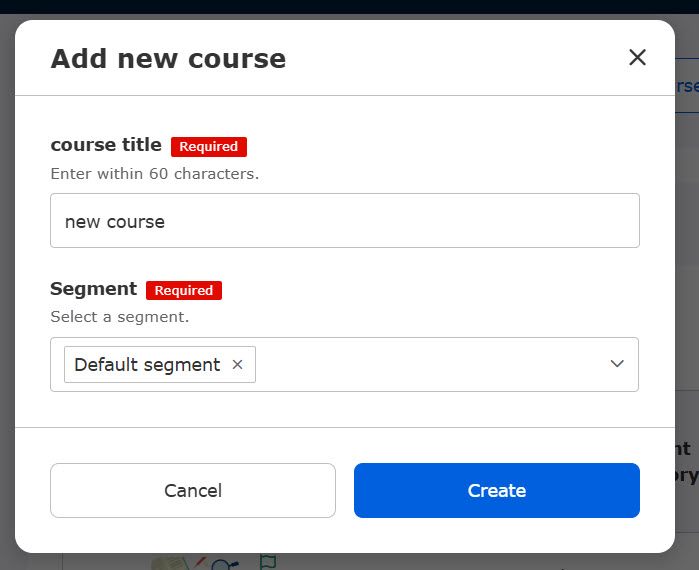
▼Course title
Enter the title of the course.
▼Segment
Select the target segment for the course from the dropdown menu.
What is a segment?
This feature allows you to group courses by segment so that learners only see the specific courses relevant to their context.
The segment selection field is only displayed if the following conditions are met:
・ Permission assignment per segment is enabled in the Segment settings page.
・ You hold Content manager (Edit) permissions for all content, or editing permissions for multiple segments.
*If you have Content manager (Edit) permissions for only one specific segment, any new course you create will automatically be assigned to that segment.
Course (Automatically generated by AI)
Required
Management role of Content manager (Edit) for all content and segments
AI (via the ChatGPT API) can automatically generate a structured course simply by uploading videos or PDF files to learningBOX.
*For more details, refer to AI Assist | Automatic course generation.
learningBOX ON (JPN only)
Required
Management role of Content manager (Edit) for all content
Provides access to a library of free, pre-built content within learningBOX (Japanese only).
*For more details, refer to learningBOX ON (JPN only).
View and edit menu
01. Course list
All created courses will be listed here.
You can quickly view key data for each course, including the number of internal components and total storage usage.

The course components represent the total number of items within a course, including content, headings and prerequisites.
Advanced search
Use the search field at the top of the page to find specific courses.

The Segment section display varies depending on your conditions:
▼ If the segment settings is active but permission assignment per segment is disabled in the Segment settings page
If you have viewing permissions for the content, all segments will appear in the dropdown menu.
▼ If permission assignment per segment is enabled in the Segment settings
If you are a Content manager (Edit/View) for all content, all segments will appear in the dropdown.
If you are a segment-specific Content manager (Edit), only the segments covered by your explicit permissions will be displayed.
02. Checking assignments, deadlines, and access periods
On the course list page, you can check the status of the Content assignment, Deadlines, and Access periods set directly for each course.
Required
Content manager (Assign)
The number of settings is displayed by group and by user.
*Settings regarding the Access period can only be configured for groups.
Note that if this setting is enabled, a green checkmark will appear.
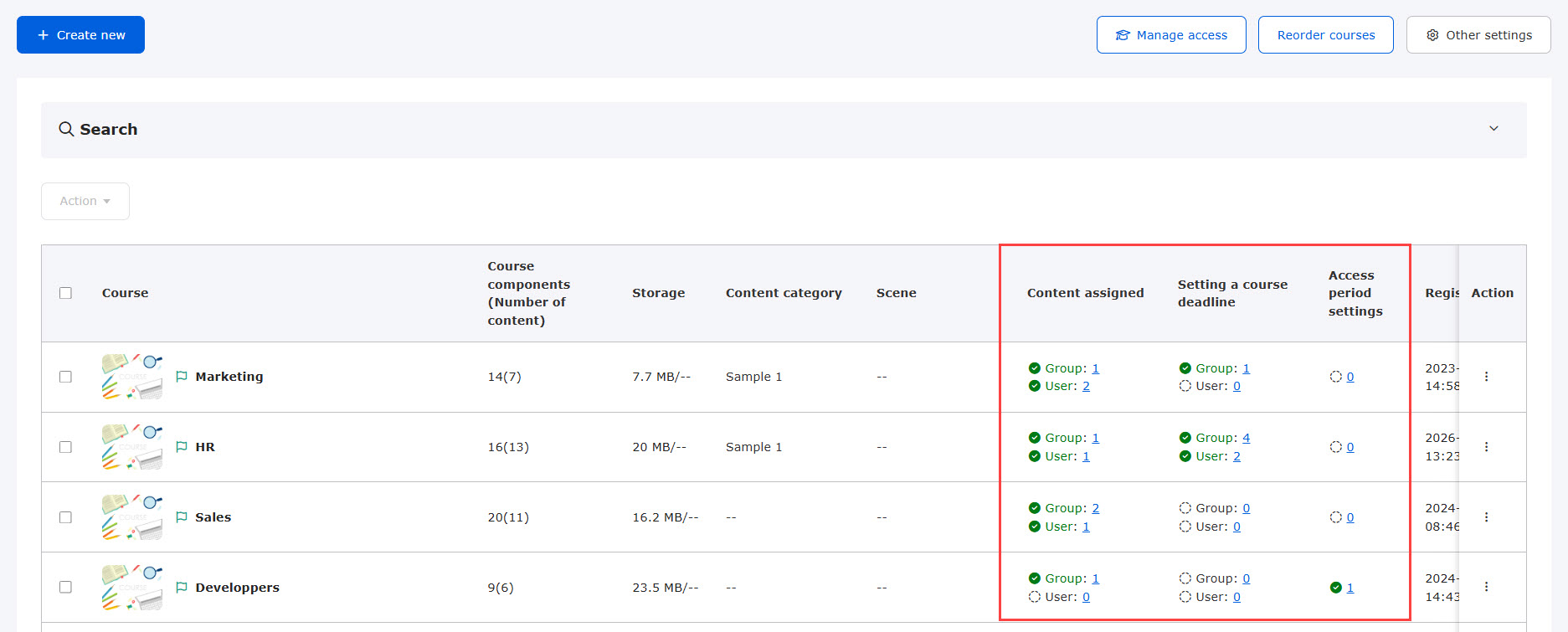
Clicking each number opens the Assign / Deadline / Access period tab on the Buld actions page underManage content assignment, with the selected course already applied.

03. Reviewing course content
Click on any course to view the internal list of folders and content.
*For more details, refer to Display settings.
04. Edit menu
To edit a course, click on the ︙ icon to the right of the course row.
*For more details, refer to Edit menu of a course.
05. Bulk actions
By selecting multiple courses, you can perform the following actions:
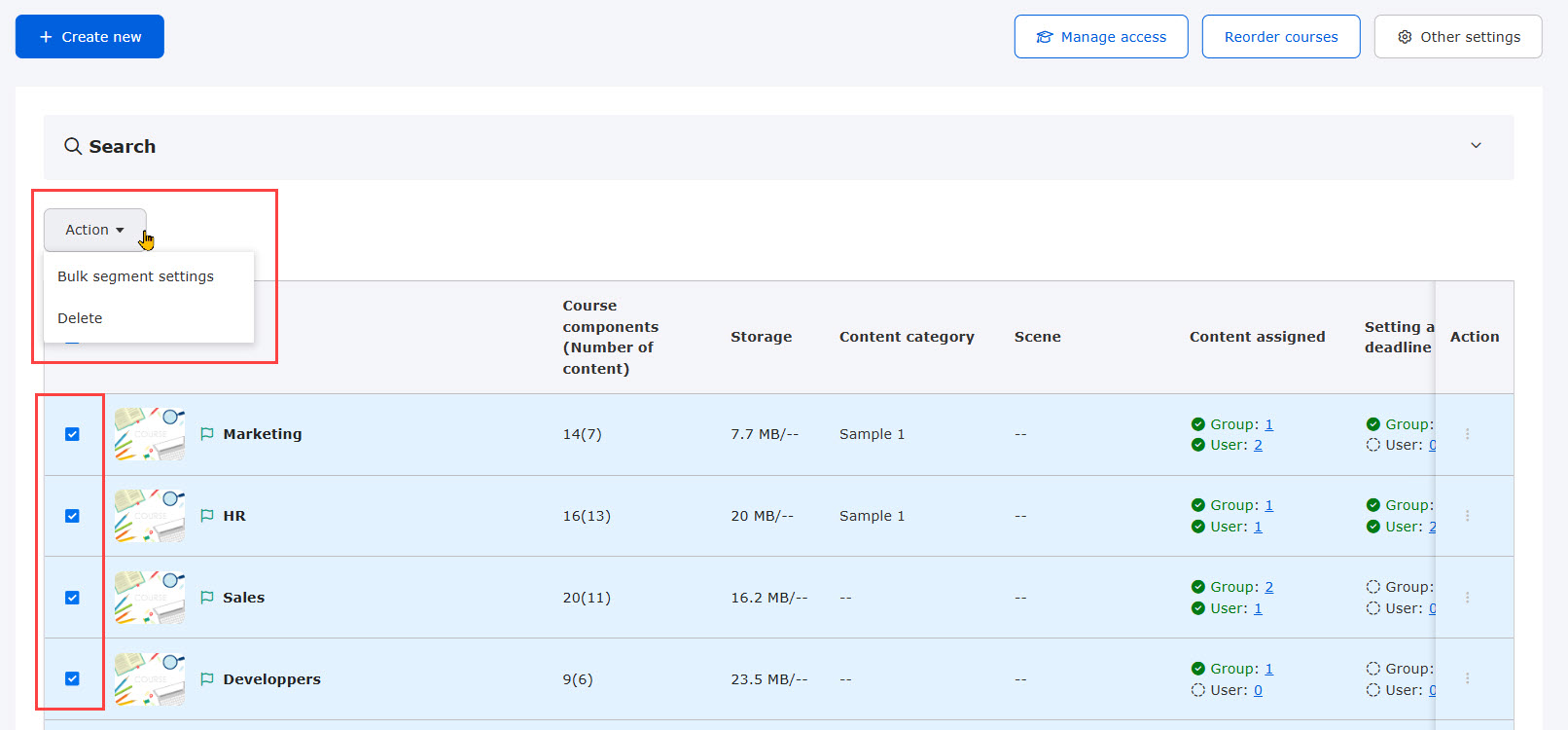
▼Bulk segment settings
Assign segments to multiple courses simultaneously.
What is a segment?
This feature allows you to group courses by segment so that learners only see the specific courses relevant to their context.
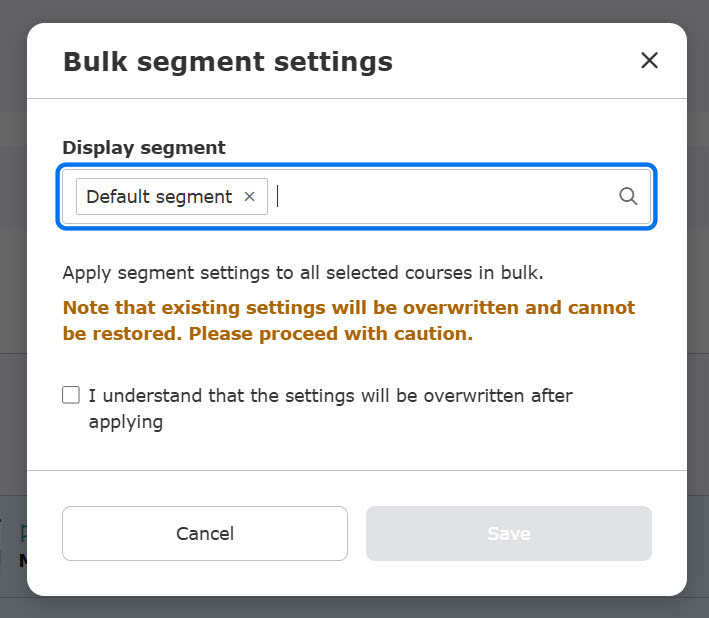
The following window will appear.
In the Display segment dropdown menu, select segments you want to apply (multiple options allowed).
You can type keywords while the dropdown is open to filter segment names.
Tick the box to save the settings.
▼ Delete
You can delete multiple courses at once.
The following window will appear.
Review the important warning notes regarding deletion.
Click Delete.

06. Site search
To search across all courses, folders, and content simultaneously, click Site search.

The following window will appear.
You can search for content by title, keywords, or unique content codes.
Click Filter to narrow down your search results by category or shortcuts.

07. Storage usage
You can monitor your current storage consumption in the upper-right corner of the page.
Required
Management role of Content manager (Edit) for all content

08. Manage access
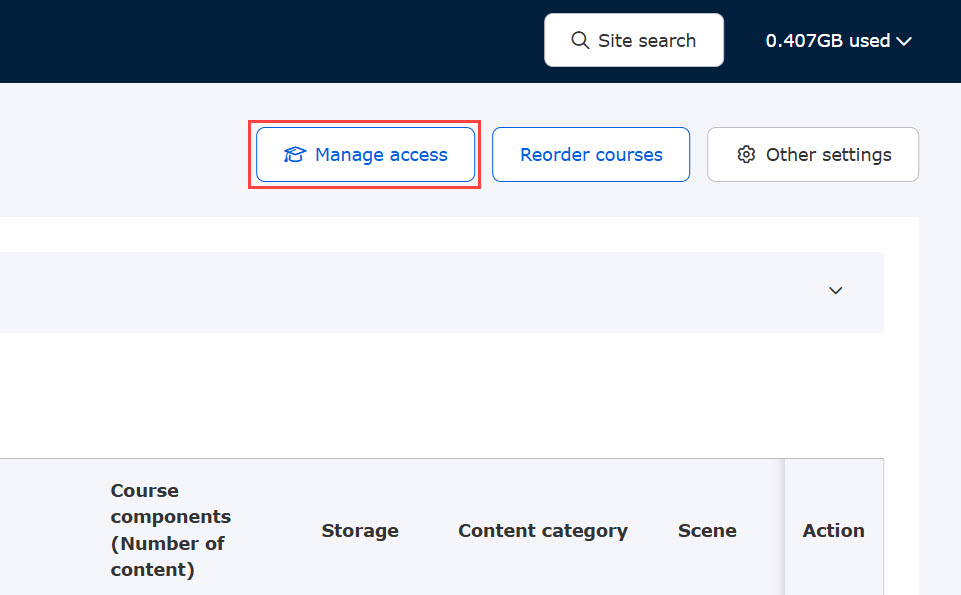
Clicking Manage access at the top of the page takes you to the Manage content assignment can be accessed from Manage access.
From here, you can view, add, or edit settings for Content assignment / Deadlines / Access period organized by content, group, or user.
Reorder courses
Required
Management role of Content manager (Edit) for all content
01. On the Manage content page
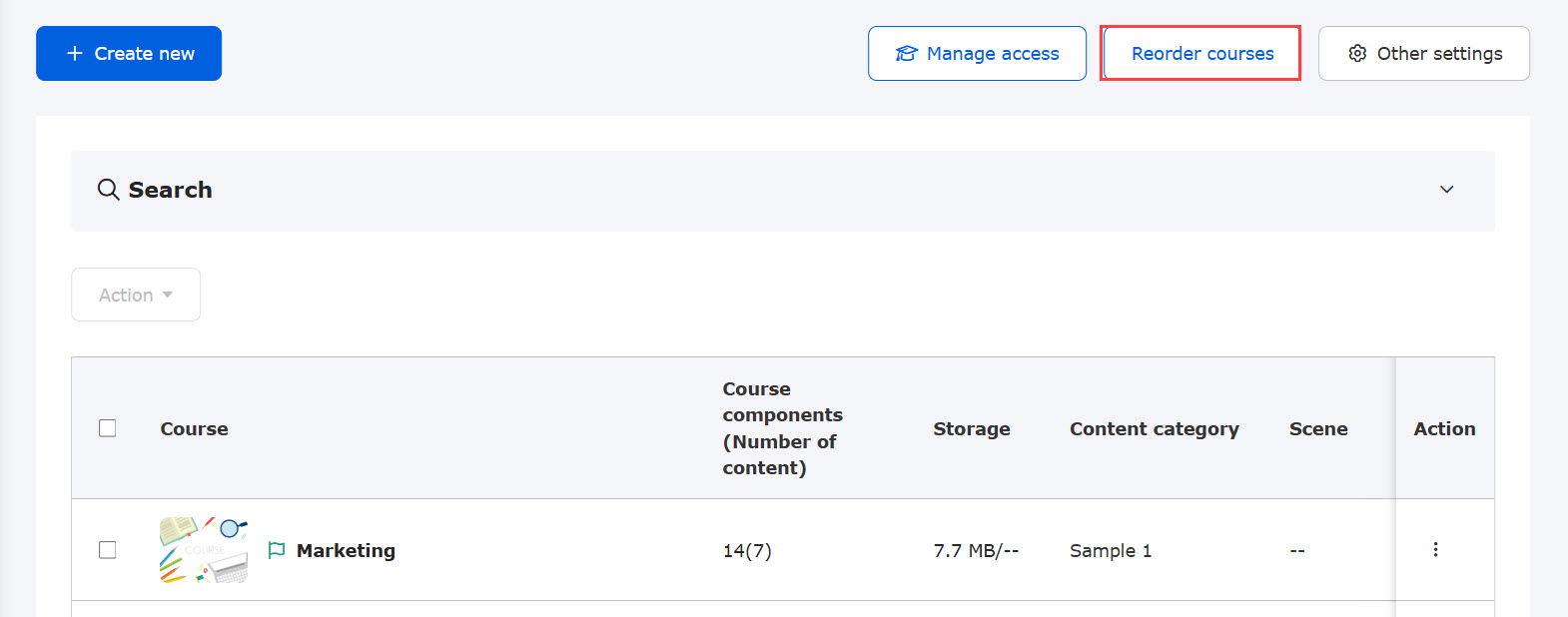
Click Reorder courses.
02. How to reorder courses
The following page will appear.
Drag and drop the ⋮⋮ icon next to the target course.
You can also click the ︙ icon next to a course and select Move to top or Move to bottom.
Click Save to apply the new order.
To go back to the first page of the Manage courses, click Back.

Other settings
The following explain the Other settings.

Basic video settings
Required
Management role of Content Manager (Edit) + Co-admin
Configure global video playback settings, including available speeds, default resolution, and formats.
*For more details, refer to Basic video settings.
Share deadline
Required
Management role of Content manager (Edit for all content) + Co-admin
When an access period is applied to content, this setting allows Content managers who do not have access to view and manage that content.
*For more details, refer to Share deadline.
Manage generator version
Required
Management role of Content Manager (Edit) + Co-admin
Specify generator versions for individual content types.
1. Select the version.
2. Click Save at the bottom of the page.

Batch conversion of content versions
Required
Management role of Content manager (Edit) for all content
You can update or convert generator versions in bulk for specific content types.
*For more details, refer to Convert to specified version.
Assessment tags
Required
Management role of Content manager (Edit)
Enhance grade analysis by tagging specific quiz or exam questions.
This provides deeper insights into learner comprehension and understanding levels per topic.
*For more details, refer to Assessment tags.
Proctoring
Required
Management role of Content manager (Edit)
Prevent cheating during online exams using advanced integrity features, including AI-powered facial recognition, facial authentication, and photo captures.
*For more details, refer to Proctoring.
Content list
Required
Management role of Content manager (Edit) for all content
View an aggregated master list of all content assets and their respective settings.
*For more details, refer to Content list.