
Edit content
This guide explains the editing menu that appears when you right-click on content or click the ︙ icon.
Available menu options vary depending on the specific type of content selected.
Edit content
Required
Management role of Content manager (Edit)
Depending on the content type, displayed menu will be different.
The main menu options are as follows:
- Create content
- Upload
- Download
- Re-upload
- Edit
Advanced video settings
Manually set the video duration displayed on the Select a course page, course start page, etc.
You can also configure whether learners are allowed to skip through video playback.
*For more details, refer to Advanced video settings.
Appearance
Configure basic display settings, including thumbnail images and titles, in bulk.
*For more details, refer to Appearance.
Required
Management role of Content manager (Edit)
Instruction
Display instructions to learners before they begin the content.
*For more details, refer to Manage instruction.
Required
Management role of Content manager (Edit)
Duplicate
Required
Management role of Content manager (Edit)
▼ Duplicate
You can create exact copies of folders and content.
The duplicated item functions completely independently from the original.
You can edit it separately, and all grades will be saved on its own.
▼Create shortcut
This option is available specifically for folders.
It creates shortcuts instead of duplicating the actual files inside.
Move to another course or folder
Folders and contents can be moved to other courses and folders.
Required
Management role of Content manager (Edit)
The following window will appear.
Select your destination from the dropdown menu and click Move.

Convert to a course and move
You can turn a folder into a course.
Required
Management role of Content manager (Edit) for all content
Click Move to confirm.

Create shortcut
You can create shortcuts for your folders and content.
This saves you from the effort of creating the same item multiple times.
*For more details, refer to Shortcut.
Required
Management role of Content manager (Edit)
Manage access
Manage content assignment can be accessed from Manage access.
From here, you can view, add, or edit settings for Content assignment / Deadlines / Access period organized by content, group, or user.
Required
Management role of Content manager (Edit/View + Assign)
Access level
You can set the access range for folders and content.
Required
Management role of Content manager (Edit)
Available options depend entirely on the type of content selected.
The main menu options are as follows:
- Internal: Content is only visible within your specific environment.
- Public: Content appears in Open quizzes for outside users to access.
- Private: Content is hidden from the users' pages.
Assign content
This feature limits access to specific folders or content by group or individual.
This can also be configured from Manage users.
Required
Management role of Content manager (Edit/View + Assign)
To assign content to individual users, the Group manager (Edit/View) management role is also required.
Assign content to groups
Click the empty field and select a group to assign the content.
Click again or select the X button to deselect a group.
Select All users to assign the content to all users in the system.
Tick Same assignment settings will be applied to the lower level folder to include all nested items.
Click Save to apply the settings.

Assign content to individuals
Select users to assign.
*Batch selection is available on each page.
You can search users in the search field.
Untick the box to remove a user from your current selection.

Selected users will be listed at the bottom.
Click Unassign to remove them from the list.
Tick Same assignment settings will be applied to the lower level folder to include all nested items.
Click on Save to complete the settings.

*If already assigned to individuals:
To find users already assigned, tick Users already assigned in the search field.
After searching users and unselect them, they will be listed in the Selected users section.
Click Save to assign them again.
Access period
You can set a specific timeframe for when content is visible to users.
*For more details, refer to Access period.
Required
Management role of Content manager (Edit/View + Assign)
Deadline
You can set a deadline for completing folders or content.
*For more details, refer to Deadline.
Required
Management role of Content manager (Edit/View + Assign)
Exam mode
You can choose whether users see pass/fail results or detailed scores.
*For more details, refer to Exam mode.
Required
Management role of Content manager (Edit)
Grading workflow
You can set the grading method for content.
*For more details, refer to Grading workflow.
Required
Management role of Content manager (Edit)
Correct scores
You can correct scores after learners submit quizzes/exams.
*For more details, refer to Correct scores.
Required
Management role of Content manager (Edit)
Proctoring
Required
Management role of Content manager (Edit)
Proctoring settings can be changed for each content.
Select a template from the dropdown menu (*These must be created beforehand).
Click New to open the Proctoring page and build a template.
Select a template and click Edit to modify its existing settings.
For details on template creation, refer to Proctoring.

Device test
Learners can check if their device is compatible before starting content.
*For more details, refer to Device test.
Required
Management role of Content manager (Edit)
Interlocking content
You can set conditions so new content appears only after passing a test.
This allows you to automatically set up follow-up tests for users who fail.
*For more details, refer to Interlocking content.
Required
Management role of Content manager (Edit)
Optional content mode
Content can be included/excluded from the completion rate within the course/folder.
*For more details, refer to Optional content mode.
Required
Management role of Content manager (Edit)
Attempt limit
You can limit attempts for each content.
*This function cannot be set to courses/folders.
Required
Management role of Content manager (Edit)
The following window will appear.

You can configure the two specific settings listed below.
Save your changes once all settings are complete.
▼Limit attempts
You can limit the number of times a user can attempt content.
You can also choose which completion status triggers this specific limit.
・ Completion status: Select the status
・ Attempts: Select the number of attempts between 1 and 10
If you want no limit, select No setting or Unlimited.
*The completion status is not mandatory to select.
▼ Time interval (hours)
You can set the time interval between the attempts.
Set from 1 to 8784 hours.
e.g.) 24 hours → Enter 24 in the field.
Leave 0 when you do not set any interval limit.
OS restriction
You can restrict access based on the user's operating system for specific content.
Required
Management role of Content manager (Edit)
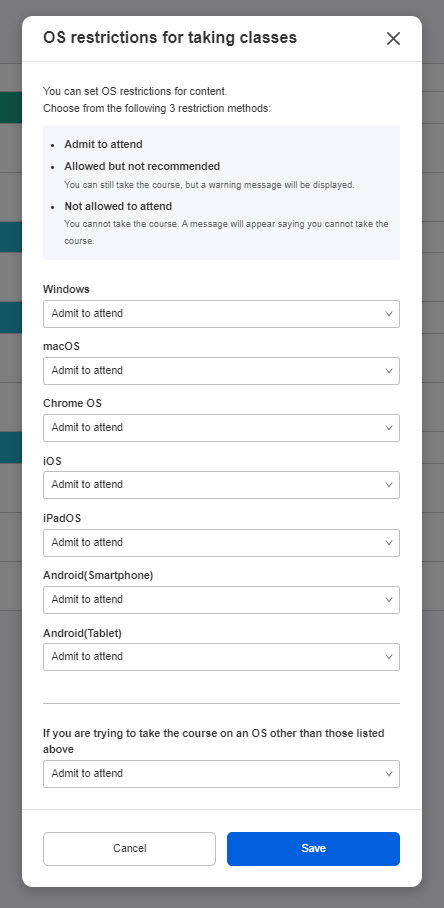
The following settings are available:
- Allow to take content
- Allow to take content but not recommended
- Disallow to take content
You can also define what happens for any unlisted operating systems.
Select one from the list on the bottom.
Save your changes once all settings are complete.
IP address restriction
You can restrict content access to only specific authorized IP addresses.
*For more details, refer to Manage IP restrictions.
Required
Management role of Content manager(Edit) + Content manager(Assign) + Co-admin
Badge
Badges can be set to specific folders or content.
Required
Management role of Content manager (Edit)
The following window will appear.

Display settings
You can show/hide badges on the learner's page.
Tick the box to show a badge.
Choose badge
Select a badge from the list.
You can also create a new badge.
▼ None
No badges will be given.
▼Create a new badge
You can create a new badge.
*For more details, refer to Manage badges, Add badges.
▼Use an existing badge
Select the badge from the list.
Content category settings
The content category set for the badge will be displayed.
*For more details, refer to Manage badges, Content category settings
Course size limits
You can limit the amount of data that can be registered in a course.
*For more details, refer to Course size limits.
Required
Management role of Content manager (Edit)
Leaderboard
Ranking board helps learners accelerate learning and motivated for higher scores.
It displays rankings like current position or who is in first place.
*For more details, refer to Leaderboard.
Required
Management role of Content manager (Edit)
Tally board
Tally board shows learners' answers with a pie chart or bar graph.
Admins see overall trends, while learners can review their own strengths.
*For more details, refer to Tally board.
Required
Management role of Content manager (Edit)
Completion notification
Email notifications can be sent to learners depending on their status.
*Notifications can be sent to the admin, manager(s) or learners respectively.
Required
Management role of Content manager (Edit)
To use this function, turn on the toggle key and select the trigger timing.

Email settings page has the same settings. However, these individual settings will always take priority.
Convert to specified version
You can convert the existing content to the version specified on the Manage generator version page.
Required
Management role of Content manager (Edit)

Content URL
Required
Management role of Content manager (Edit/View)
The following actions are available:
▼Copy URL
You can copy the URL of the content on the Select a course page.
▼Access URL
This URL opens the content's page on the Select a course page directly.
*When the content is out of the Access period or any other reasons to hide it, the page will be redirected to the Dashboard.
Access level: When it is set to Public, you can obtain a URL for public access and open the content start page directly.

Check grades
Grade managers can access to the list of assigned grade.
*For more details, refer to Scores.
Required
Management role of Content manager (Edit) & Grade manager (Edit/View)
Information
Detailed information including the content version, registered date and data storage.
Required
Management role of Content manager (Edit/View)
Delete
You can delete folders and contents.
Required
Management role of Content manager (Edit)